Getting started
Import the demo
The demo fills your site with pages, projects, posts, products, menus, widgets, and Customizer settings. Then you replace the demo content with your own.
The import adds content. It removes nothing. On a site that already has content, you get both, mixed together. The import also replaces some settings with the demo's. See Settings the import changes.
Before you import#
- Quire is active, and Quire Core is active. See Install the plugins.
- Elementor, Contact Form 7, WooCommerce, and One Click Demo Import are active. The home pages and most inner pages are built with Elementor, the demo has a contact form, and it has a small shop.
- If you use the child theme, activate it now, before the import. The Customizer settings are saved for the active theme. See The child theme.
Check your server#
Go to Appearance > Import Demo Data. At the top of the screen, the box Before you import the Quire demo checks your site. Each row starts with Ready: or Check:. A Check: row also says why it matters.
| Row | Why it matters |
|---|---|
| WordPress 7.1 or newer | Contact Form 7, which the demo uses for its form, needs it. |
| PHP 8.3 or newer | Contact Form 7, which the demo uses for its form, needs it. |
| PHP memory limit of 256M or more | A low limit can stop the import halfway. The row shows the limit your site allows. |
| PHP time limit of 30 seconds or more | The import works in short steps, so 30 seconds is enough. The row is also ready when your site has no time limit, or when PHP may raise the limit. |
| The Quire theme is active | The Customizer settings are saved for the active theme. Quire Child counts as Quire here. |
| Elementor is active | The home pages and most inner pages are built with it. |
| WooCommerce is active | Without it, the shop and the six products are skipped. |
| Contact Form 7 is active | Without it, the contact form is skipped. |
The import still runs when a row says Check:. Fix what you can first. The Requirements card on the Quire dashboard shows the WordPress and PHP versions too. See The Quire dashboard.
Many hosts let you raise PHP limits yourself, in the hosting control panel under "PHP settings" or "PHP options". If yours does not, send your host this message:
Please set these PHP values for my site:
memory_limit = 256M
max_execution_time = 300
One Click Demo Import asks for 350 MB of memory and 300 seconds by itself, where the host allows it. The import reads every file from the Quire Core plugin on your own server, so the upload size limit does not matter here.
Run the import#
- Go to Appearance > Import Demo Data. You can also click Open the demo import on the Quire dashboard.
- Read Quire's note about what the import adds and changes.
- Click Import Demo Data.
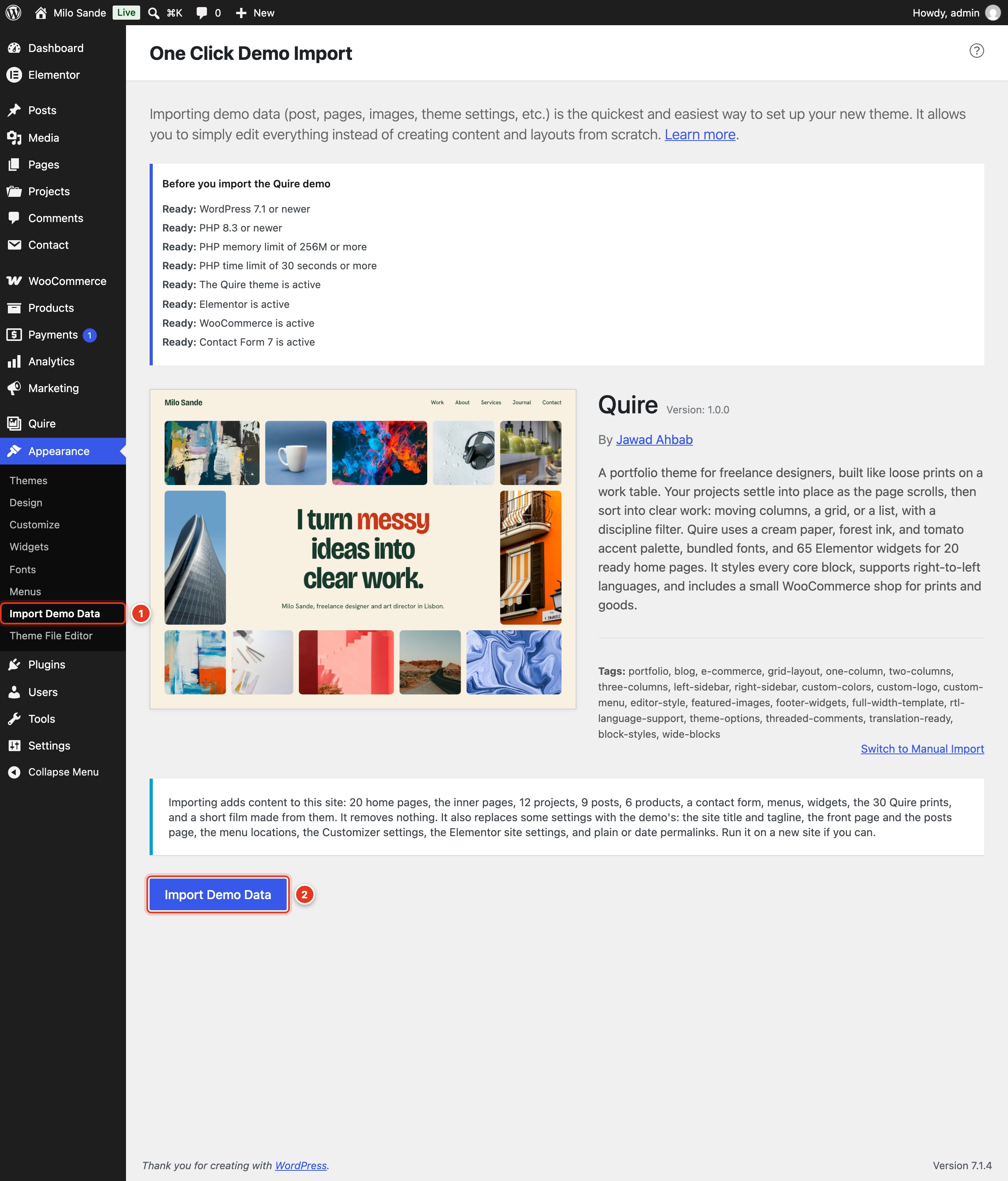
- Appearance > Import Demo Data.
- Import Demo Data opens the next step.
- The next screen lists plugins. Elementor is ticked and locked, because the demo needs it. Contact Form 7 and WooCommerce are ticked. If one of them is not installed yet, One Click Demo Import installs it from WordPress.org.
- One Click Demo Import also lists plugins from its own partners, marked with a star. Quire does not need them. Leave them switched off.
- Click Continue & Import. Keep the tab open until the import says it is done.
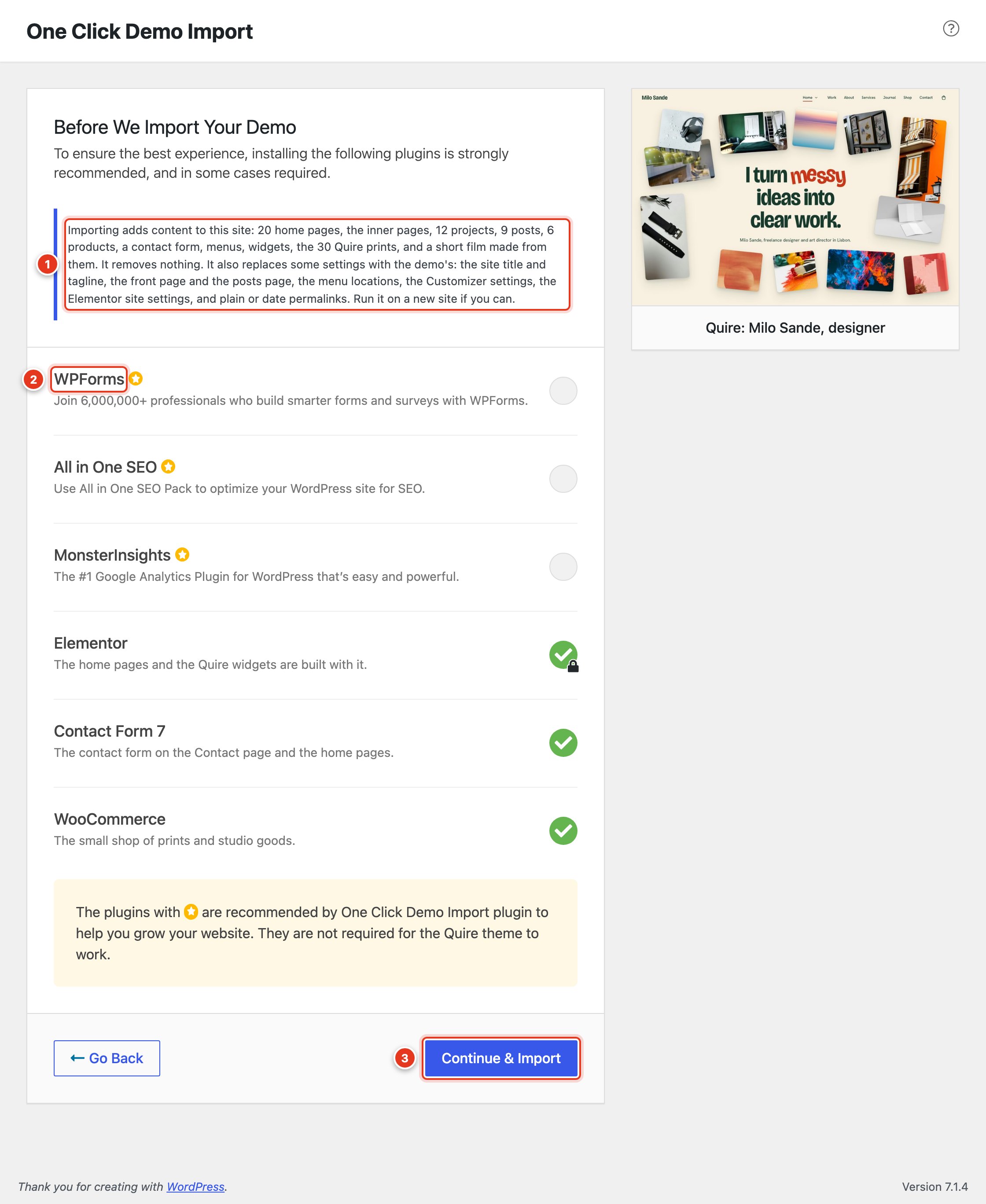
- Quire's note: what the import adds and which settings it replaces.
- A partner plugin of One Click Demo Import (WPForms, All in One SEO, MonsterInsights). Quire does not need these.
- Click Continue & Import.
How long it takes#
On our test server, the import took less than 30 seconds. On a slow shared host it can take several minutes. One Click Demo Import works in steps of about 25 seconds, so a short PHP time limit does not stop it.
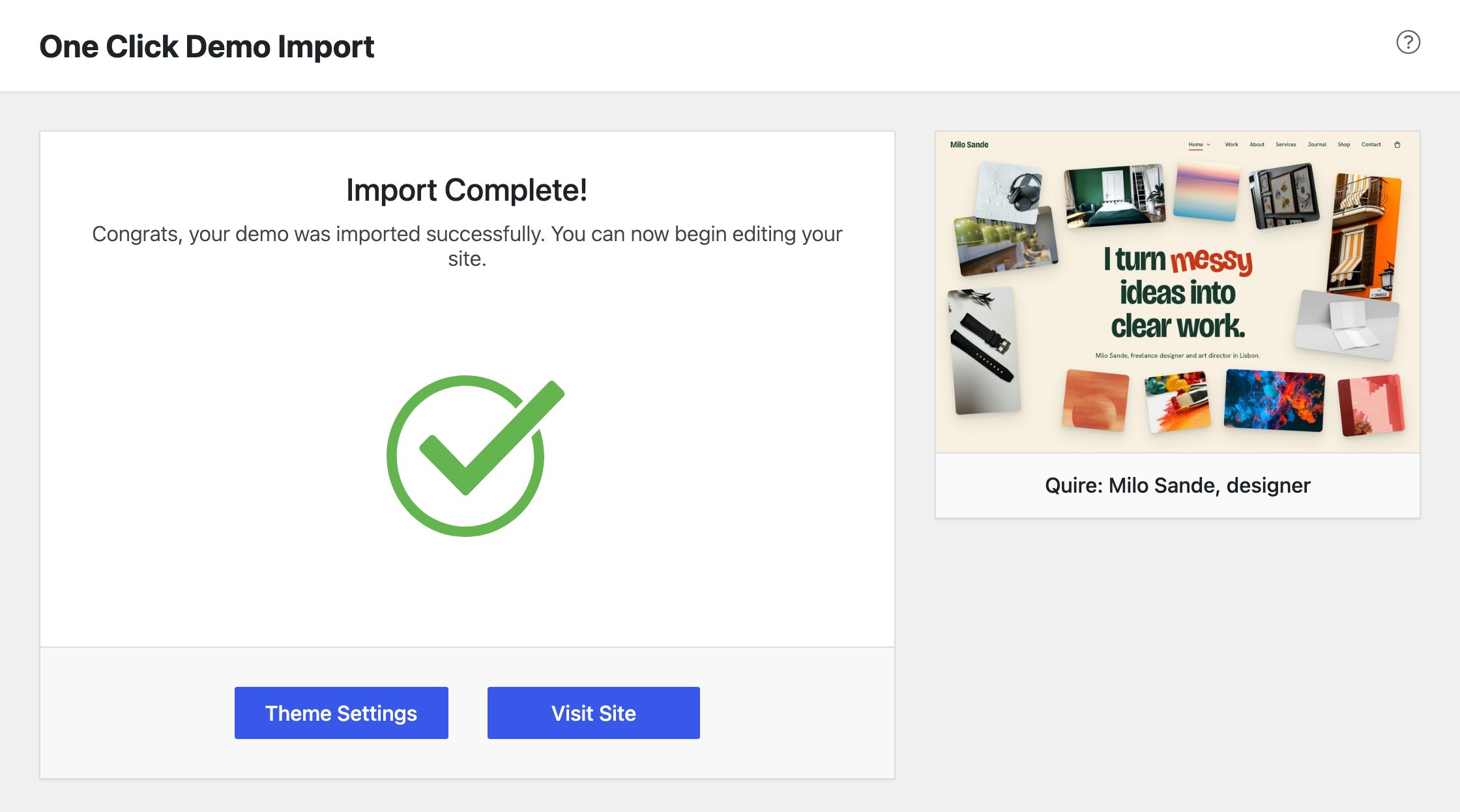
When the import is done, the screen says Import Complete! Visit Site opens your new front page.
What the import adds#
| Content | Number | Details |
|---|---|---|
| Pages | 27 | The 20 home pages, and Work, About, Services, Journal, Contact, Style guide, and Privacy policy. |
| Projects | 12 | Under Projects, with their disciplines, clients, years, and galleries. |
| Posts | 9 | On the Journal page, with their categories. |
| Products | 6 | Four prints, a clay cup, and a brush set. Only when WooCommerce is active. |
| Contact form | 1 | A Contact Form 7 form named "Contact form". Only when Contact Form 7 is active. |
| Header and footer templates | 2 | Under Quire > Header and Footer. They show on Home 04 and Home 14 only. See Header and footer. |
| Menus | 3 | Primary, Footer, and Social, each in its menu location. The "Home" item of the Primary menu lists all 20 home pages. |
| Sidebar widgets | 9 | In the blog sidebar and the three footer columns. |
| Media | 31 | 30 placeholder prints and a short placeholder film. |
Every home page is built from Quire widgets, so you can change any of them in Elementor. See Home pages.
The demo images#
The photos and the film on the live demo are for the preview only and are not in the download. The import gives you placeholder images in their place: 30 flat prints of simple color shapes and a short film, in the same sizes as the photos, so every layout keeps its shape. They come with the demo inside the Quire Core plugin, so the import copies them from your own server into your Media Library. It downloads nothing from the internet. Replace them with your own images.
Milo Sande, the clients, and all other names and texts in the demo are made up. Replace them with your own.
Settings the import changes#
The import replaces these settings with the demo's:
- The site title and tagline (Milo Sande, "Designer and art director in Lisbon").
- The front page (Home 01 Table) and the posts page (Journal). The number of posts on a blog page becomes 6.
- The privacy policy page, but only when your site does not have a published one.
- The menu locations.
- All Customizer settings of Quire: colors, fonts, header, blog, footer, contact details, and the others.
- The Elementor site settings: the content width, colors, and fonts of the theme go into Elementor's active kit, and Elementor's default colors and fonts are turned off. Your site keeps one kit.
- The permalinks, but only when they are plain or date-based. They become "Post name". Any other structure you chose stays.
- The project archive address. See the next heading.
- WooCommerce's setup wizard is skipped, and the store's "coming soon" mode is turned off. See The shop is open.
The project archive moves to /projects/#
On a new site, your projects are listed at yoursite.com/work/. The demo has its own page named Work, built in Elementor, at /work/. Two things cannot share one address, so the import moves the project archive to /projects/. Each project then lives at /projects/project-name/.
To change it, go to Quire > Dashboard and edit Archive address. See Projects archive address.
The shop is open#
A new WooCommerce store starts in "coming soon" mode, which hides the shop from visitors. The demo is meant to be seen, so the import turns this mode off. To hide your shop again while you prepare it, go to WooCommerce > Settings > Site visibility. If WooCommerce's own pages (Shop, Cart, Checkout, and My account) are missing, the import asks WooCommerce to make them again.
What stays#
The import removes nothing. Your own posts, pages, and media stay. WordPress's own "Hello world!" post and "Sample Page" stay too. You can delete them under Posts and Pages.
Go to Contact > Contact Forms, open "Contact form", and click the Mail tab. The import fills the From field with your site's admin email address. If that address is not on your own domain (for example, a Gmail address), change it to one that is, such as [email protected]. Otherwise many mail servers refuse the message. The form sends each message to your site's admin email address.
Pick your home page#
The demo has 20 home pages, each with its own opening widget and order of widgets. The import sets Home 01 Table as your front page. The Demo content card on the Quire dashboard lists all 20 after the import.
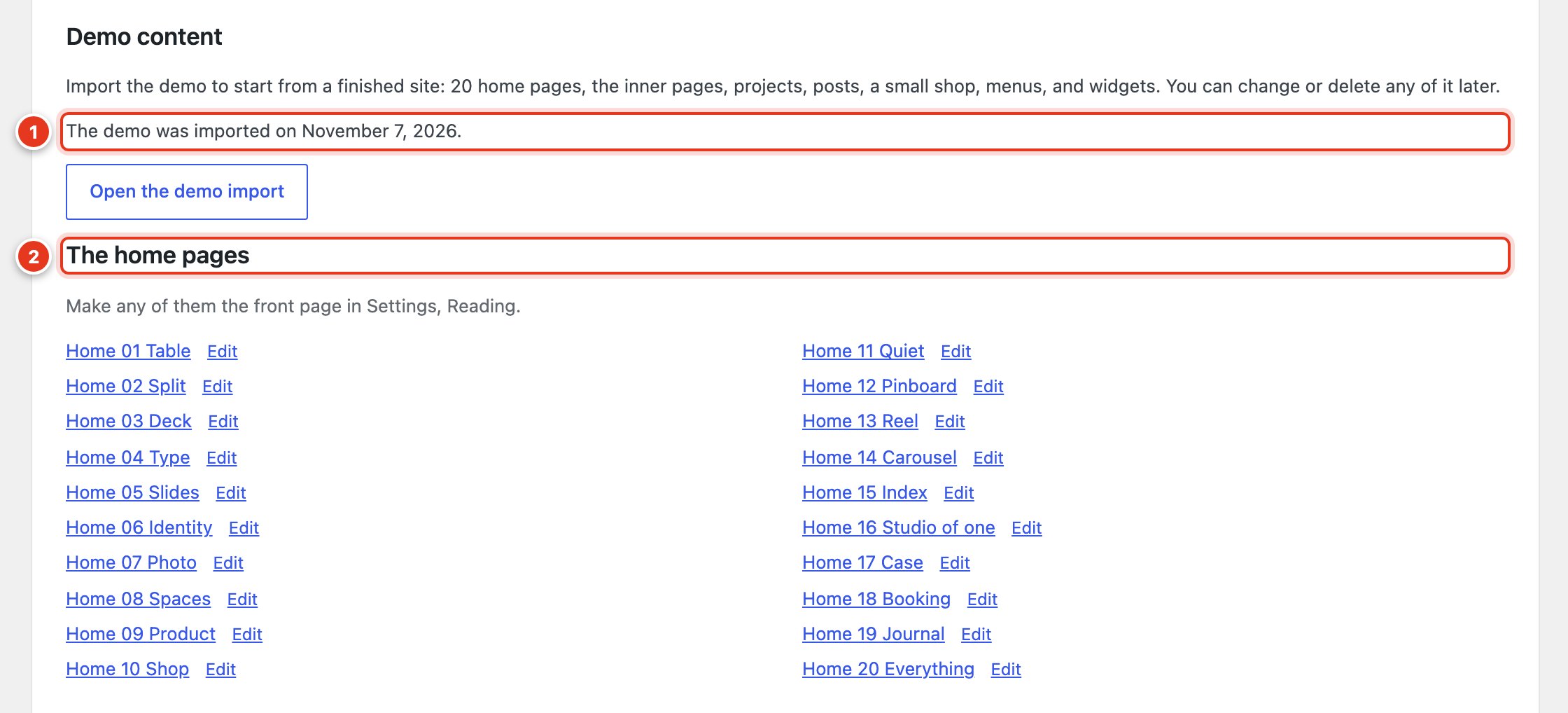
- The date of the import.
- The home pages: each name opens the page, and Edit opens it in the editor.
To use another home page as your front page:
- Go to Settings > Reading.
- In Homepage, choose a page whose name starts with "Home", for example "Home 07 Photo".
- Click Save Changes.
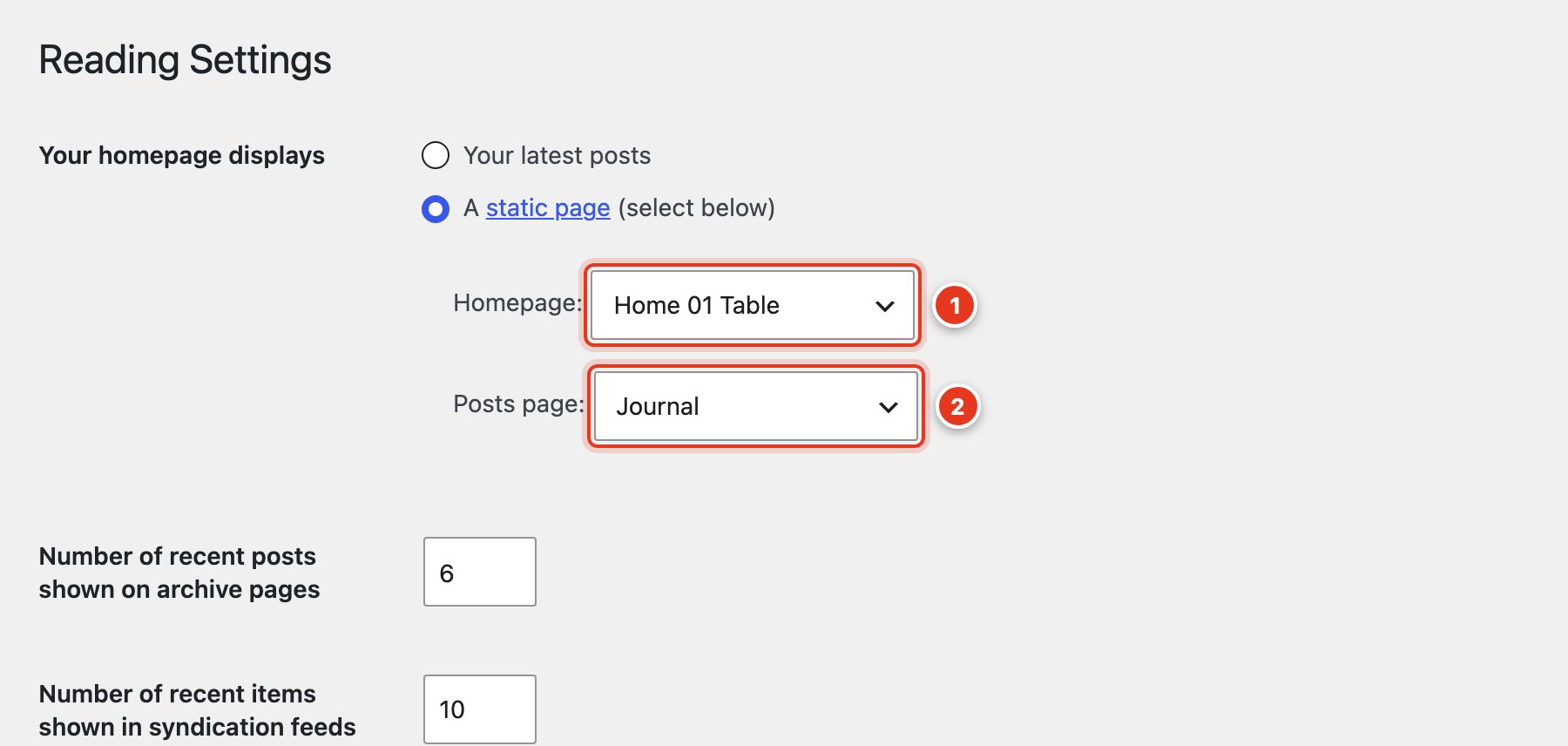
- Homepage: the page visitors see first.
- Posts page: the blog. The import sets it to Journal.
You can delete the home pages you do not use under Pages. Then remove them from the "Home" item of the Primary menu too, under Appearance > Menus.
If the import stops#
- It stops halfway or shows an error. A server limit was reached. Check the rows in Check your server, raise the limits, and run the import again.
- Pages are empty. Elementor was not active during the import.
- No shop or no contact form. WooCommerce or Contact Form 7 was not active during the import.
The fixes for these problems are in Troubleshooting.
Quire 1.0.0 documentation, updated 2026-11-07. Online at quire.jawad.work/docs/.