Building your site
Site basics
These are the first things to set after a demo import, or on an empty site. Most of them are WordPress's own settings. This page shows what Quire does with each one.
Site title and logo#
Go to Appearance > Customize > Site Identity. This is WordPress's own group. Quire does not move it or add to it.
- Logo: when you add a logo, it takes the place of the site title at the start of the header bar. It is shown at most 48 pixels high on wide screens (40 pixels on phones) and at most 220 pixels wide. To keep it sharp on high-resolution screens, upload it about twice that size, for example 96 pixels high. A PNG with a transparent background works best.
- Site Title: shown in the header bar when there is no logo. The phone menu always shows the site title as text, also when a logo is set, so keep the title filled in.
- Tagline: a short line about your site. It is used in the browser title and under the journal head when your posts are on the front page.
- Site Icon: the small image in browser tabs and on phone home screens. Use a square image of at least 512 by 512 pixels.
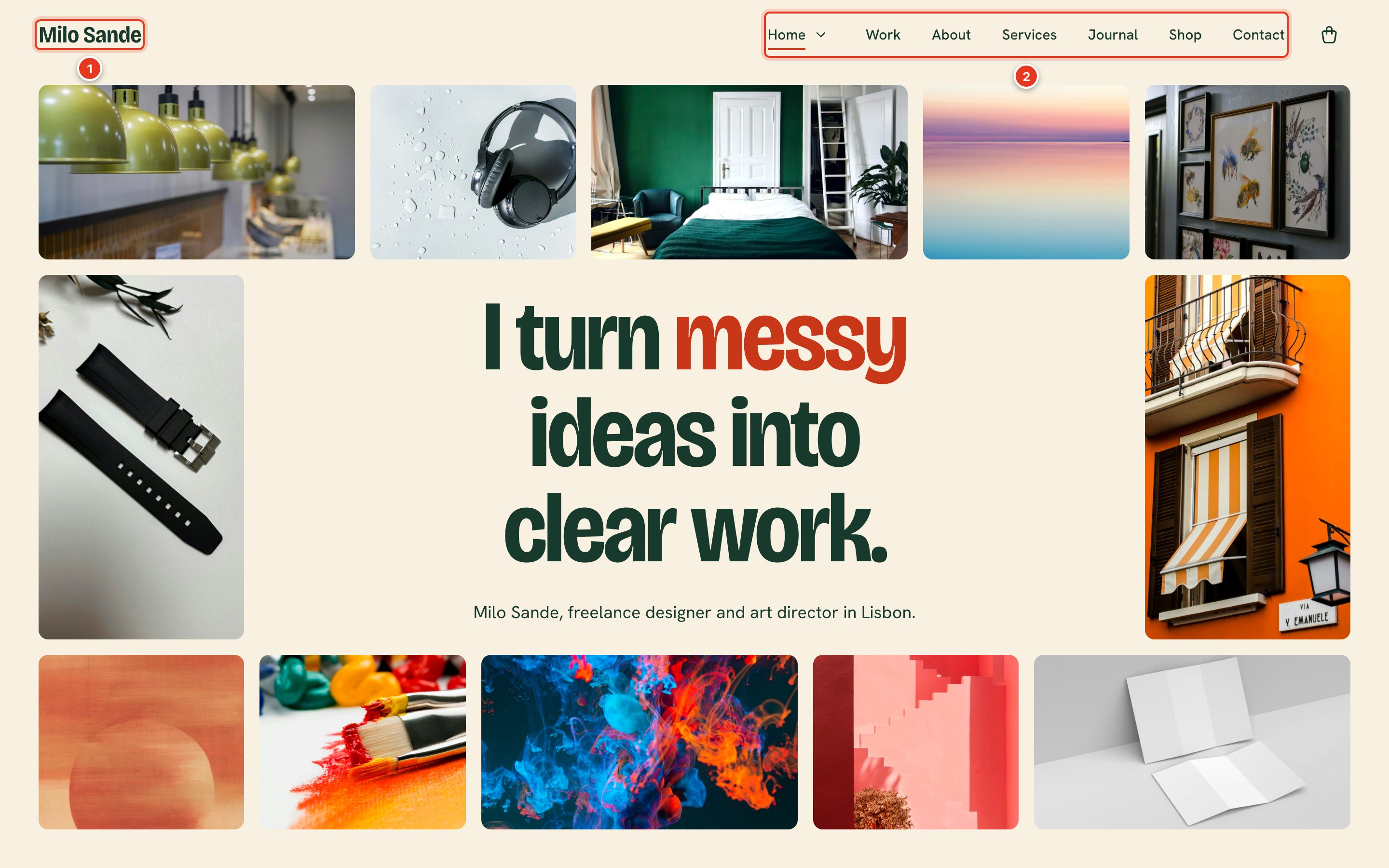
- The site title, or your logo when you set one.
- The menu in the Primary menu location. The bag icon after it is the cart, shown when WooCommerce is active.
The demo's name, Milo Sande, and the clients in the demo are fictional. Replace them with your own.
Front page and posts page#
Go to Settings > Reading. Choose A static page, then pick a page for each list.
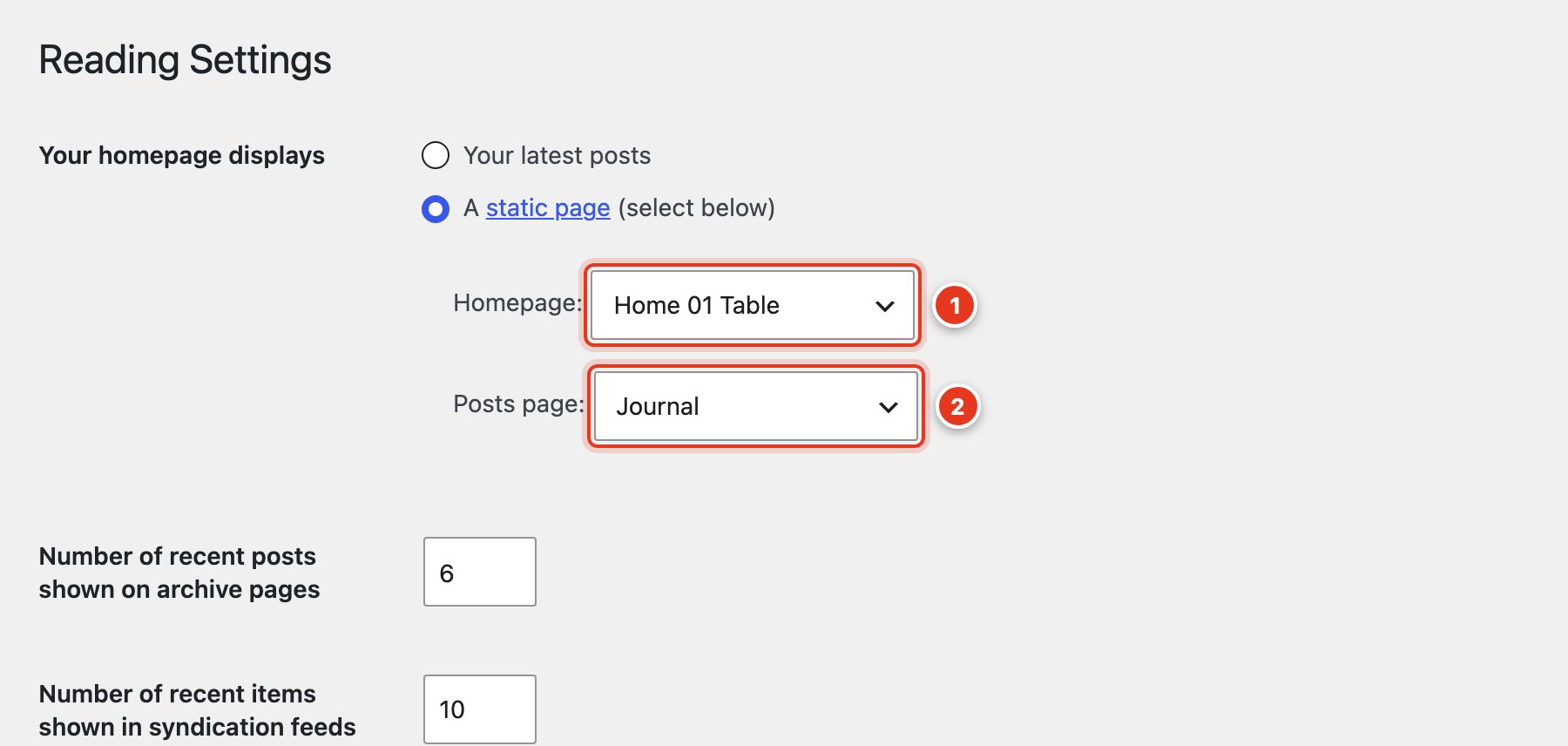
- Homepage: the page visitors see first. The demo import sets Home 01 Table. Pick any of the 20 home pages here. See Home pages.
- Posts page: the page that lists your posts, called the journal in Quire. The demo import sets Journal. Leave this page empty in the editor: WordPress fills it with your posts. See Blog.
After a demo import, both are already set. The import also sets Number of recent posts shown on archive pages to 6, so the journal's cards, three across, fill two full rows.
Menus#
Quire has three menu locations. Go to Appearance > Menus to fill them.
| Location, as WordPress shows it | Where it shows |
|---|---|
| Primary menu (the bar and the phone menu) | The links in the header bar on wide screens, and the full-screen menu on phones. Every level of the menu is shown. |
| Footer menu | The links in the footer row, next to the copyright line. |
| Social links (used when no profiles are set in the Customizer) | The social links in the footer and the phone menu, but only while Customize > Quire > Contact and social has no profiles. Add each profile as a Custom Link. Quire picks the icon from the address. See Contact and social. |
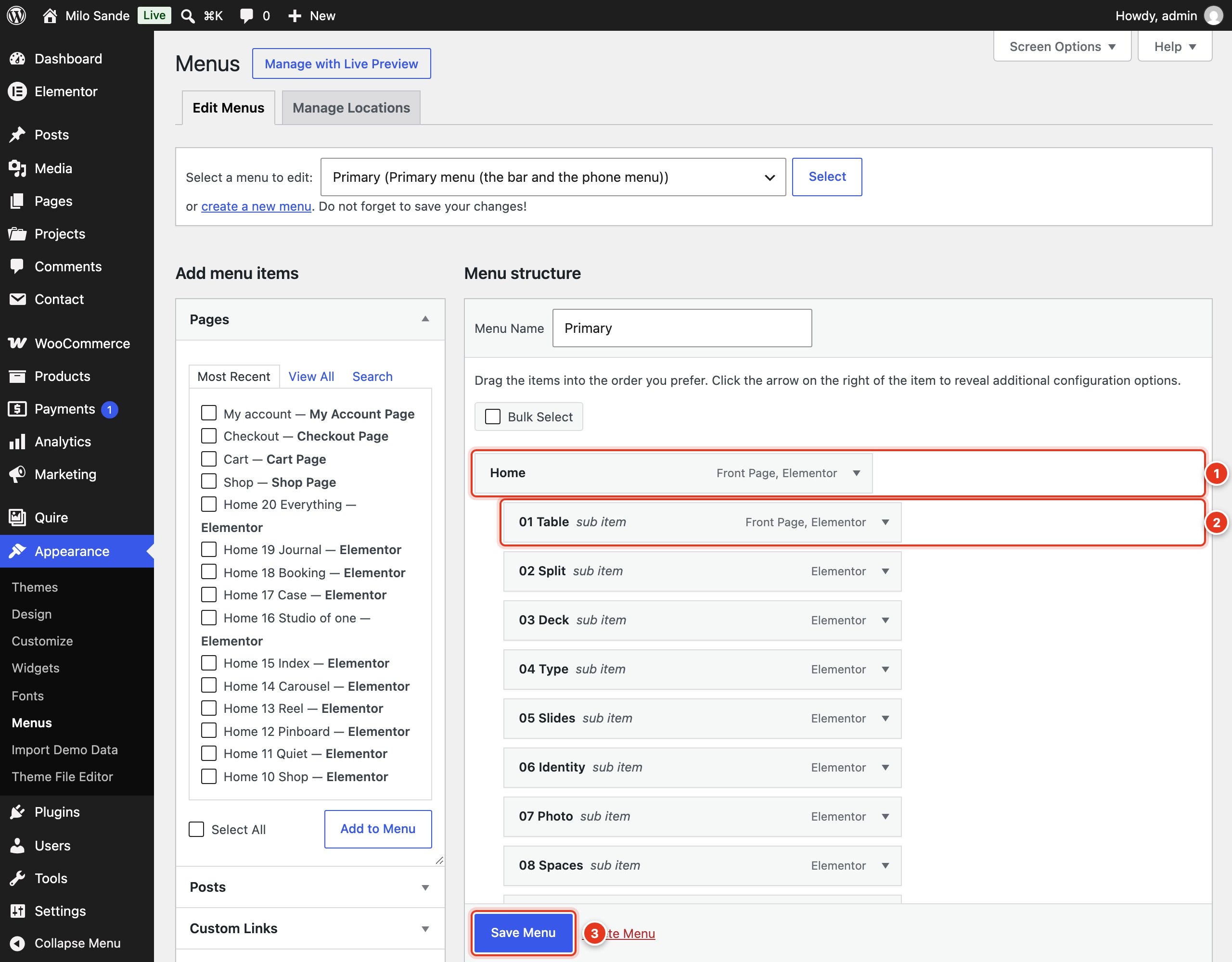
- A top-level item. In the demo, Home links to the first home page and holds the 20 home pages as a sub-menu.
- A sub item, such as 01 Table. To make an item a sub item, drag it a little to the right, under its parent.
- Save Menu. Before you click it, scroll down to Menu Settings under the list and tick the place for this menu in Menu location.
You can also choose the menu for each location on the Manage Locations tab. The demo import creates three menus, named Primary, Footer, and Social, and puts each one in its location.
Dropdowns#
On wide screens, the items under a top-level item open in a dropdown card. The card opens when the pointer is over the item. Keyboard and touch users open it with the small arrow button next to the item. Deeper levels are shown inside the same card, so every item of your menu can be reached.
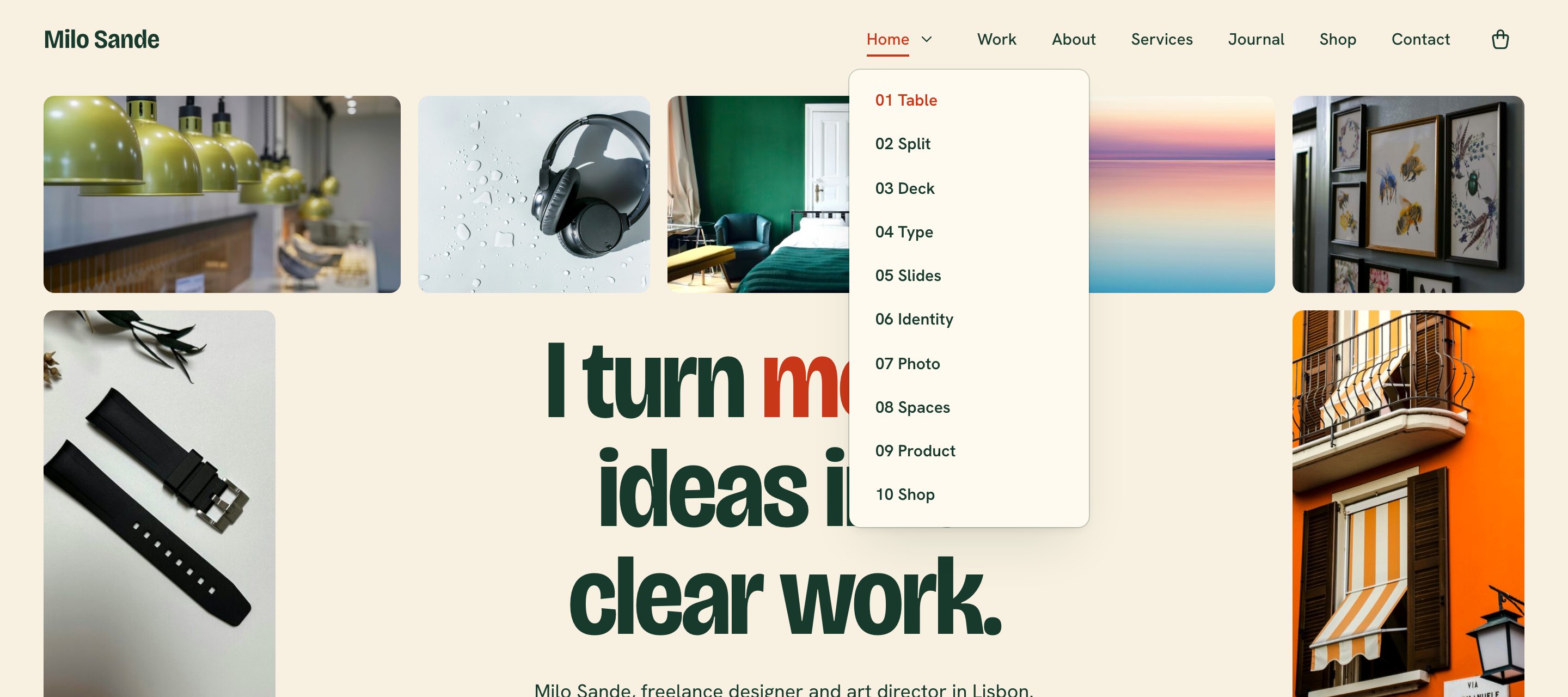
A dropdown card is at most 420 pixels high, and less on a short screen. A longer list scrolls inside the card, with the theme's scrollbar. The demo's Home item uses this for its 20 home pages.
The phone menu#
On screens 820 pixels wide or less, the header shows a Menu button instead of the links. It opens a full-screen menu on a forest background.
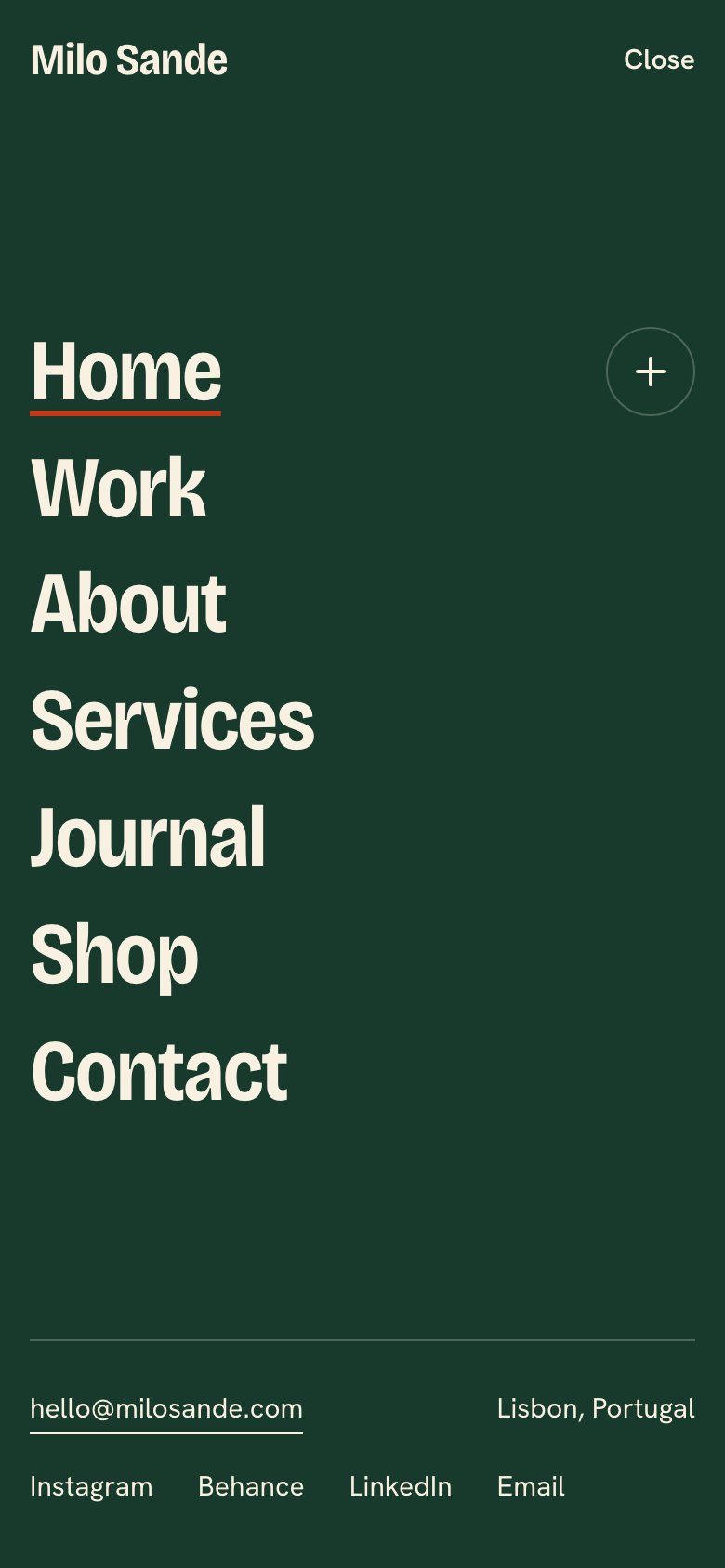
- Each item that has sub items gets a round + button. It opens the sub items below the item.
- Close at the top right closes the menu. The Escape key closes it too.
- The foot of the menu shows the Email address, the Place, and the social profiles from Contact and social. A part that is empty is left out.
- When Show a search button is on in Header settings, the phone menu has a search field too.
Without JavaScript, the phone header shows the menu links in the bar instead, so the menu always works.
Widgets#
Go to Appearance > Widgets. Quire has five widget areas:
| Area | Where it shows |
|---|---|
| Blog sidebar | Beside the journal, post archives, search results, and single posts, when Blog settings put the sidebar on the left or the right. |
| Shop sidebar | Beside the shop and product category pages, when Shop settings put the sidebar on the left or the right. |
| Footer column 1, Footer column 2, Footer column 3 | Three columns above the footer row. The columns show only when at least one of them has widgets. |
A sidebar shows only when its area has widgets. An empty area leaves no gap: the layout closes up.
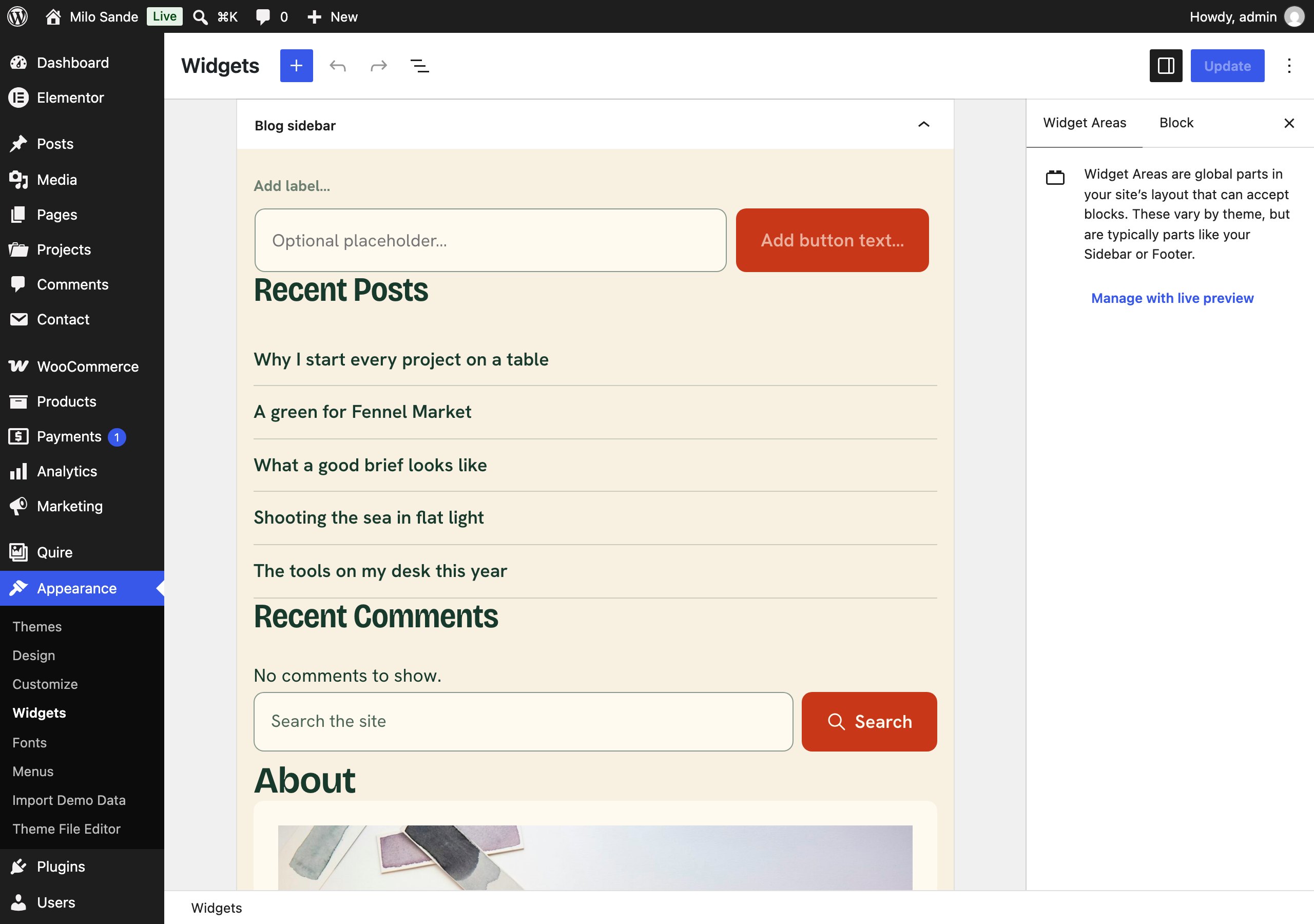
Click an area to open it. Then click the blue + button at the top left to add a block or a widget, and click Update to save. Quire styles every core widget and block, so the ones from WordPress fit the design.
Quire sidebar widgets#
The Quire Core plugin adds three widgets. Search for "Quire" in the block list to find them.
| Widget | What it shows | Its fields |
|---|---|---|
| Quire: Recent projects | A few projects as small prints, with the name, discipline, and year. | Title (default "Recent work"), How many projects (1 to 8, default 3), Discipline (one discipline, or All disciplines), Order (Newest first, Project order, By name, or Random), Show the print, and Show the discipline and year. |
| Quire: About card | A photo, your name, a short text, and one link, on a paper card. | Title (optional, printed above the card), Photo (click Choose image to pick one from the Media Library), Name (put a word between asterisks, *like this*, to draw it in the accent color), Short text (bold, italics, line breaks, and links are kept), Link address, and Link text. The link shows only when it has both an address and a text. |
| Quire: Social links | Your social profiles from the Customizer, or a list of your own. | Title (default "Find me online"), Show as (Icons and names, Names only, or Icons only), and one address field for each network: Instagram, Behance, Dribbble, LinkedIn, X, Facebook, Pinterest, YouTube, Vimeo, GitHub, Email, and Website. Leave every address empty to use the profiles from Contact and social. Fill in any address to show only the ones you fill in. |
The demo puts a search field, the About card, the categories, Recent projects, and Social links in the Blog sidebar. It puts an About card, Recent projects, the categories, and a search field in the footer columns.
Hide the header or footer on one page#
Pages, posts, and projects have a Header and footer box in the editor's sidebar. It comes with Quire Core.
- Hide the header: the header bar is left off this page. If you made a header template in Elementor, it is left off too.
- Hide the footer: the footer is left off this page, also a footer template.
For a page with no header and no footer at all, such as a landing page or a "coming soon" page, you can also choose the page template Blank (no header or footer) in the page's Template setting. To build your own header and footer, see Header and footer.
WordPress's own sample content#
A new WordPress site comes with a few items of its own. The demo import does not remove them, so check them after an import.
- The post "Hello world!" and its sample comment. Delete it in Posts if you do not want it in your journal.
- The page "Sample Page". Delete it in Pages.
- The default widgets. On a new site, WordPress puts its own blocks (a search field, Recent Posts, Recent Comments, and others) in the first widget area, which in Quire is the Blog sidebar. The demo widgets are added next to them. Remove the blocks you do not want in Appearance > Widgets.
Permalinks#
Go to Settings > Permalinks and choose Post name. The demo import sets this for you when your site still uses the plain or the date-based setting. Addresses like /about/ are easier to read and share than /?page_id=12.
The address of the project archive (/work/ by default) is set in a different place: Quire > Dashboard. See Projects.
Quire 1.0.0 documentation, updated 2026-11-07. Online at quire.jawad.work/docs/.