Building your site
Build pages with Elementor
Quire pages are built in Elementor from Quire widgets: a hero, a row of work, a quote, a contact form. You drop the widgets on the page one under the other and fill in their fields. Quire needs only the free Elementor plugin.
Every Quire feature works with the free Elementor plugin from wordpress.org. You do not need Elementor Pro. The Elementor panel shows "Pro" and "Upgrade" offers. These come from Elementor, not from Quire, and you can ignore them. Quire's own header and footer templates do the job of Elementor Pro's theme builder. See Header and footer.
Create a page#
- Go to Pages > Add New Page.
- Write the title.
- In the sidebar, open Template and choose Canvas (full width). See the table below.
- Click Edit with Elementor at the top of the editor.
You can also click Edit with Elementor on an existing page, a post, or a project.
Page templates#
| Template | Use it for |
|---|---|
| Default template | Normal pages. The page shows the page head (the title, and the page's excerpt as an intro line, which you write in the Excerpt box of the editor's sidebar) and its text at reading width. A page whose first widget is a Quire widget is drawn full width without the page head on its own. |
| Canvas (full width) | Pages built from Quire widgets. No page head. The content runs from edge to edge, with the header and the footer. The 20 home pages and the demo's inner pages use it. |
| Blank (no header or footer) | Landing pages and "coming soon" pages. No header, no menu, and no footer. |
Elementor adds its own Elementor Canvas and Elementor Full Width templates. Quire supports them too, but the Quire templates above are made for Quire widgets. You can also change the template in Elementor: click the page settings icon in the top bar and use Page Layout.
Elementor's Hide Title page setting removes Quire's page head. The demo pages have it on.
Add a Quire widget#
- In the Elementor panel on the left, scroll to the Quire category, or type the widget's name in the Search Widget... field.
- Drag a widget onto the page. Drop it above or below another widget to choose its place.
- Fill in the widget's fields (see the next part of this page).
- Click Publish at the top right.
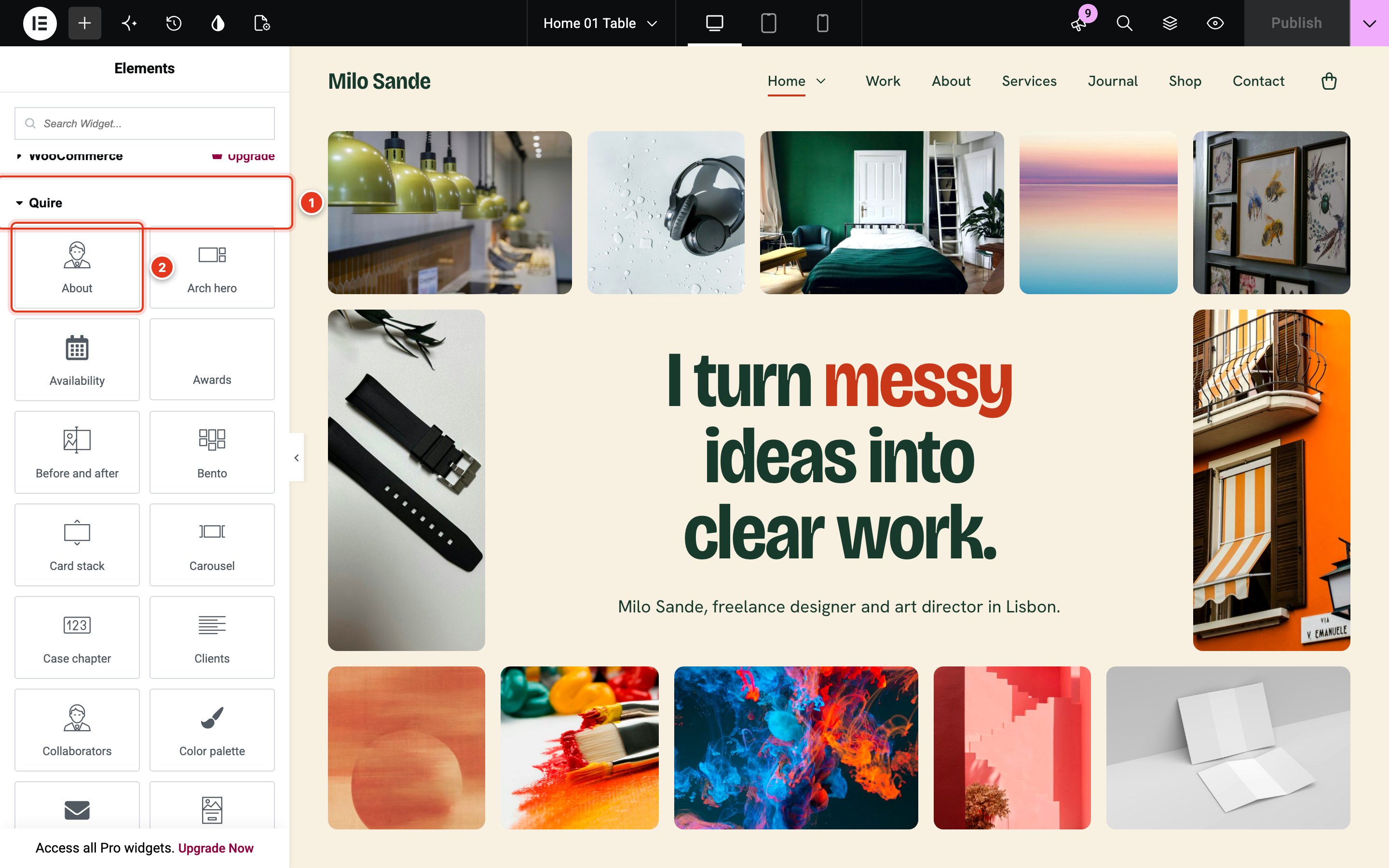
- The Quire category. It holds all 65 Quire widgets, sorted by name.
- A widget. Drag it onto the page.
Each Quire widget is a full band across the page, with its own space at the sides. When you drop a Quire widget on the page, Elementor makes a new container for it, and Quire sets that container to full width with no padding. These are the container's own settings, so you can change them back. A container you made yourself first is left as it is. The demo puts each widget in its own full-width container, one under the other.
Quire widgets are made to sit one under the other, each in its own full-width container. Two Quire widgets side by side in one container squeeze each other.
See every widget, what it shows, and its fields in The 65 widgets.
Edit a widget's fields#
Click a widget on the page. The panel on the left then shows that widget's fields instead of the widget list.
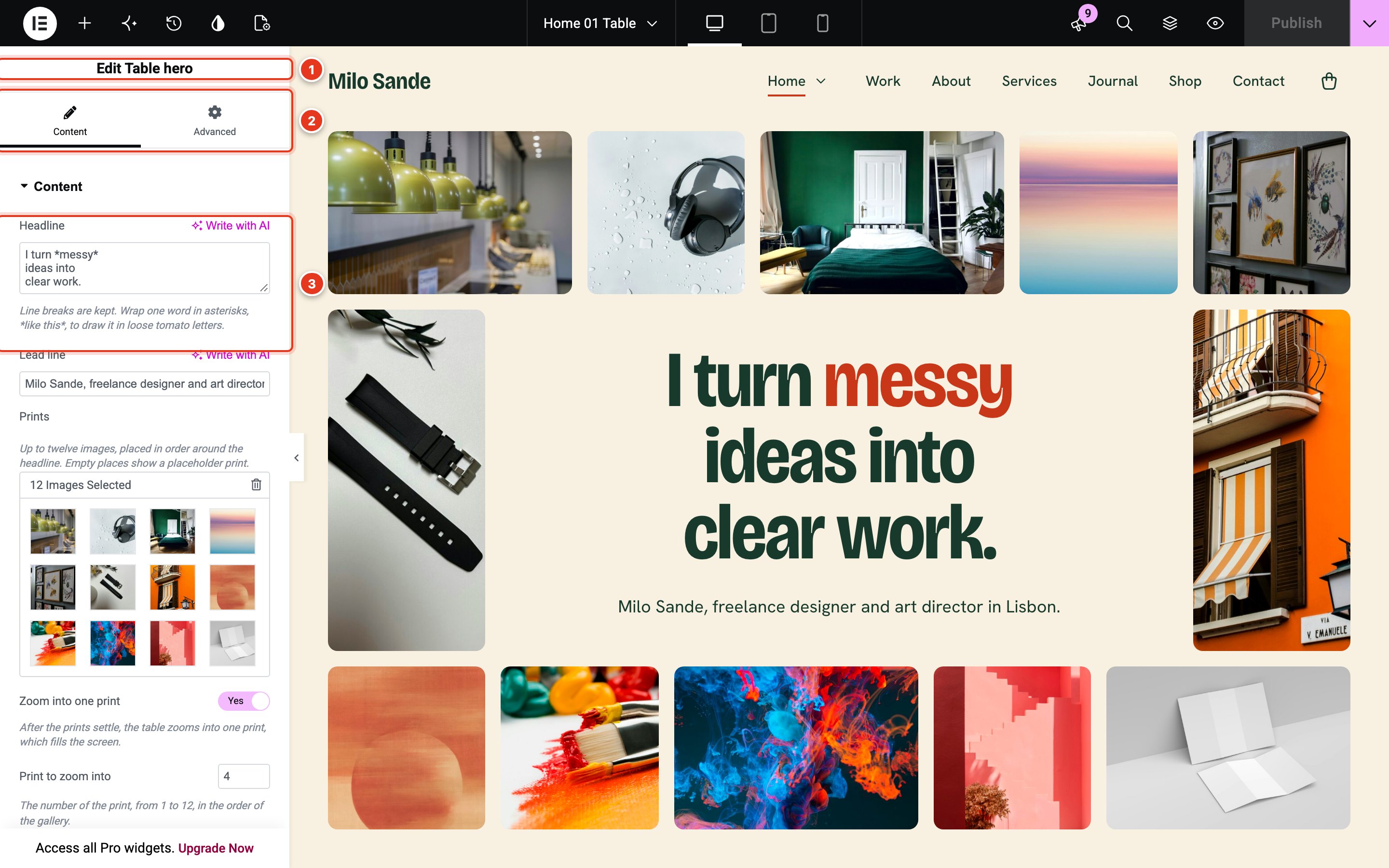
- The panel title names the widget you clicked, here Edit Table hero.
- The two tabs of a Quire widget: Content and Advanced.
- A field, with its help text under it. This one is the headline, where a word between asterisks is drawn in the accent color.
- Content holds the widget's own fields: the text, the images, the links, and the choices of layout and color tone. Quire widgets keep every choice here, so they have no Style tab.
- Advanced belongs to Elementor. It sets margins, padding, and visibility on phones and tablets. Quire widgets bring their own spacing, so you rarely need it.
Some fields appear only after another choice. For example, in the Video widget, the Video URL field shows when the source is Vimeo or YouTube, and the Video file field shows when the source is a video file. The gray line under a field (its help text) says what the field does.
Writing in the fields#
- One word in the accent color. In a title, put a word between asterisks,
*like this*. Quire draws it in the accent color, as on the demo ("I turn messy ideas into clear work"). - Line breaks. Where a field's help text says "Line breaks are kept", each line break starts a new line on the page.
- Lists of items. Rows of facts, services, questions, and similar lists are Elementor repeaters. Click Add Item to add a row, and drag rows to change their order.
- Empty widgets. A widget with nothing to show prints a short note in the editor, for example "Add a quote to show this widget." Visitors never see the note.
- Widgets that read your content fill themselves: the work widgets read your projects, the Journal widget reads your posts, and the Products widget reads your WooCommerce products. Change a project's cover image in the project, not in the widget.
Motion in the editor#
In the editor, widgets that move with the scroll (pinned stories, settling cards, moving columns) are shown standing still, so you can click and edit them. Open the page with Preview, or view the published page, to see the motion.
Elementor settings Quire uses#
Quire Core sets the default of two Elementor settings in Elementor > Settings: Disable Default Colors and Disable Default Fonts are on. Elementor's own widgets (Heading, Text Editor, Button, and the others) then use the theme's colors and fonts. If you save that settings screen with a box cleared, your choice stays.
The demo import also writes these values into Elementor's site settings (the "kit"):
| Setting | Value from the demo |
|---|---|
| Content width | 1200 pixels |
| Space between widgets | 0, because Quire widgets bring their own space |
| Global colors | Ink, Soft ink, Text, and Accent, plus Page, Card, Sand, Deep band, and Line, in the colors of the Forest palette |
| Global fonts | Display and Display light (Bricolage Grotesque), Text and Label (Hanken Grotesk) |
| Google Fonts | Off, so Elementor does not load fonts from Google. The theme's own fonts are part of the theme. |
The kit sets no page background. The page color comes from the Customizer, so a color in the kit would hide it.
Quire widgets follow the Customizer at once. Elementor's own widgets use the global colors and fonts of the kit, which keep the Forest values from the demo. To match them, open Elementor's menu (the Elementor logo at the top left of the editor), choose Site Settings, and change Global Colors and Global Fonts.
Containers#
Elementor's layout element is the Container. Older Elementor sites used Elementor's Section and Column elements instead. The demo uses containers only, one full-width container for each widget. Quire's own page parts are always called widgets.
Start from a home page#
The fastest way to a new page is to copy one of the 20 home pages and change its words and images. See The 20 home pages.
Quire 1.0.0 documentation, updated 2026-11-07. Online at quire.jawad.work/docs/.