Getting started
Install the plugins
Quire needs one plugin, Quire Core. Four more are recommended or optional. The theme installs all of them for you from one screen.
Why Quire Core is a plugin#
Quire Core holds your projects, the 65 Elementor widgets, the header and footer templates, the sidebar widgets, the share links, the shop extras, and the demo import. It is a plugin so that your content stays when you change themes. The theme carries a copy of it, so you do not download anything.
Install the plugins#
After you activate Quire, a notice appears at the top of the admin screens.

- The required plugin: Quire Core.
- The recommended plugins: Contact Form 7, Elementor Website Builder, One Click Demo Import, and WooCommerce. Each name opens its details.
- Click Begin installing plugins.
If you closed the notice with Dismiss this notice, go to Appearance > Install Plugins.
- Tick the box at the top of the list to select all plugins. Untick any plugin you do not want. See Which plugins do you need?
- In the bulk actions menu, choose Install.
- Click Apply and wait. Installing five plugins takes about a minute.
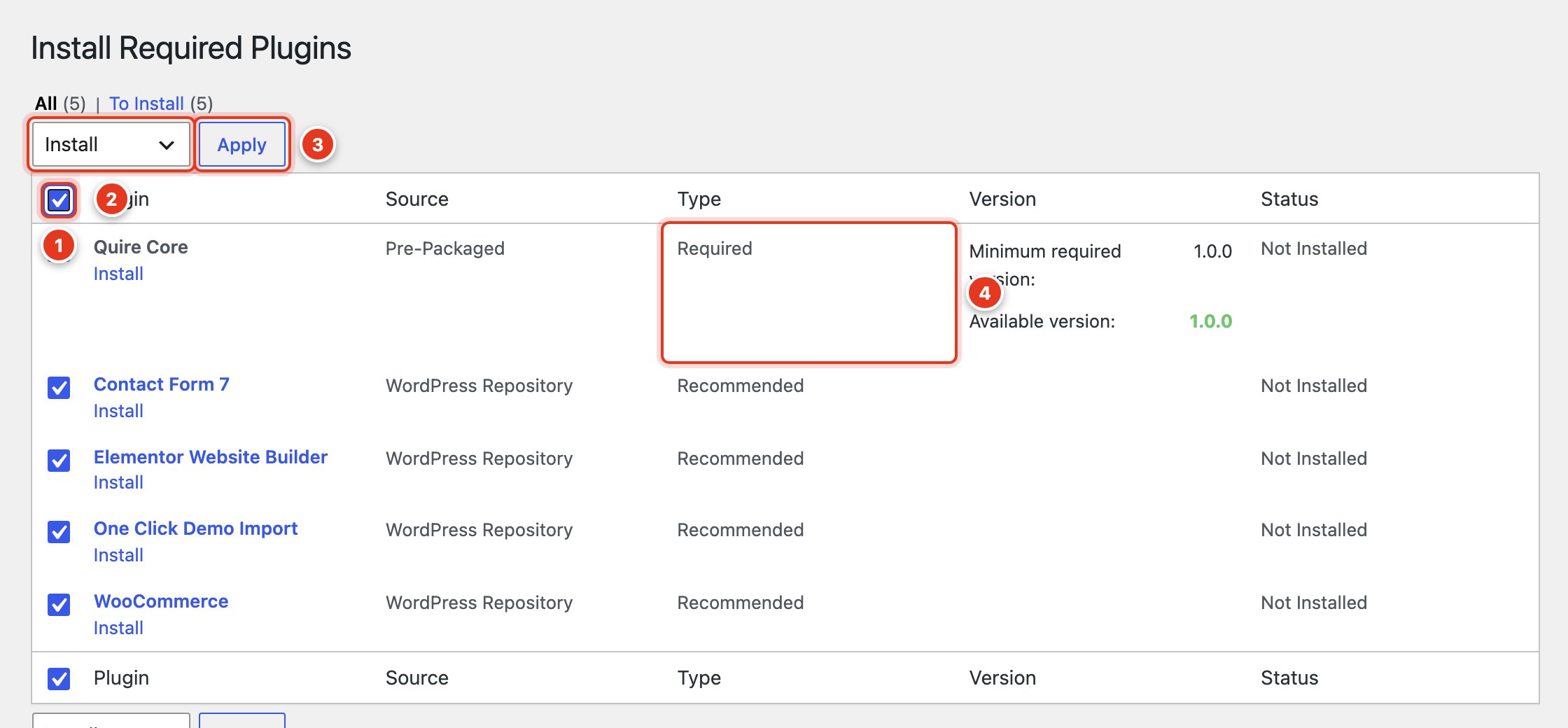
- This box selects all plugins.
- Choose Install in the bulk actions menu.
- Click Apply.
- Quire Core is Required. Its source is Pre-Packaged: it comes from inside the theme. The others are Recommended and come from the WordPress Repository.
Each plugin reports "installed successfully". At the end, WordPress says "All installations have been completed." Then click Return to Required Plugins Installer.
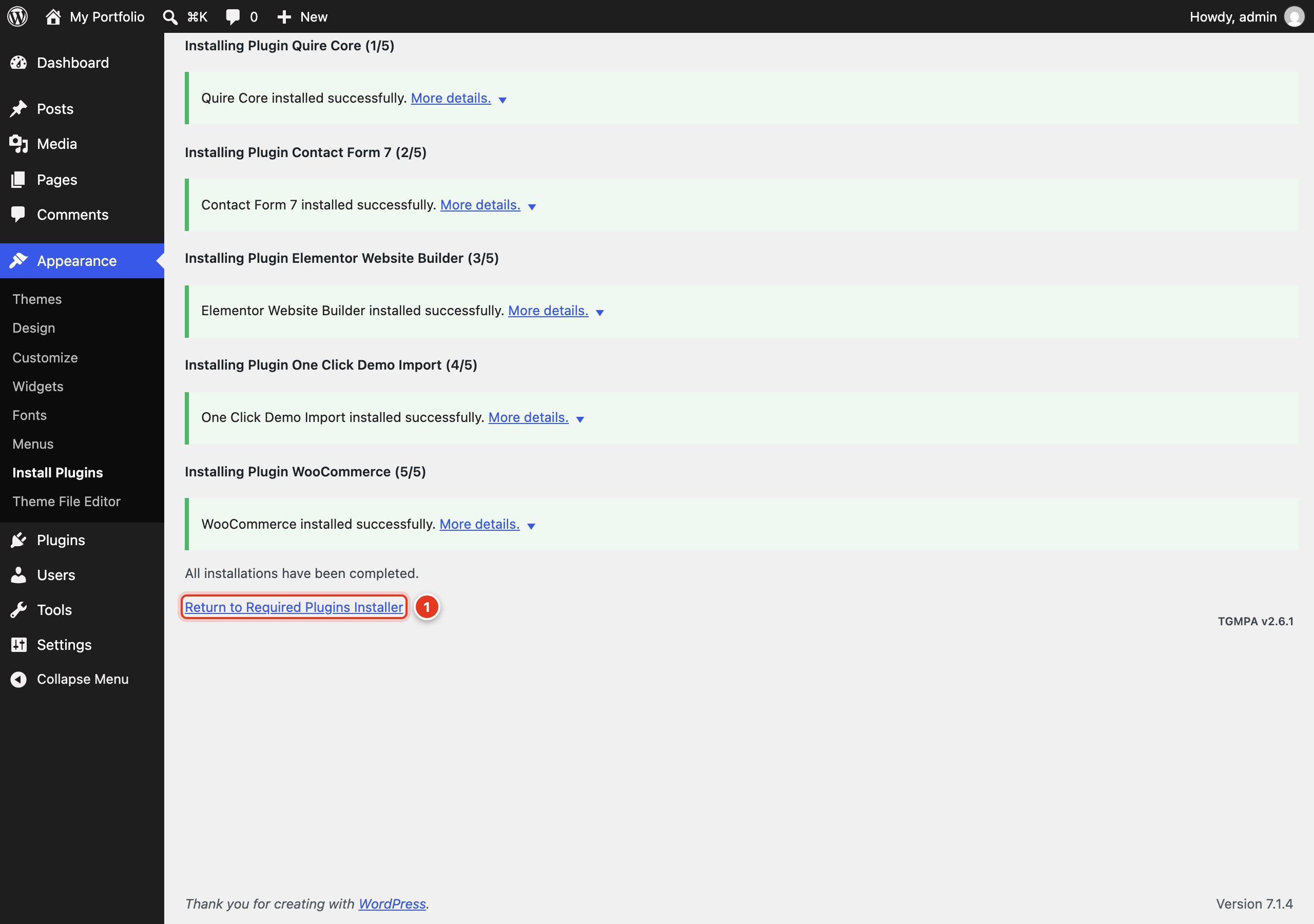
- Go back to the plugin list to activate the plugins.
Activate the plugins#
- Tick the box at the top of the list to select all plugins again.
- In the bulk actions menu, choose Activate.
- Click Apply.
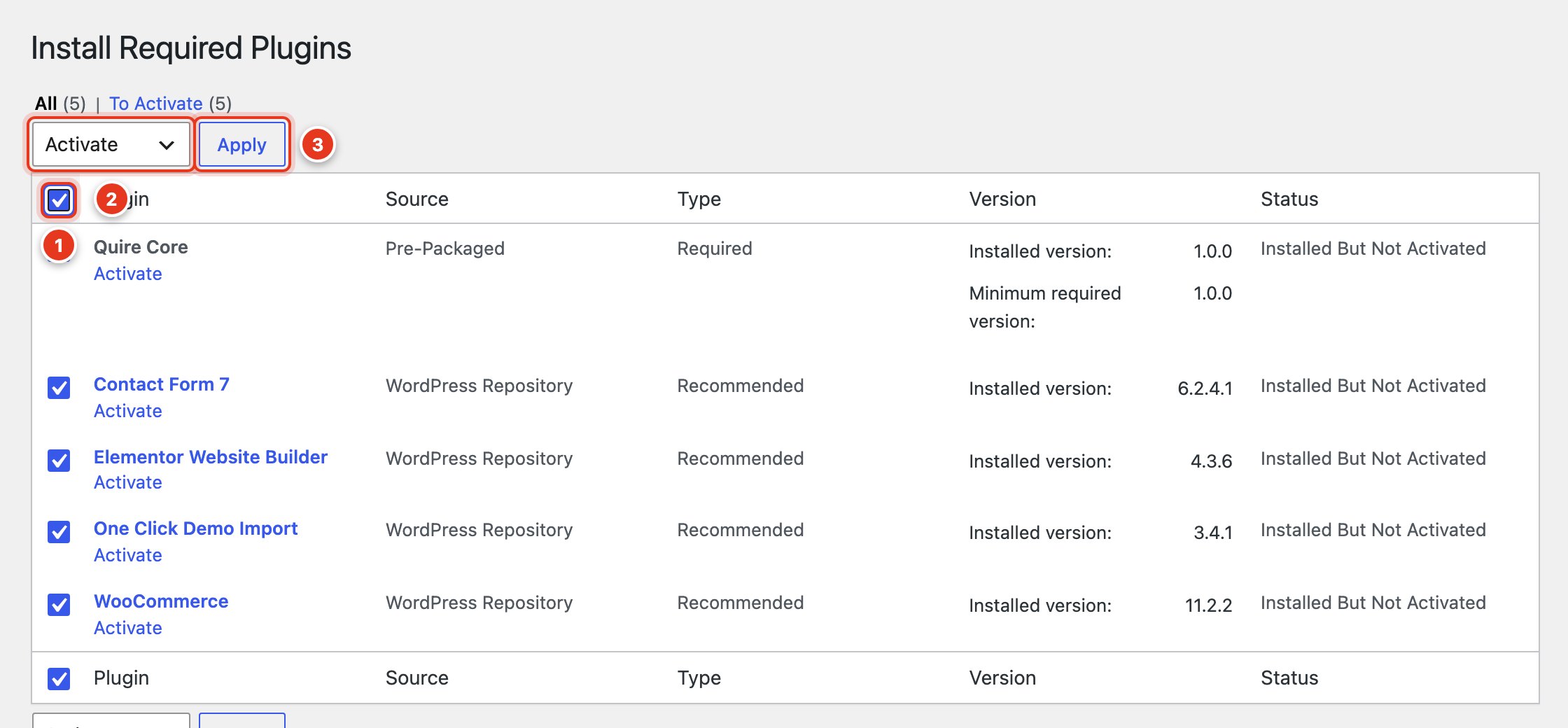
- This box selects all plugins.
- Choose Activate in the bulk actions menu.
- Click Apply.
Quire never activates a plugin by itself. Nothing is installed or activated until you click Apply.
Elementor and WooCommerce may open their own welcome or setup screens the first time you visit the admin. You can skip them. The demo import sets the parts Quire needs.
Which plugins do you need?#
| Plugin | Install it if | Without it |
|---|---|---|
| Elementor | You want the 65 Quire widgets, the 20 home pages, or the demo. This is almost every site. | The theme still works. You build pages with the WordPress block editor, which Quire styles. The Quire widgets are not available. You cannot build header and footer templates either, because you edit them in Elementor, so the theme's own header and footer are used. |
| Contact Form 7 | You want a contact form. | The Contact widget hides its form card. |
| WooCommerce | You want to sell prints, goods, or other products. | There is no shop. The rest of the site works as usual. |
| One Click Demo Import | You want to import the demo. | You can delete it after the import. |
The demo pages are built with Elementor. If you import the demo without Elementor, those pages have no content. Quire works with the free Elementor plugin. It never needs Elementor Pro.
The Quire dashboard#
When Quire Core is active, a Quire item appears in the admin menu. It opens the Quire dashboard: a page of plain status, help links, and two settings. It makes no request to another server.
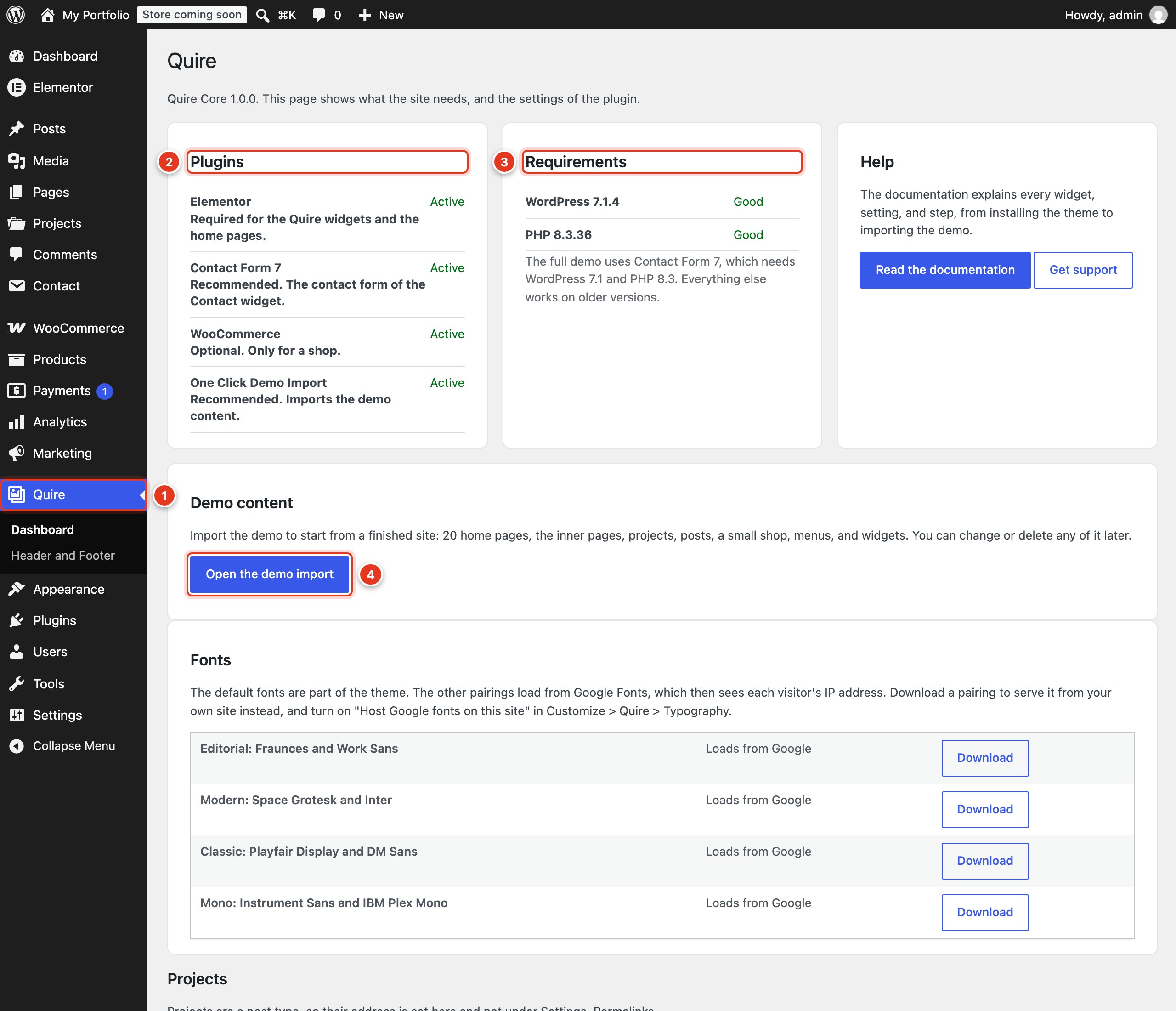
- The Quire menu item. Its first sub-item is Dashboard. The second, Header and Footer, holds your header and footer templates.
- The Plugins card.
- The Requirements card.
- Open the demo import takes you to the import screen.
The top line shows the version of Quire Core in use, for example "Quire Core 1.0.0."
Plugins card#
This card lists Elementor, Contact Form 7, WooCommerce, and One Click Demo Import. Each row says what the plugin is for and shows Active, Not active, or Not installed. A plugin that is not active has an Activate or Install link. The link opens the plugin installer from the steps above.
Requirements card#
This card shows your WordPress and PHP versions and one of these states:
- Good: the version is enough for Quire and for the full demo.
- Works. The full demo needs 7.1 or newer. (or 8.3 for PHP): Quire works, but the demo's contact form needs a newer version.
- Too old. Quire needs 6.8 or newer. (or 7.4 for PHP): ask your host to update.
The Plugins and Requirements cards show only to users who can change the theme (normally administrators).
Help card#
Read the documentation opens this documentation online. Get support opens the support page. See Support.
Demo content card#
This card shows when One Click Demo Import is active. Open the demo import opens the import screen. If One Click Demo Import is not active, the card asks you to install and activate it first. After the import, the card shows the date of the import and a list of the 20 home pages, each with an Edit link. See Import the demo.
Fonts card#
The default fonts are part of the theme. Four more font pairings load from Google Fonts: Editorial, Modern, Classic, and Mono. Google then sees each visitor's IP address. This card lets you download a pairing to your own site instead. Click Download next to a pairing. Then turn on Host Google fonts on this site in Appearance > Customize > Quire > Typography. A downloaded pairing shows "On this site since" and a date, and has Download again and Delete buttons. See Fonts, privacy, and speed.
Projects archive address#
Under the cards, the Projects settings set the address of your project archive. Projects are a post type, so their address is set here and not under Settings > Permalinks.
- Archive address is
workon a new site, so your projects are listed atyoursite.com/work/. The demo import changes it toprojects. See The project archive moves to /projects/. - A change moves the archive and every project to the new address. Links shared with the old address stop working, so change it before the site goes live.
- An empty box goes back to
work. - If a page uses the same address, a warning names the page. The archive wins, so that page does not open at its address. Give the archive or the page a different address.
Click Save Changes at the bottom of the page. More about projects: Projects.
Your data on uninstall#
Turning the plugin off removes nothing. Your projects, their terms and fields, and your media stay after deactivation and after deletion.
The Deleting the plugin setting has one checkbox, Also remove the settings of this plugin. When it is ticked, deleting Quire Core removes the settings on this page and the downloaded Google fonts, and nothing else. Your projects, pages, and images always stay. When it is not ticked, deleting the plugin removes nothing. It is not ticked on a new site.
Quire 1.0.0 documentation, updated 2026-11-07. Online at quire.jawad.work/docs/.