Building your site
The shop
The shop is optional. When WooCommerce is active, Quire styles every WooCommerce page, including the block cart and checkout. Quire Core adds two extras: a slide-out cart and a quick view.
Set up the shop#
- Install and activate WooCommerce. See Plugins. Quire works without it: with WooCommerce off, the theme loads no shop files, and the Shop group of the Customizer is hidden.
- Make sure WooCommerce has its Shop, Cart, Checkout, and My account pages. The demo import sets them. On an empty site, WooCommerce makes them when it starts.
- Set up payments, shipping, and taxes in WooCommerce > Settings. WooCommerce's own guides explain these at woocommerce.com/documentation.
- Open the store to visitors. See Open your store.
The demo's shop holds a few prints and studio goods. The products and their names are fictional.
What visitors see#
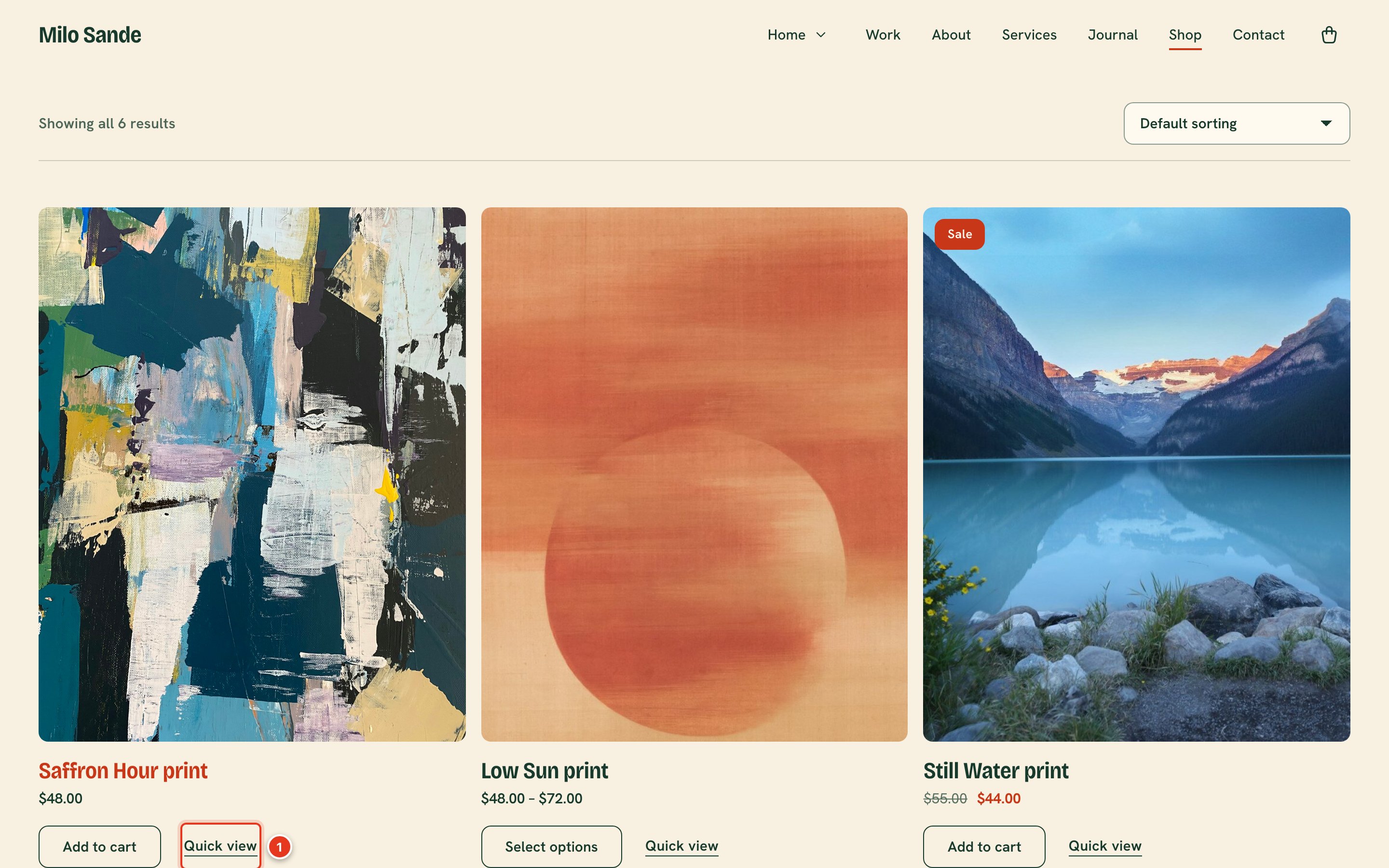
- Quick view opens the product in a panel over the list.
- Products show as print cards: the image, cropped to a 4:5 portrait, the name, the price, and the add to cart button. A product on sale gets a "Sale" label in the accent color.
- A variable product (one with options, such as sizes) shows Select options, which opens the product page.
- The header shows a cart icon with the number of items. It links to the cart page, or opens the slide-out cart when that is on.
Quick view#
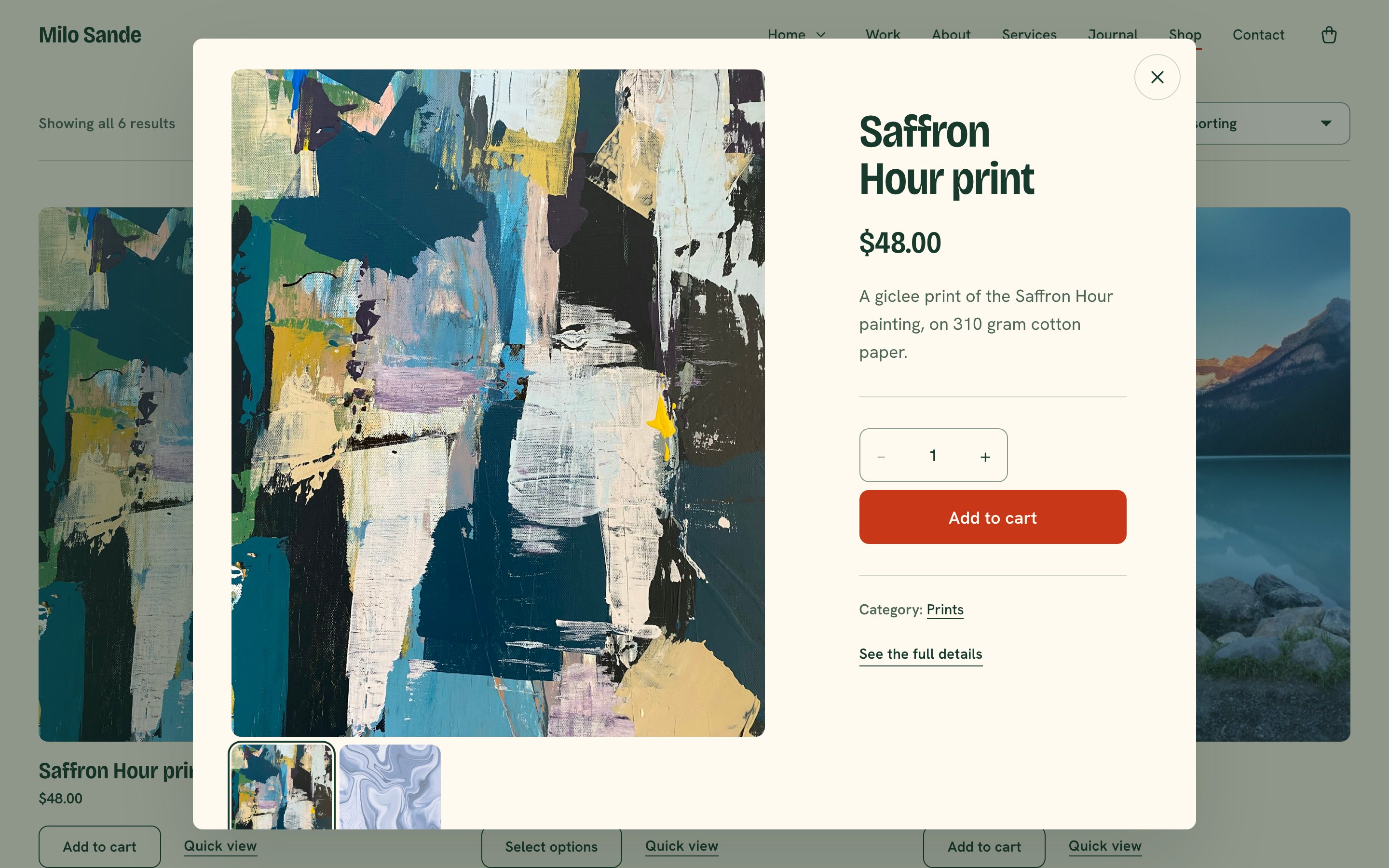
Quick view shows the product image and up to four more gallery images below it, the name, the rating, the price, the short description, and the category. A simple or a variable product can be added to the cart right there: the visitor picks the options and the quantity and clicks Add to cart, and stays on the page. A grouped or an external product shows its normal button, which leads to its own page. See the full details opens the product page.
The close button, the Escape key, or a click outside the panel closes it. Without JavaScript, Quick view is a plain link to the product page.
The slide-out cart#
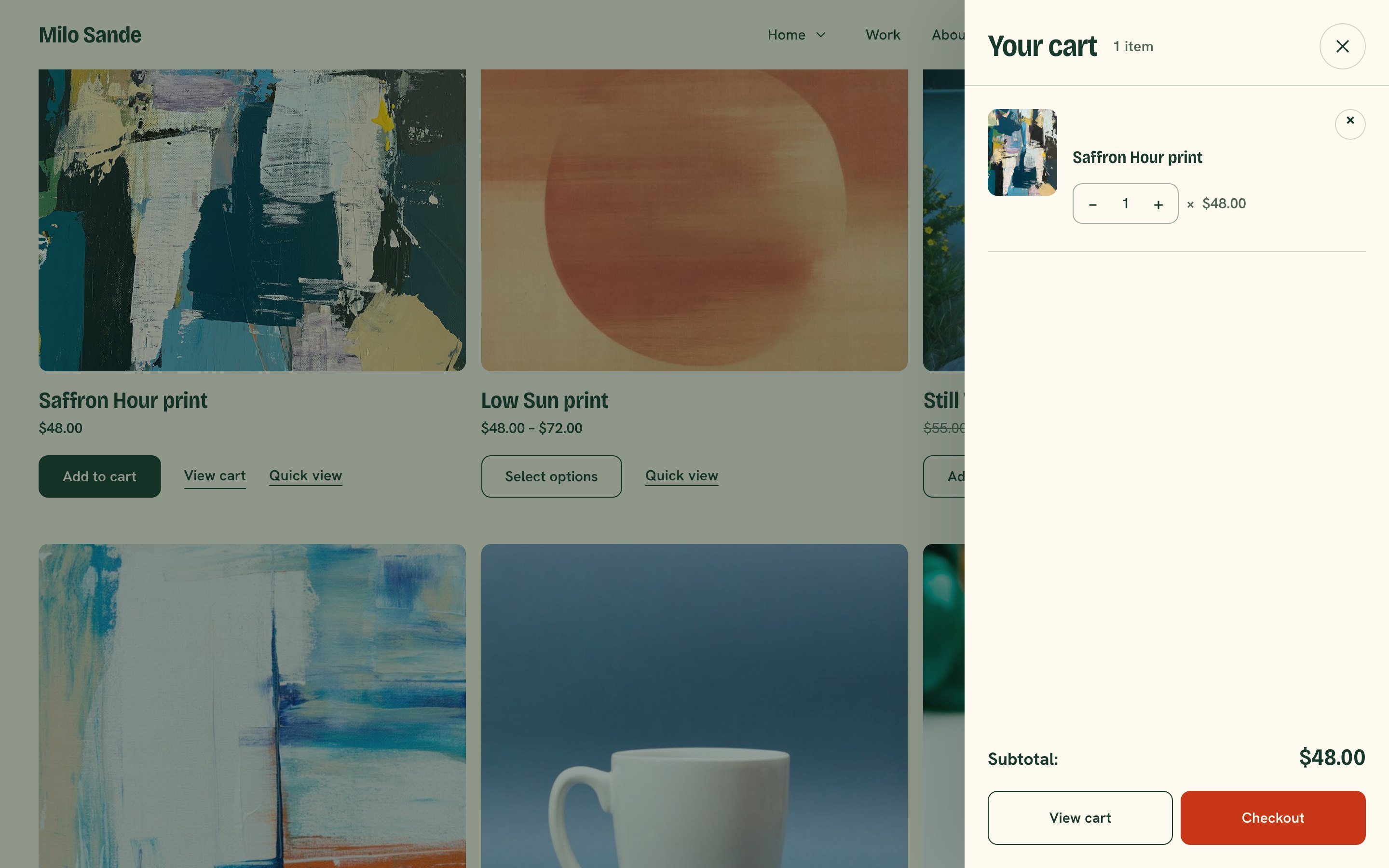
When a visitor adds a product, the cart slides in from the side instead of loading the cart page. This works for the add to cart buttons in the shop, in quick view, in the Products widget, and in WooCommerce's blocks. The header's cart icon opens it too.
- The panel shows "Your cart" and the number of items, each product with a quantity field and a remove button, the subtotal, and the View cart and Checkout buttons.
- The visitor can change a quantity with the - and + buttons. The totals update at once.
- An empty cart shows a Visit the shop link.
- The slide-out cart is not used on the cart and checkout pages, because those already show the cart.
Without JavaScript, the cart icon is a plain link to the cart page.
The product page#
The product page uses WooCommerce's gallery with zoom, a full-screen view, and a slider, all styled by Quire. The gallery thumbnails sit five in a row under the main image. Quantity fields get - and + buttons. Related products and upsells show one row of cards.
Shop settings#
Go to Appearance > Customize > Quire > Shop. This group appears only when WooCommerce is active.
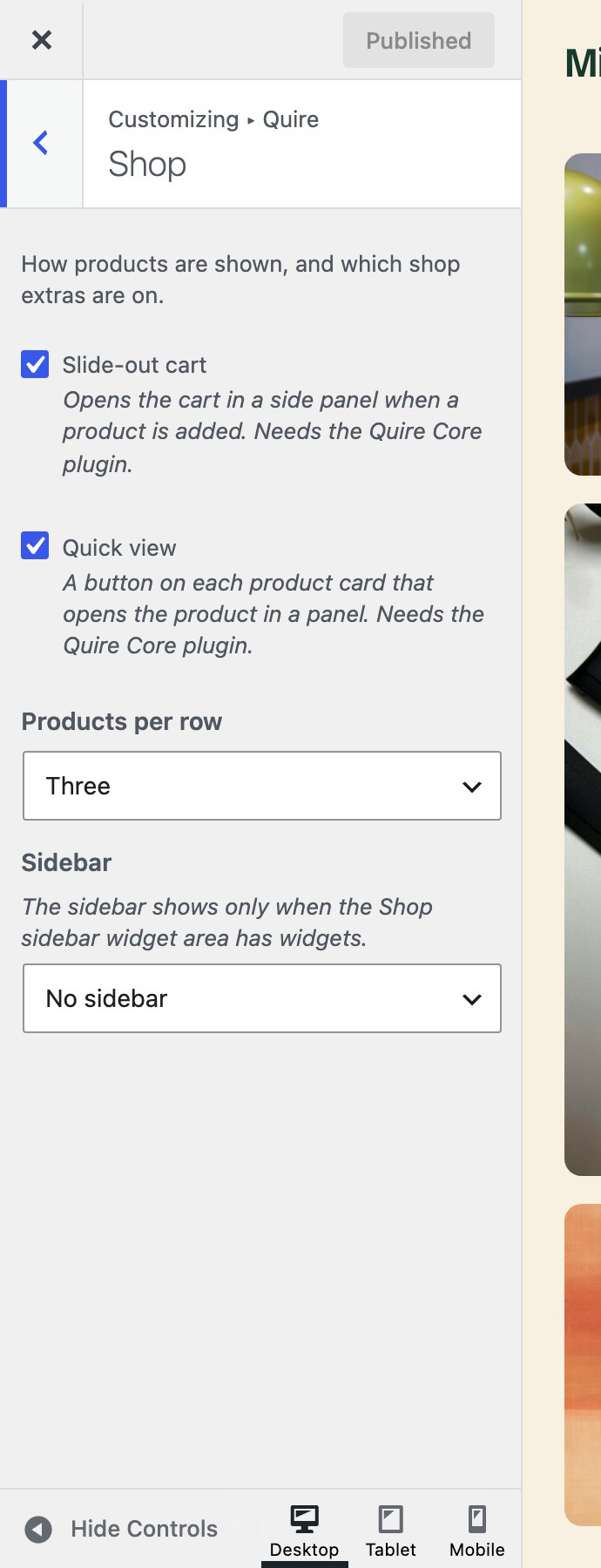
- Slide-out cart: on by default. Needs the Quire Core plugin.
- Quick view: on by default. Needs the Quire Core plugin.
- Products per row: Two, Three (the default), or Four. A shop page holds four rows. Screens 980 pixels wide or less show two products in a row.
- Sidebar: No sidebar (the default), On the right, or On the left.
When you turn an extra off, Quire Core loads nothing for it: no script and no markup. More detail is in Shop settings.
The shop sidebar#
The sidebar shows beside the shop and the product category and tag pages, when Sidebar is on a side and the Shop sidebar widget area has widgets. Add widgets in Appearance > Widgets. Good choices are the product categories, the price filter, and the product search. See Widgets.
Products on other pages#
The Products widget shows your products on any Elementor page, as print cards with the price and an add to cart button. Search for "Products" in the Elementor panel, in the Quire category. Its fields:
| Field | What it does | Default |
|---|---|---|
| Heading | The heading above the cards. Wrap a word in asterisks, like *this*, to draw it in the accent color. | From the *shop* |
| Link | A link next to the heading. Leave the address empty to link to the shop page. | Visit the shop |
| Number of products | 1 to 24. | 4 |
| Category | One product category, or All categories. | All categories |
| Order | Shop order, Newest first, Best selling, Price, low to high, Price, high to low, Name, or Random. | Shop order |
| Pick products | Optional. Add a row for each product you want. Picked products show in this order, and the number, category, and order above are ignored. Up to 24. | None |
| Columns | 2, 3, or 4. | 4 |
| Print shape | Portrait, Square, or Landscape. | Portrait |
| Space above and below | Regular, Compact, or None. | Regular |
Without WooCommerce, the widget shows nothing to visitors, and the editor shows a note that asks you to activate WooCommerce. More about the widgets is in Widgets.
Cart and checkout#
New WooCommerce stores use the Cart and Checkout blocks. Quire styles both blocks, and also the older shortcode cart and checkout, so either one fits the design. The cart, checkout, and account pages use a wider layout than a normal page. You do not need to change anything.
WooCommerce's emails, payments, and order screens are WooCommerce's own. Quire does not change them.
Product images#
- Upload product images at least 1200 pixels wide. The product page shows them up to 1200 pixels wide.
- Shop cards are cropped to a 4:5 portrait (720 by 900 pixels), so keep the product near the middle of the image.
- Gallery thumbnails are cropped to the same 4:5 shape (240 by 300 pixels).
- If you add products before you activate Quire, the old image sizes stay until you regenerate them, for example with the free Regenerate Thumbnails plugin.
Open your store#
A new WooCommerce store starts in "Coming soon" mode: visitors who are not logged in see a "coming soon" page instead of your shop. The admin bar then shows "Store coming soon". The demo import turns this mode off, so the demo shop is visible. On a site without the demo, or to hide the store again:
- Go to WooCommerce > Settings and open the Site visibility tab.
- Choose Live to open the store, or Coming soon to hide it.
- Click Save changes.
Quire 1.0.0 documentation, updated 2026-11-07. Online at quire.jawad.work/docs/.