Building your site
Header and footer
Quire has its own header and footer, set up in the Customizer. If you want a different one, build a header or footer template in Elementor and choose the pages it shows on. You can also hide the header or the footer on one page.
The theme's header#
Every page starts with the header bar. It shows your logo or the site name, the menu, and on the end side an optional button, an optional search button, and the cart (when WooCommerce is active). On a phone, or when the menu is too long for one row, a Menu button opens the full-screen phone menu.
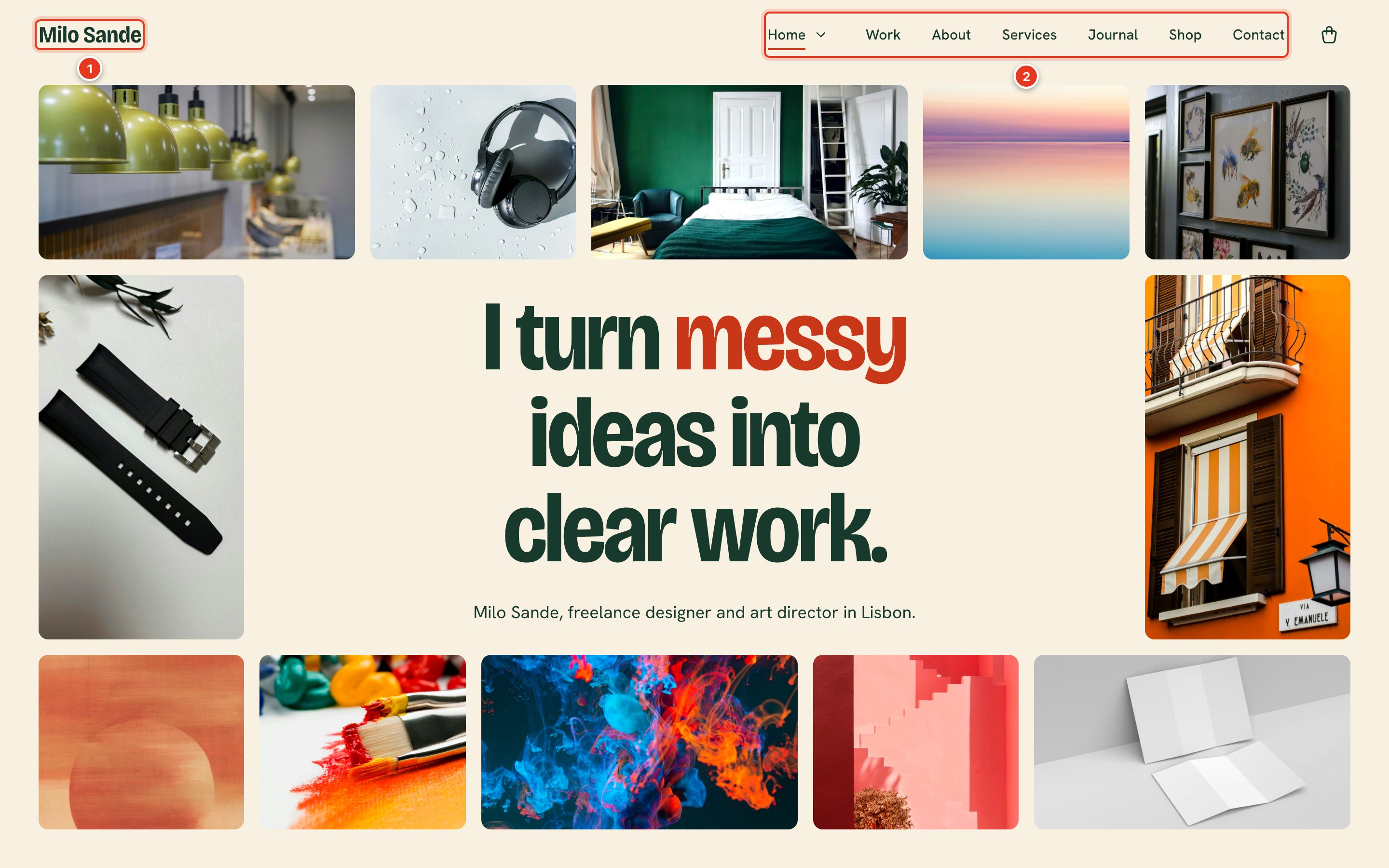
- The logo, or the site name when there is no logo. Set them in Appearance > Customize > Site Identity. See Site basics.
- The menu in the Primary menu (the bar and the phone menu) location. Items with a sub-menu open a dropdown card.
The rest is set in Appearance > Customize > Quire > Header:
| Setting | What it does |
|---|---|
| When the page scrolls | Always visible (the default), Hides when scrolling down, comes back when scrolling up, or Scrolls away with the page. |
| Header color | Follow the widget below it (forest over a forest band), the default, or Always cream. |
| Button text and Button link | An optional button at the end of the bar, for example "Book a call". It shows only when both are set. |
| Show a search button | A search icon that opens a search field. |
The foot of the phone menu shows the email address, the place, and the social links from Quire > Contact and social. See Customizer settings.
The theme's footer#
The footer is a forest band at the end of every page. From top to bottom it has:
- A large line, when you write one in Quire > Footer > Large line above the footer. Put a word between asterisks,
*like this*, to draw it in the accent color. - Up to three widget columns, from the Footer column 1, Footer column 2, and Footer column 3 areas in Appearance > Widgets. An empty area is left out.
- The footer row: the copyright line, the menu in the Footer menu location, and your social links.
The copyright line is set in Quire > Footer > Copyright line. {year} becomes the current year and {site} becomes the site title. The default is "Copyright {year} {site}. All rights reserved." The social links come from Quire > Contact and social > Social profiles. With no profiles there, the menu in the Social links (used when no profiles are set in the Customizer) location is used.
Header and footer templates#
A template replaces the theme's header bar or the theme's footer with one you build in Elementor. You choose where each template shows: on the whole site, on some kinds of pages, or on single pages. Templates come from the Quire Core plugin and need the free Elementor plugin.
Find them under Quire > Header and Footer.
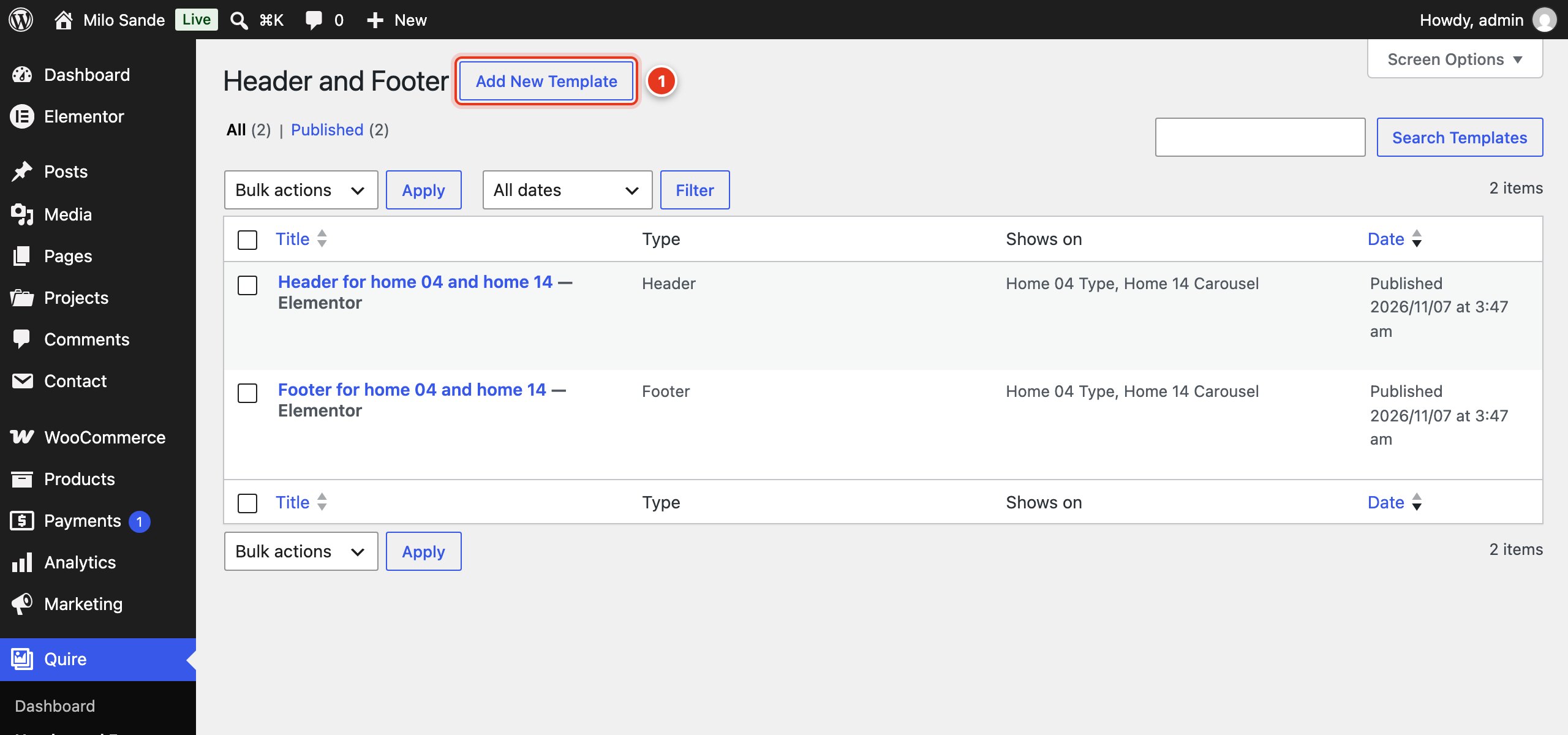
- Add New Template.
The list shows each template's Type (Header or Footer) and where it Shows on. A template with no display condition shows "Nowhere yet".
Make a template#
- Go to Quire > Header and Footer and click Add New Template.
- Give it a name, for example "Site header". Visitors never see the name.
- In the Where this template is used box, choose the Type and tick the Display conditions (see below).
- Click Publish to save the box.
- Click Edit with Elementor. Add the Quire header or Quire footer widget from the Quire category, and any other widgets you want.
- Click Publish in Elementor.
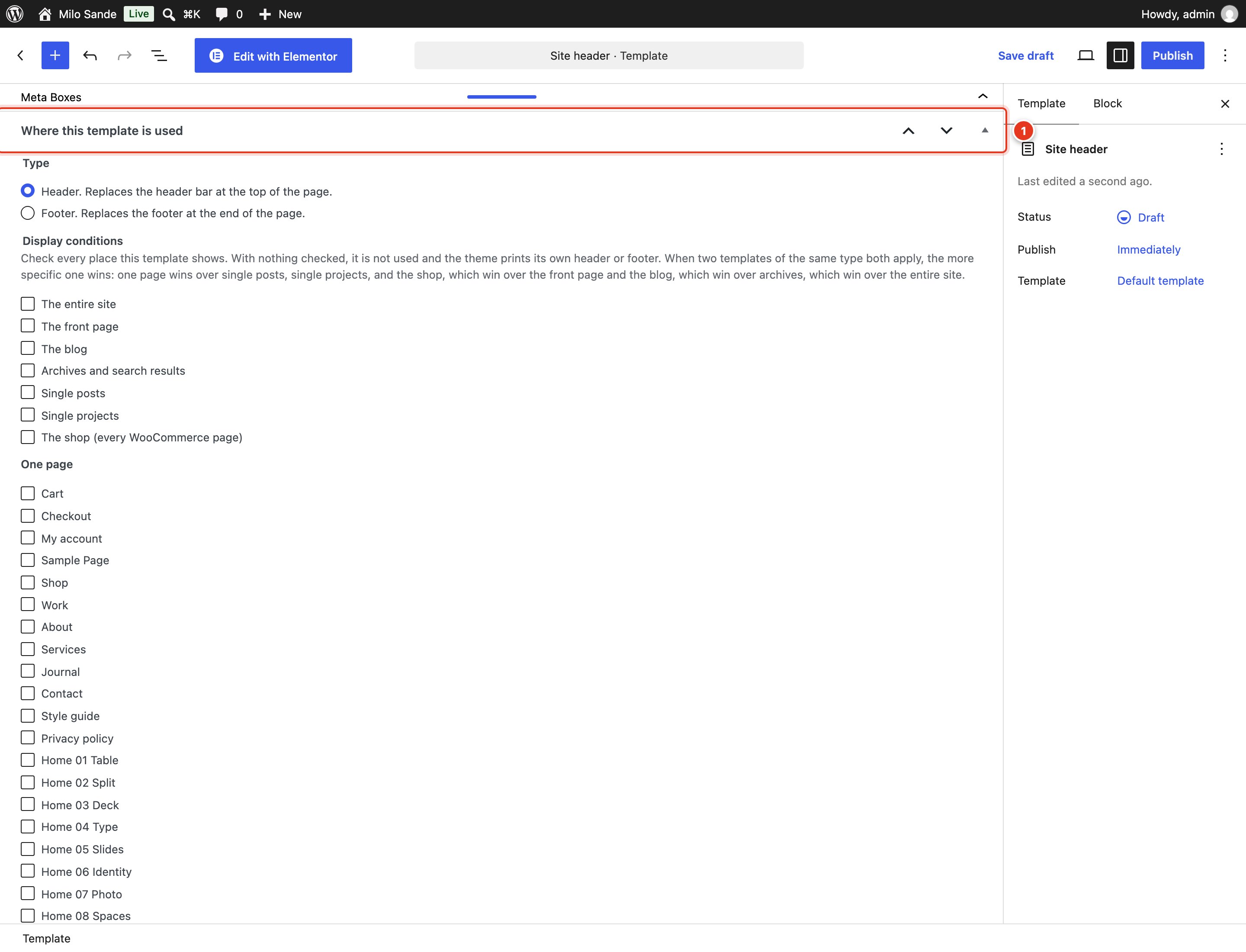
- The Where this template is used box. In the block editor it is in the Meta Boxes area at the bottom. Drag the bar of that area up to see all of it.
Set the type and the display conditions on the WordPress edit screen, not in Elementor. In Elementor, the page settings show a Where this template is used note: it says how many display conditions are ticked and has a link, Open the edit screen in a new tab. Publish in Elementor first, so you keep your changes.
Type#
- Header. Replaces the header bar at the top of the page.
- Footer. Replaces the footer at the end of the page.
Display conditions#
Tick every place the template shows:
| Condition | Where it applies |
|---|---|
| The entire site | Every page. |
| The front page | The page set as Homepage in Settings > Reading. |
| The blog | The posts page (the journal). |
| Archives and search results | Category, tag, author, and date archives, the work archive, discipline, client, and year pages, the product archives, and search results. |
| Single posts | Each post. |
| Single projects | Each project. |
| The shop (every WooCommerce page) | The shop, products, product archives, the cart, the checkout, and the account pages. |
| One page | A list of your published pages. Tick one or more. The posts page and the WooCommerce shop page also count as pages here. |
With nothing ticked, the template is not used, and the theme prints its own header or footer.
Which template wins#
When two templates of the same type both apply to a page, the more specific one wins:
- One page.
- Single posts, single projects, and the shop.
- The front page and the blog.
- Archives and search results.
- The entire site.
For example, a header for The entire site and a header for the Contact page: the Contact page shows the second one, and every other page shows the first. When two templates are equally specific, the older one (the one made first) wins.
When the theme's own part shows#
The theme prints its own header or footer when no published template applies, and also:
- when Elementor is not active (the templates screen then shows a notice);
- when the template was not built with Elementor;
- when the template is empty.
A template replaces only the header bar or the footer. The "Skip to content" link and the phone menu always come from the theme, so a template cannot break them. The phone menu always shows the menu in the Primary location.
On a page that uses a template, the WordPress toolbar shows Edit header template or Edit footer template. Click it to open that template in Elementor.
The Quire header and Quire footer widgets#
These two widgets print the theme's own header bar and footer inside a template, so a template looks like the rest of Quire. Change their fields to make the template different.
Quire header#
| Field | What it does |
|---|---|
| Menu | The menu in the Primary location, or another menu of your site. The phone menu always shows the menu in the Primary location. |
| Show a button | Shows the button at the end of the bar. |
| Button | The button's text and link. The default is "Start a project". Leave both empty to use the button set in the Customizer. |
| Behavior | As set in the Customizer, Always visible, Hides when scrolling down, or Scrolls away with the page. While you edit, the bar scrolls with the page, so you can select it. Visitors see the behavior you choose. |
The logo, the header color, and the search button still follow the Customizer.
Quire footer#
| Field | What it does |
|---|---|
| Large line | Optional. Line breaks are kept. Wrap a word in asterisks, like *this*, to set it apart. |
| Email address | Optional. Shown under the large line, as a link. |
| Copyright | {year} and {site} are replaced with the year and the site name. Leave it empty to use the line from the Customizer. |
| Show the footer menu | The menu in the Footer location. |
| Show social links | The links set in the Customizer, under Contact and social. |
A footer template does not show the three footer widget columns.
Some defaults of the Quire footer come from the demo: the large line "Have a project in mind? Say hello." and the email address [email protected]. Change them to your own, or empty the fields.
The demo's templates#
The demo has one header template and one footer template, both used on two pages only: Home 04 Type and Home 14 Carousel. They show how a template can differ from the theme's own parts:
- Header for home 04 and home 14: the Quire header with a "Book a call" button that links to the Contact page, and the Hides when scrolling down behavior.
- Footer for home 04 and home 14: the Quire footer with the line "Two projects at a time. Is yours next?", the email address, and the copyright "Copyright {year} Milo Sande. Made at a big table in Lisbon."
Their display conditions are the two pages, under One page. To use one of them on the whole site, open it, tick The entire site, and click Save. To stop using them, untick the pages, or move the templates to the trash. See The 20 home pages.
Hide the header or footer on one page#
Pages, posts, and projects have a Header and footer box in the sidebar of the editor:
- Hide the header leaves the header bar off this page, and also any header template.
- Hide the footer leaves the footer off this page, and also any footer template.
Tick a box and click Save. The project editor picture on the Projects page shows the box at the bottom of the sidebar.
To leave off both on a landing page, you can also choose the Blank (no header or footer) page template. See Build pages with Elementor.
A page without a header has no menu. Add a link or a button to the page that leads back to your home page.
Quire 1.0.0 documentation, updated 2026-11-07. Online at quire.jawad.work/docs/.