Building your site
The 20 home pages
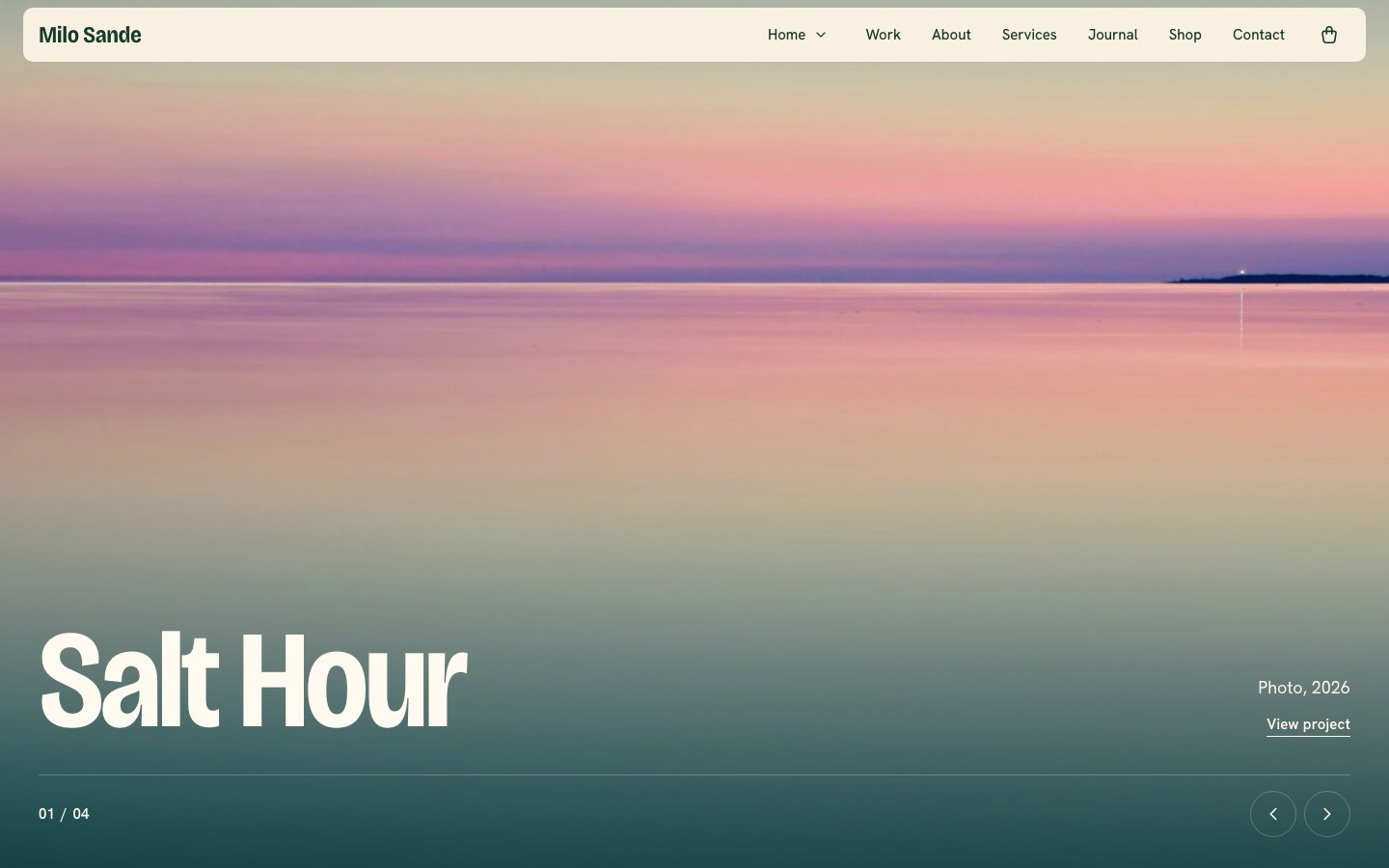
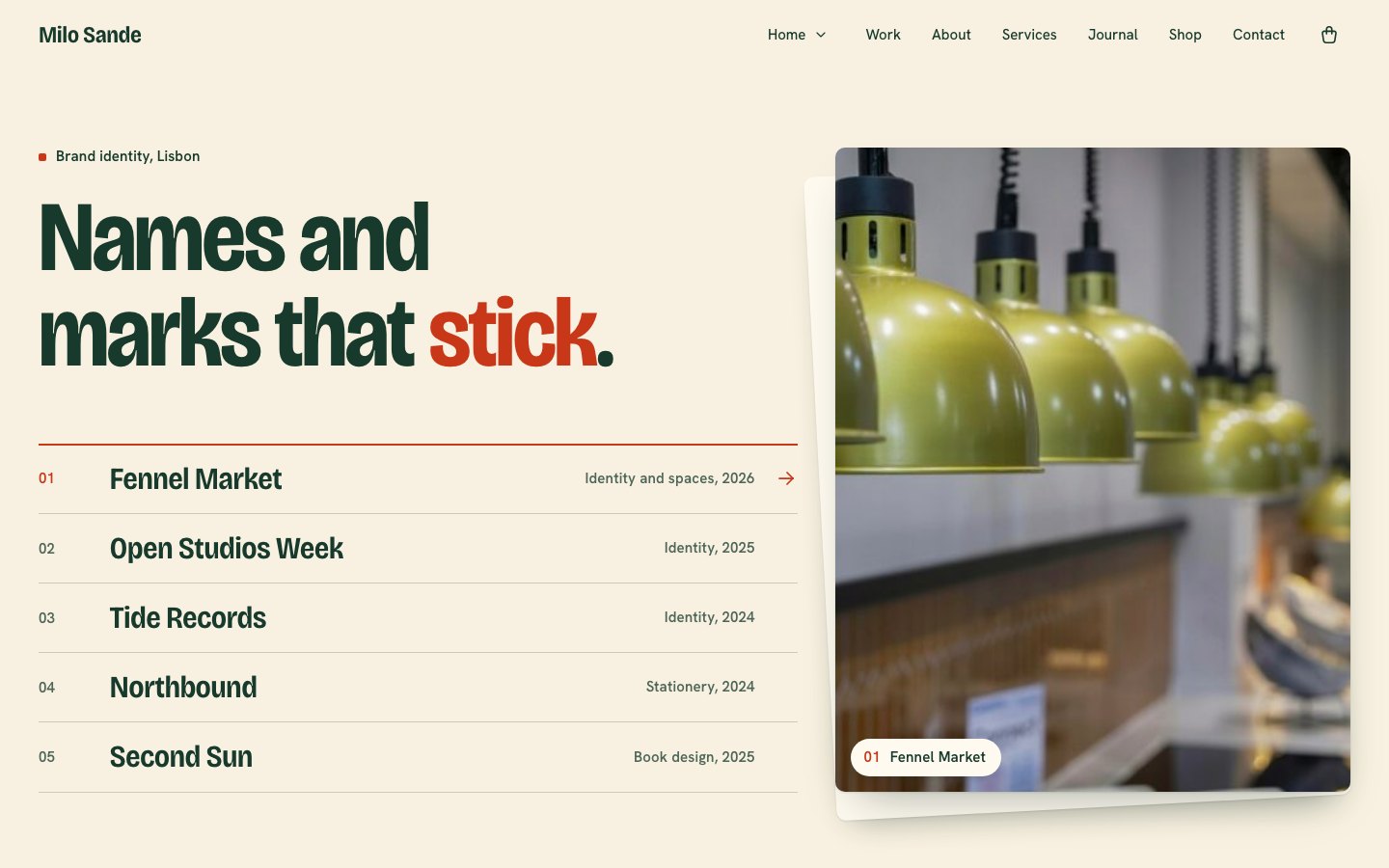
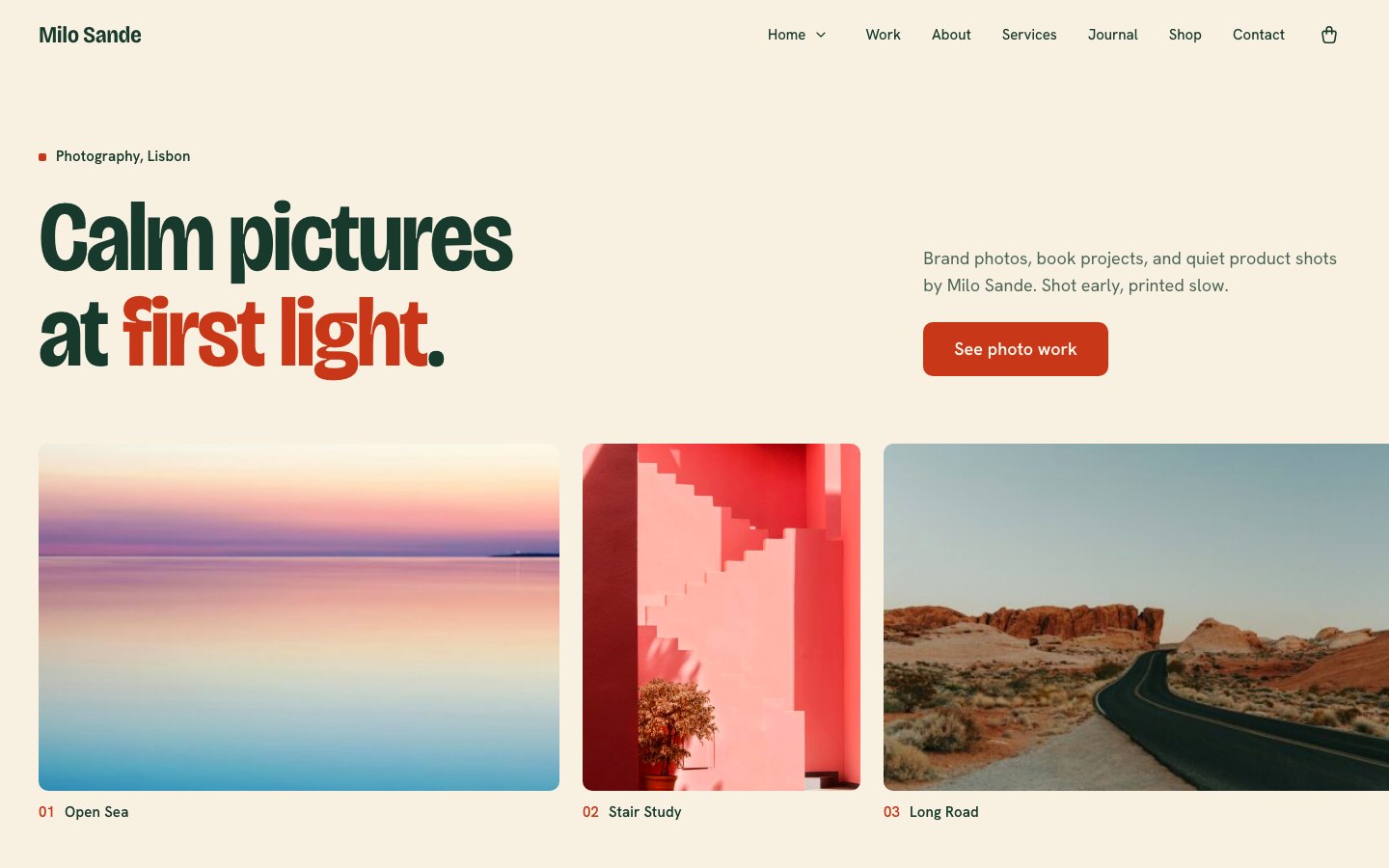
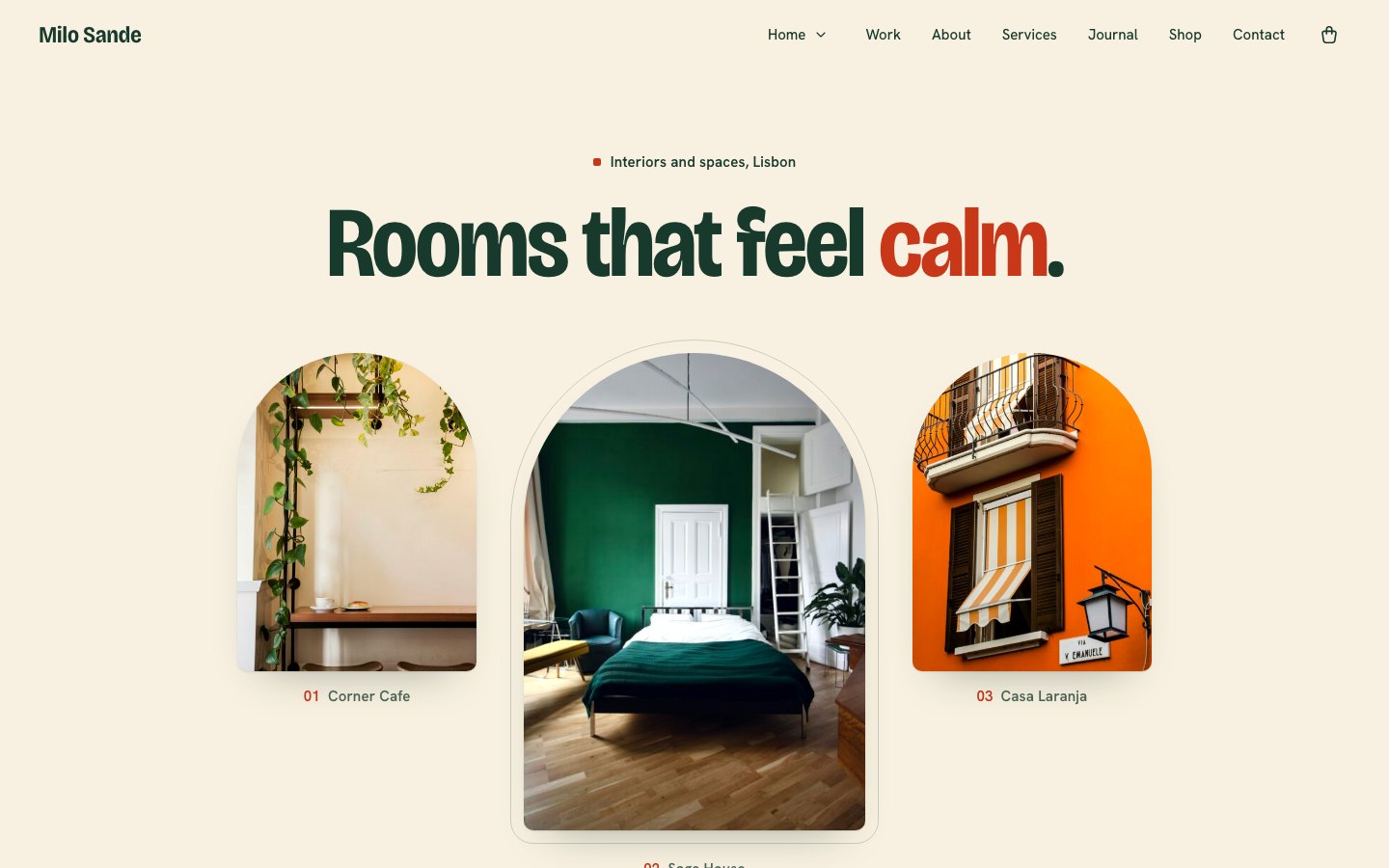
The demo has 20 home pages. Each one is an Elementor page built only from Quire widgets, with its own opening widget, its own order of widgets, and its own focus. Pick the one closest to your work, make it your front page, and change its words and images.
The home pages come with the demo import. See Import the demo. The name Milo Sande, the clients, and the projects on these pages are fictional. The screenshots show the photos of the live demo. Your import shows placeholder images in their place (see The demo images).
See them all#
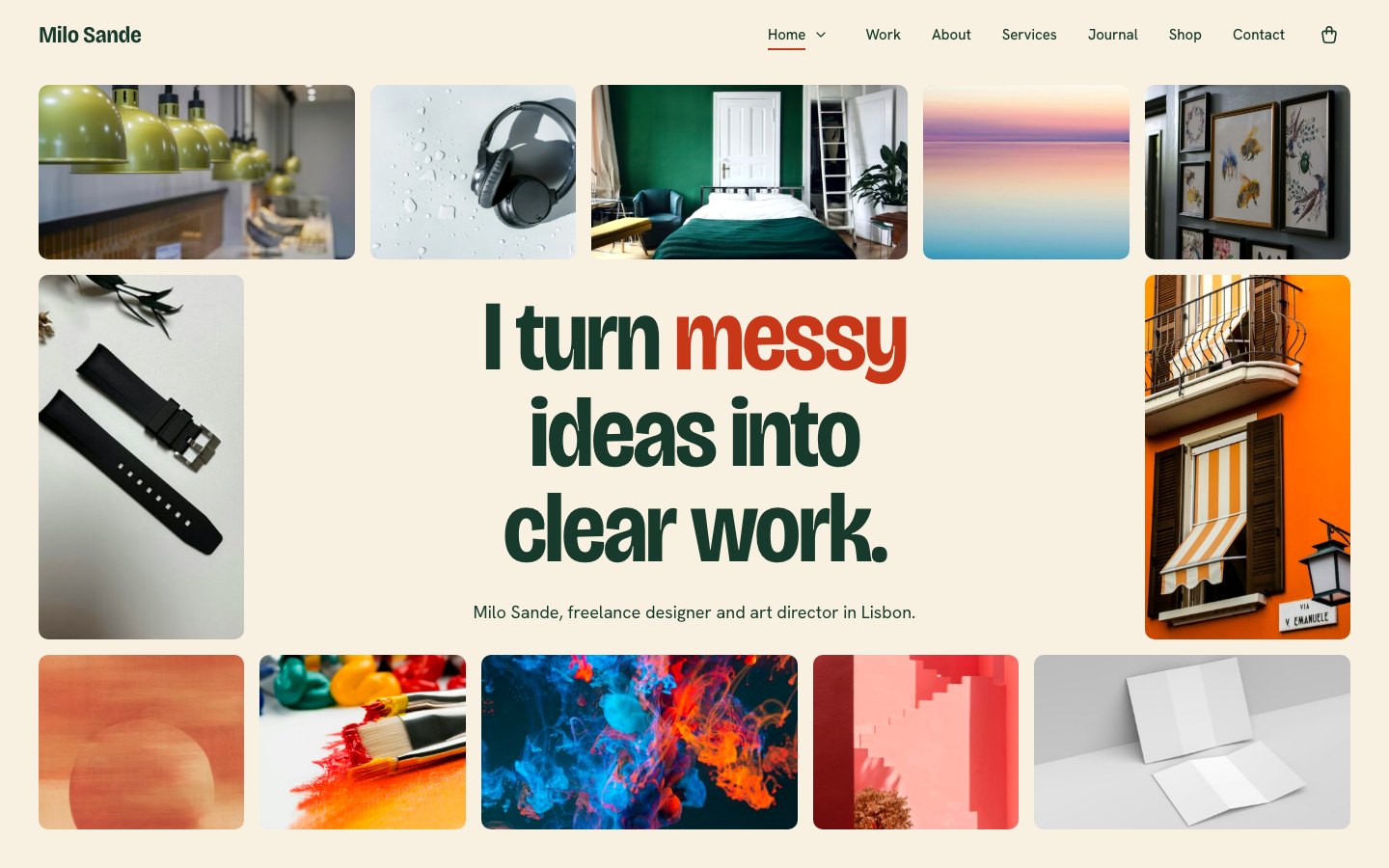
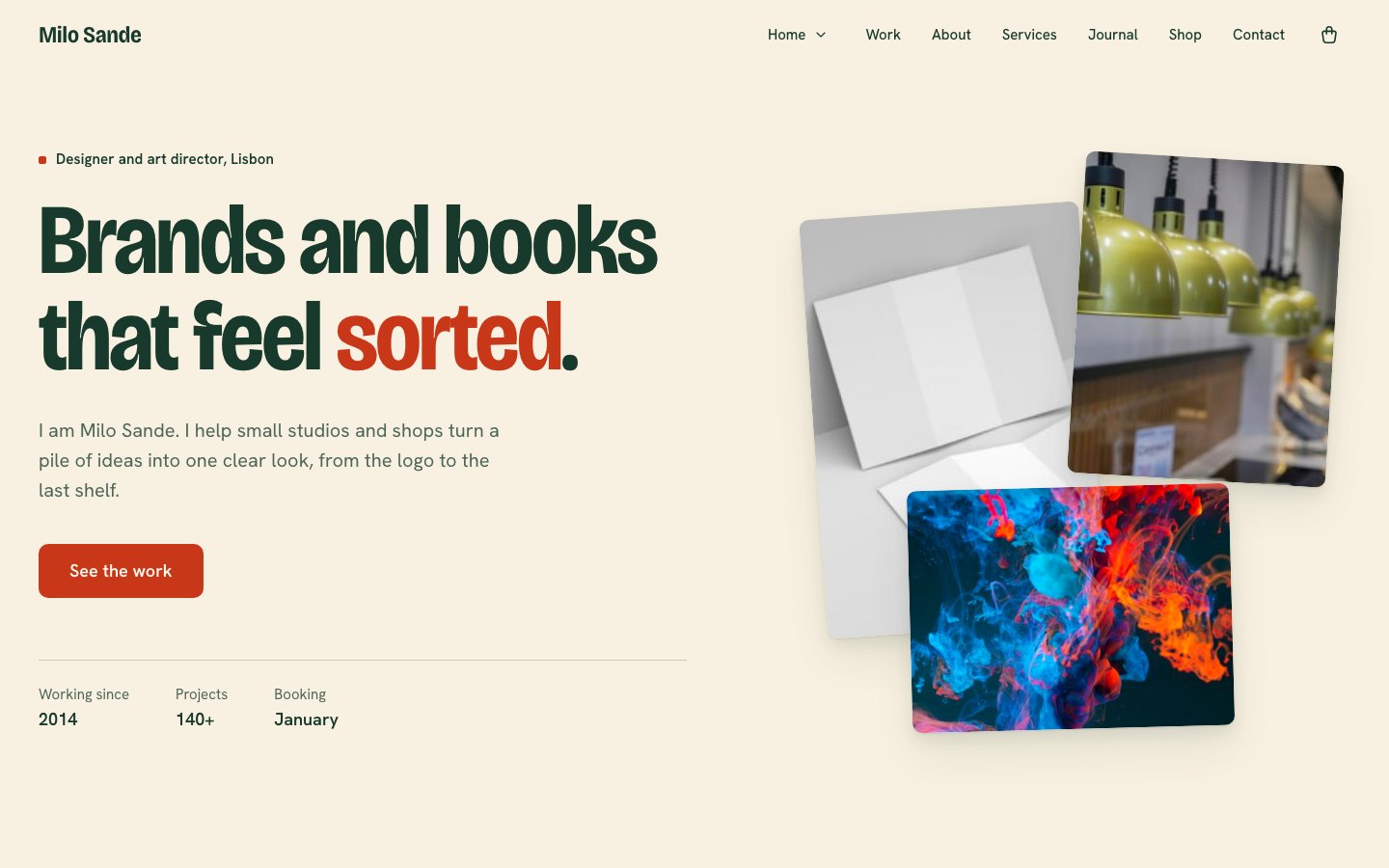
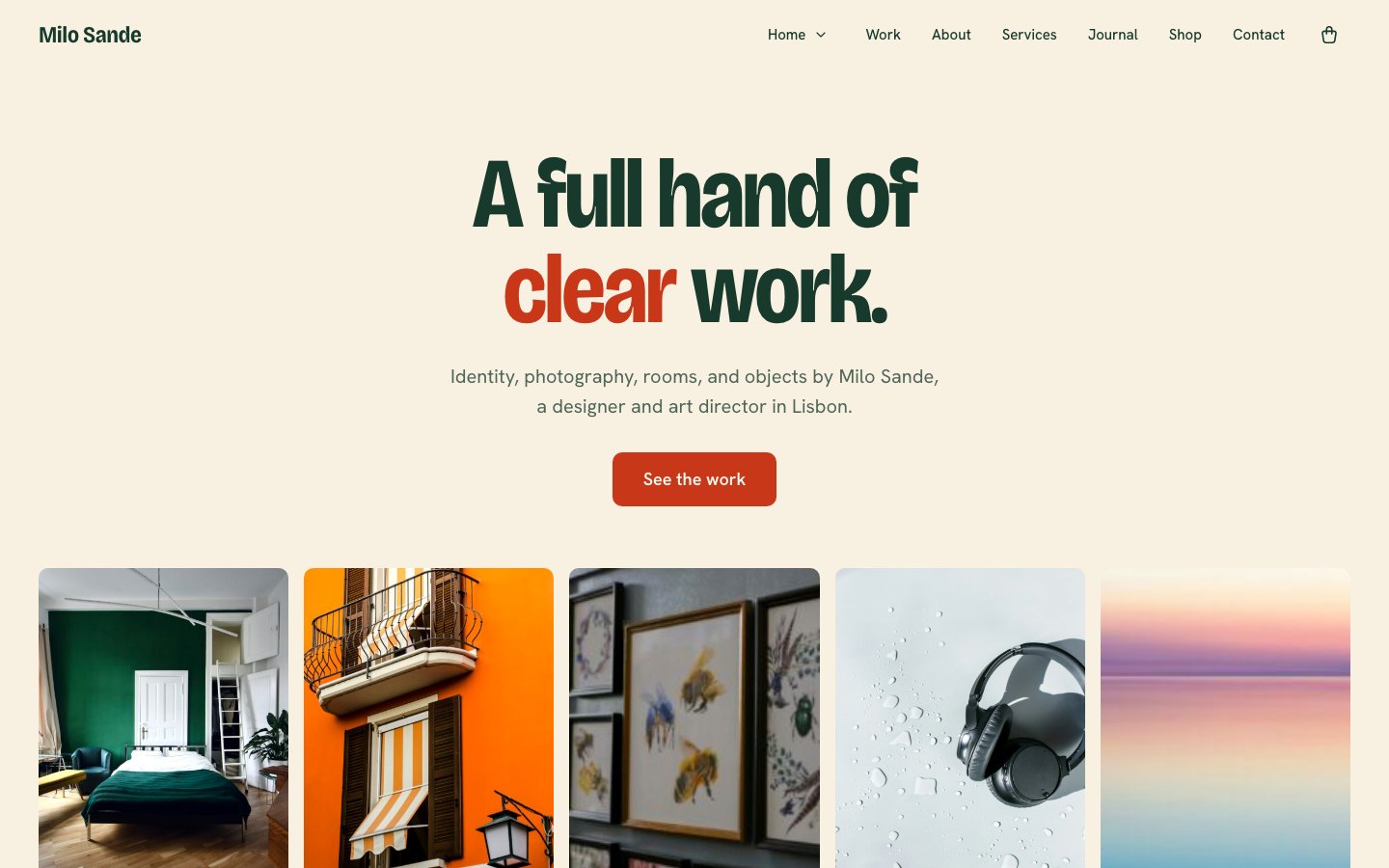
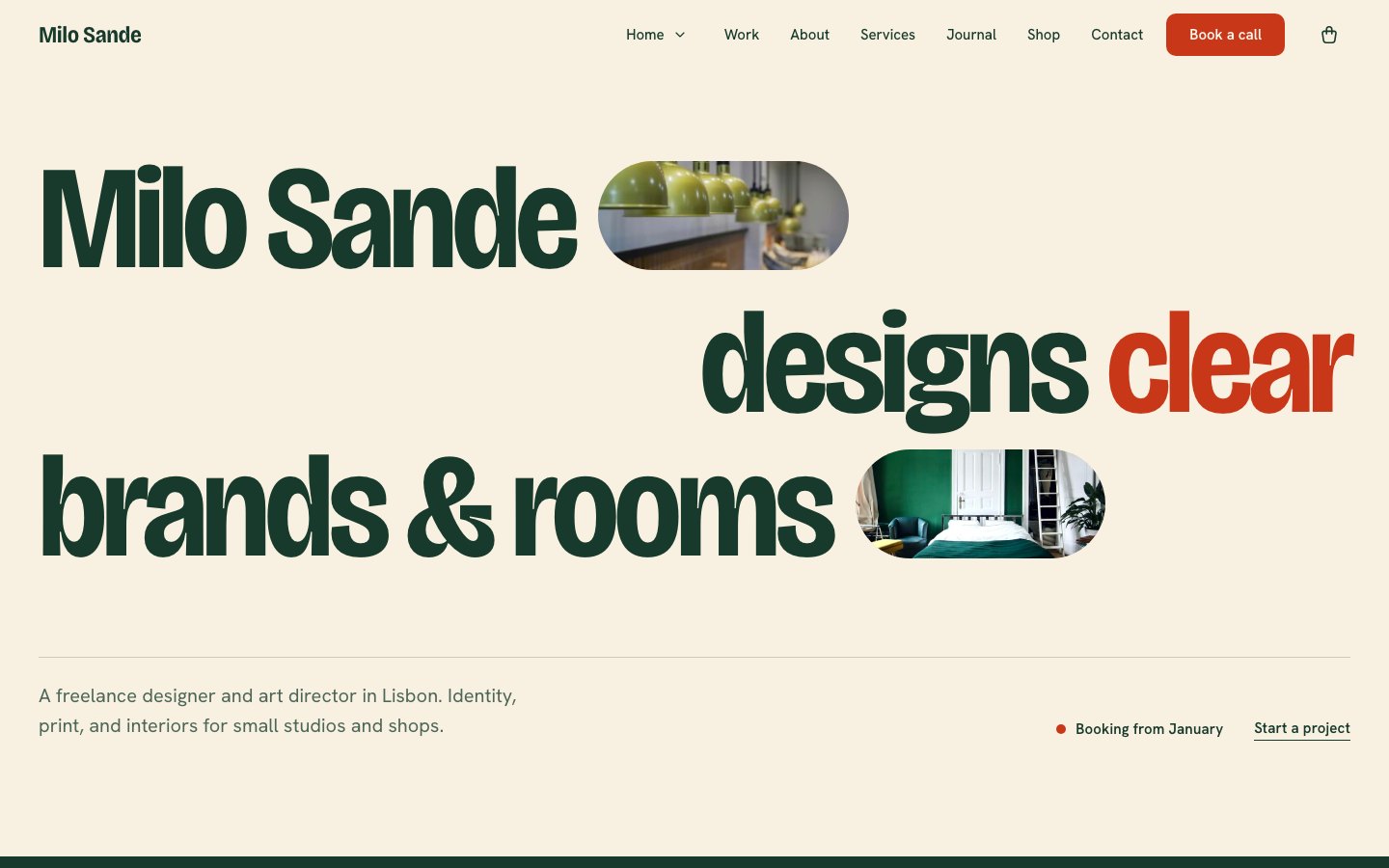
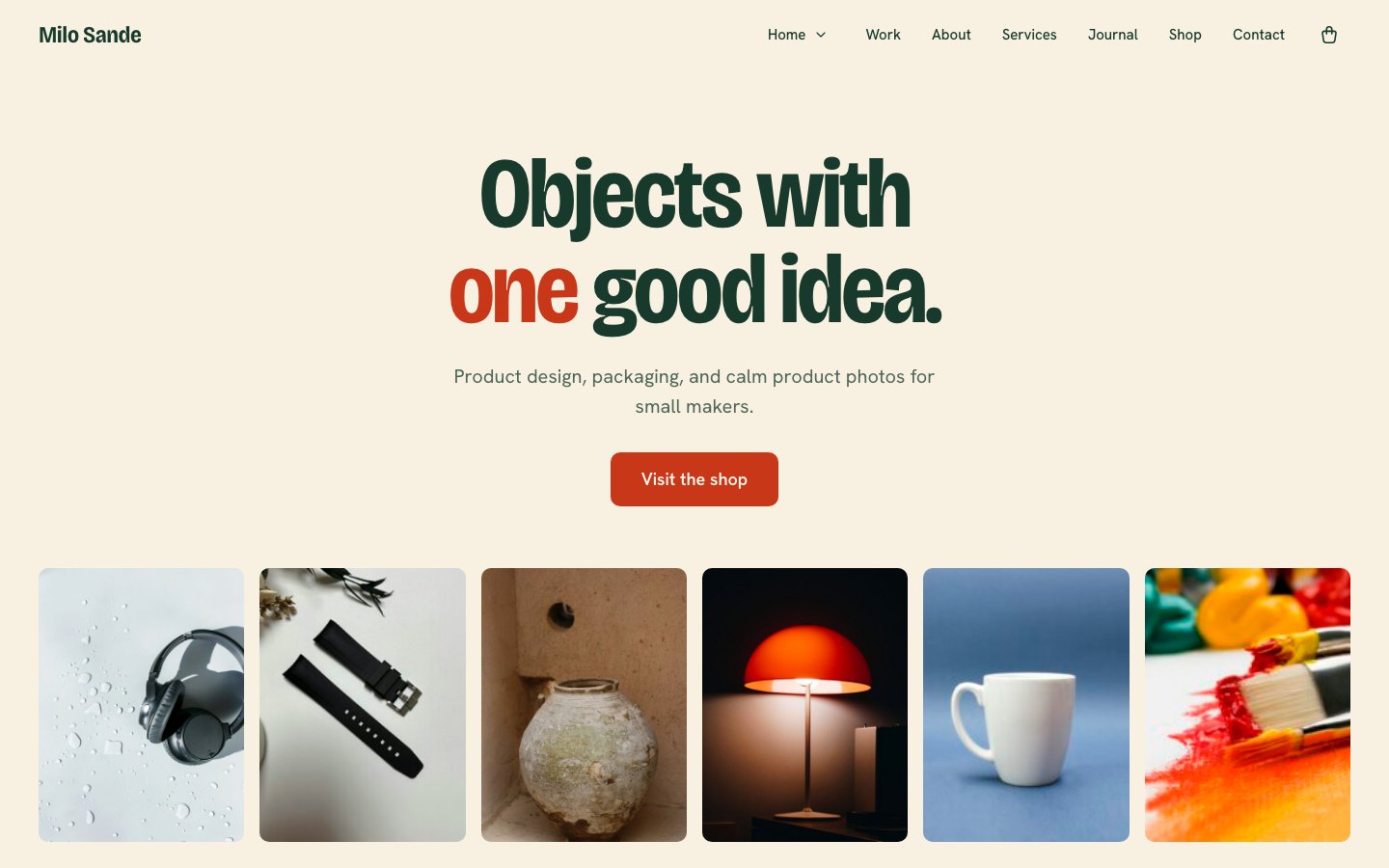
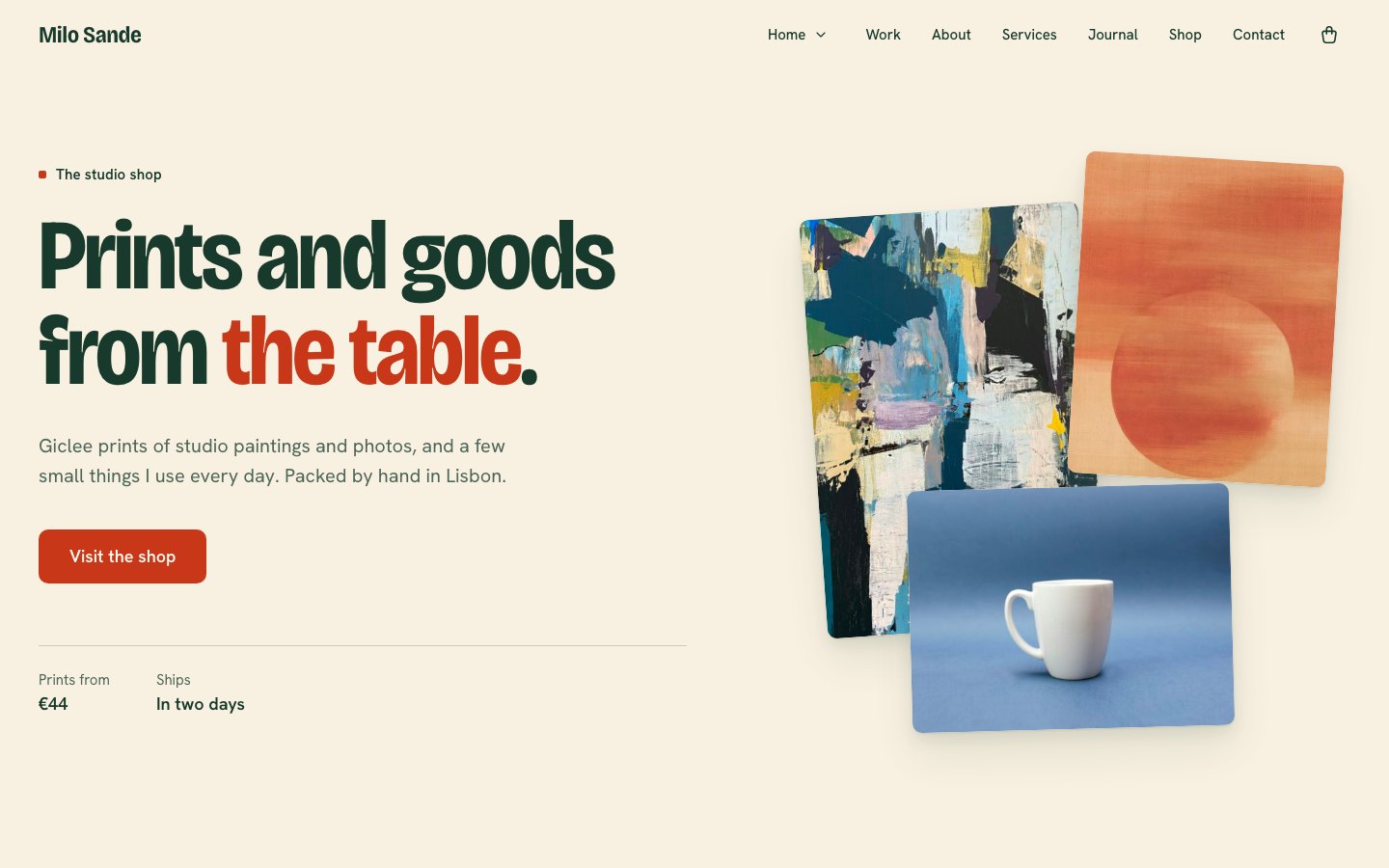
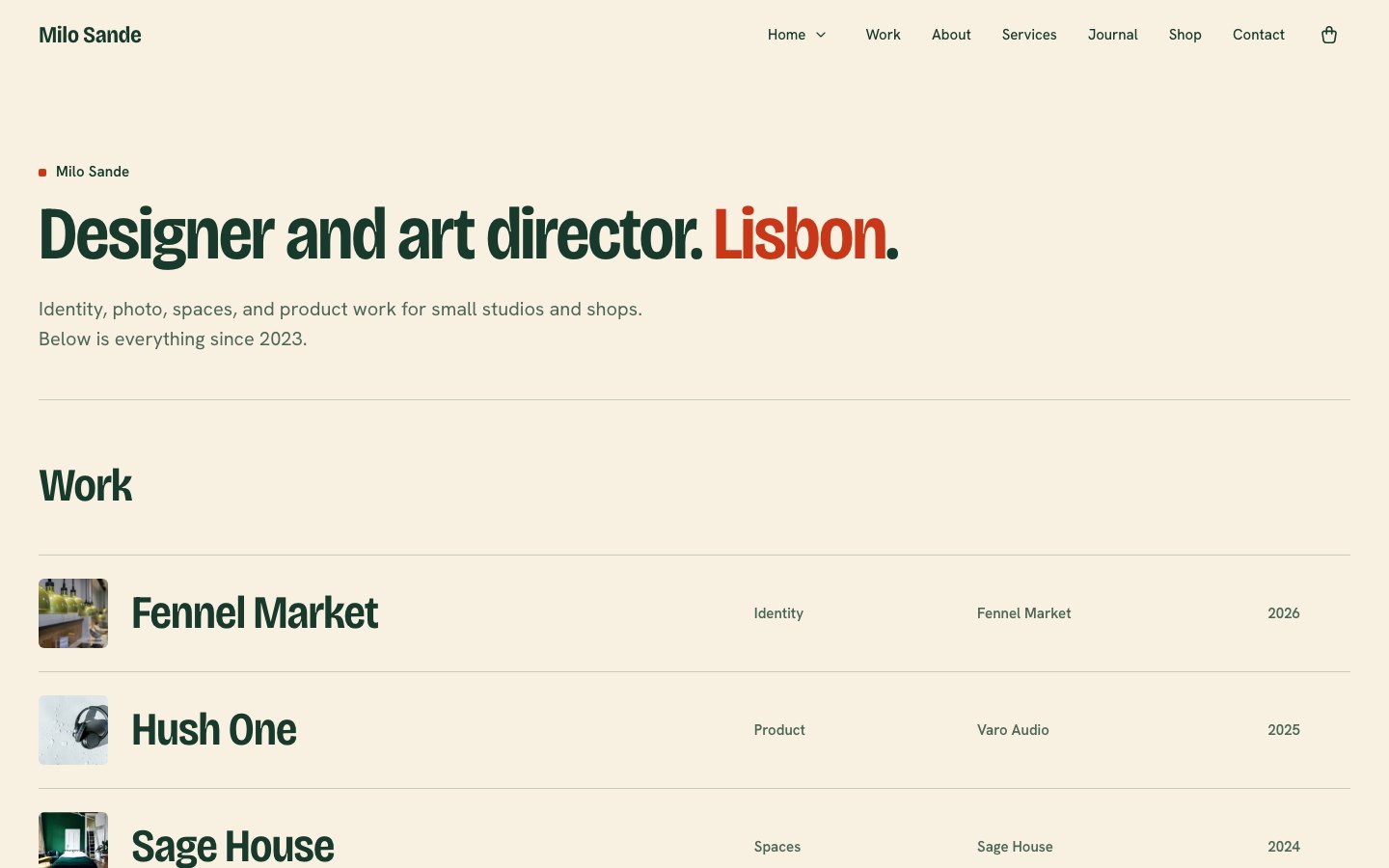
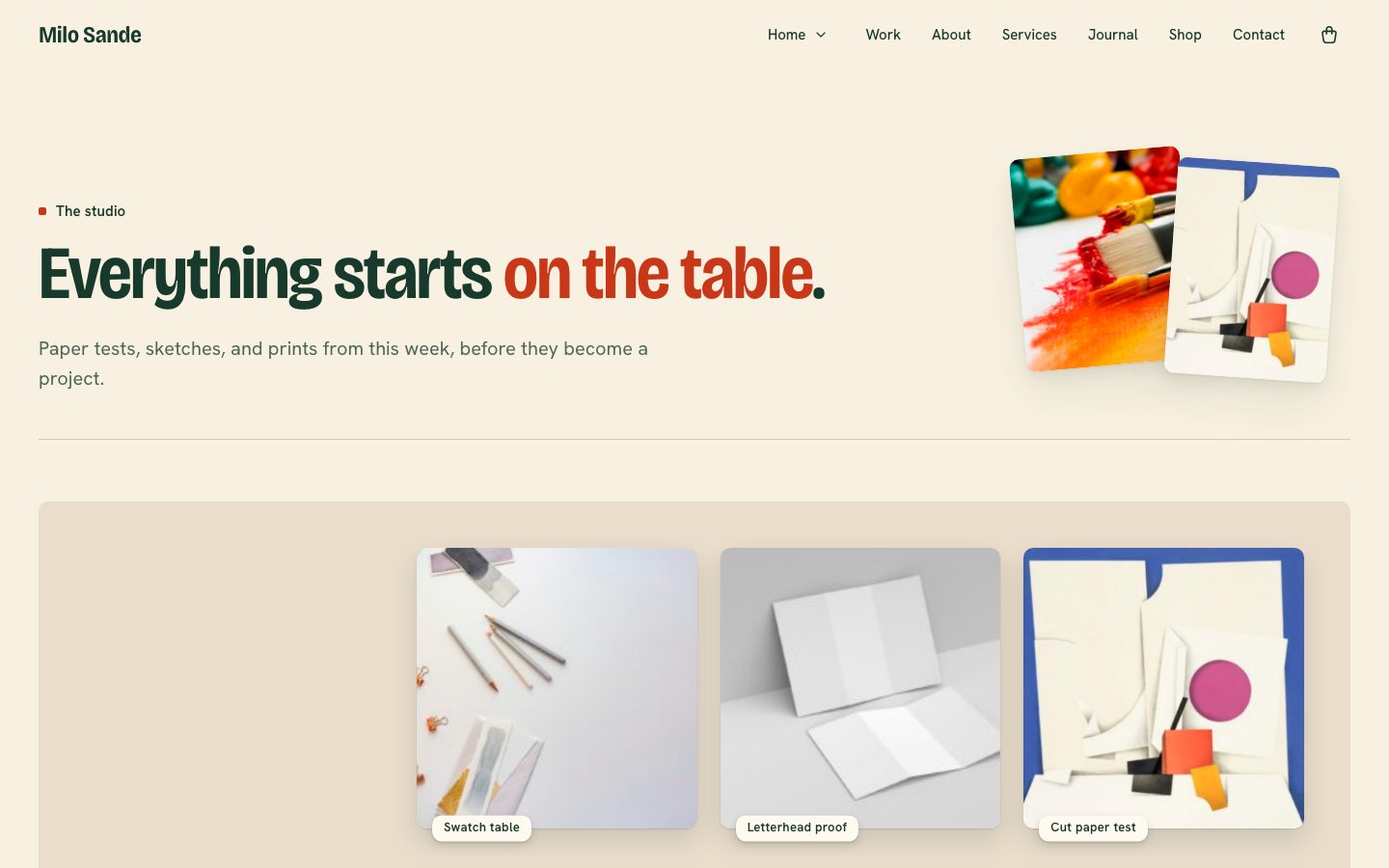
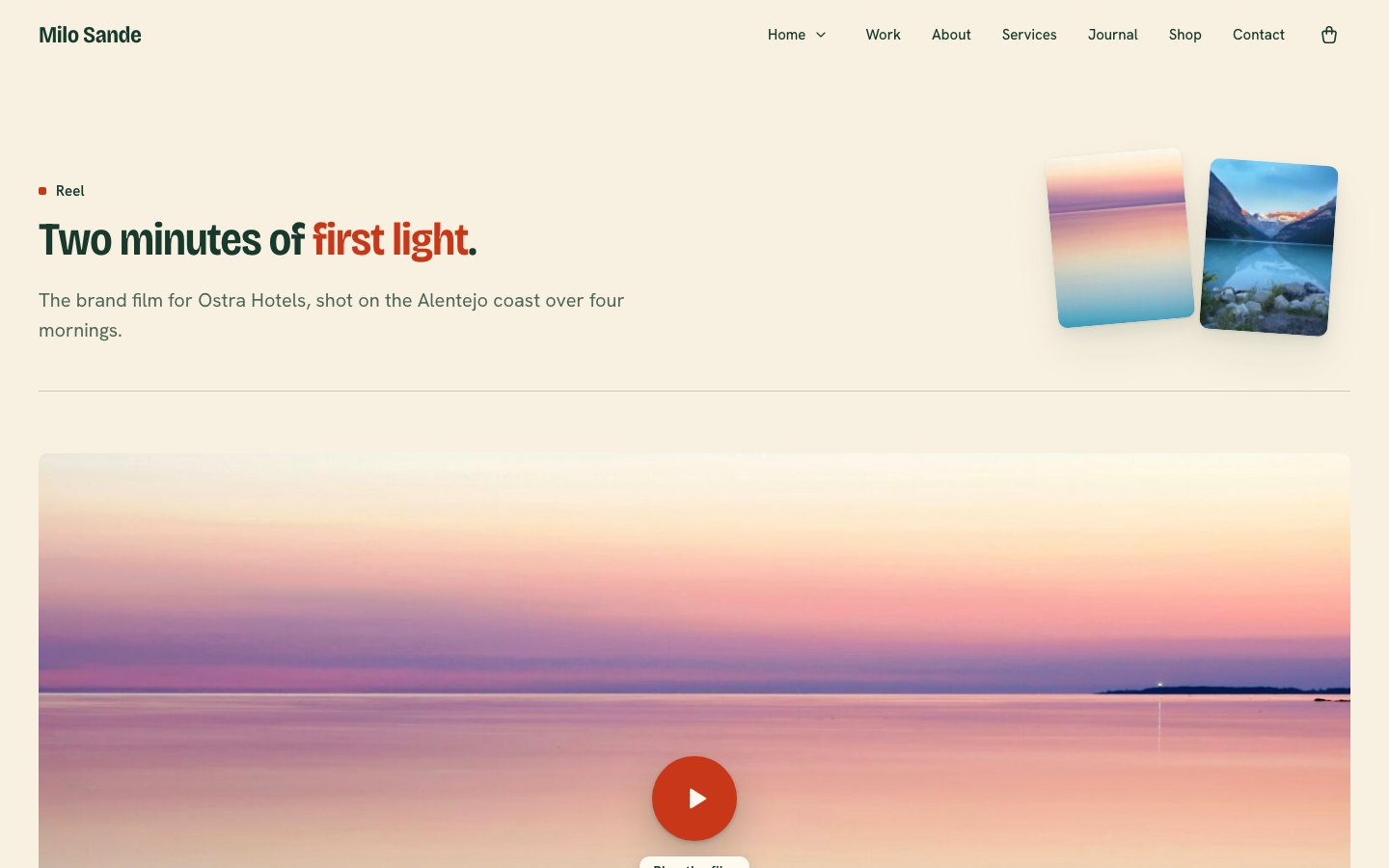
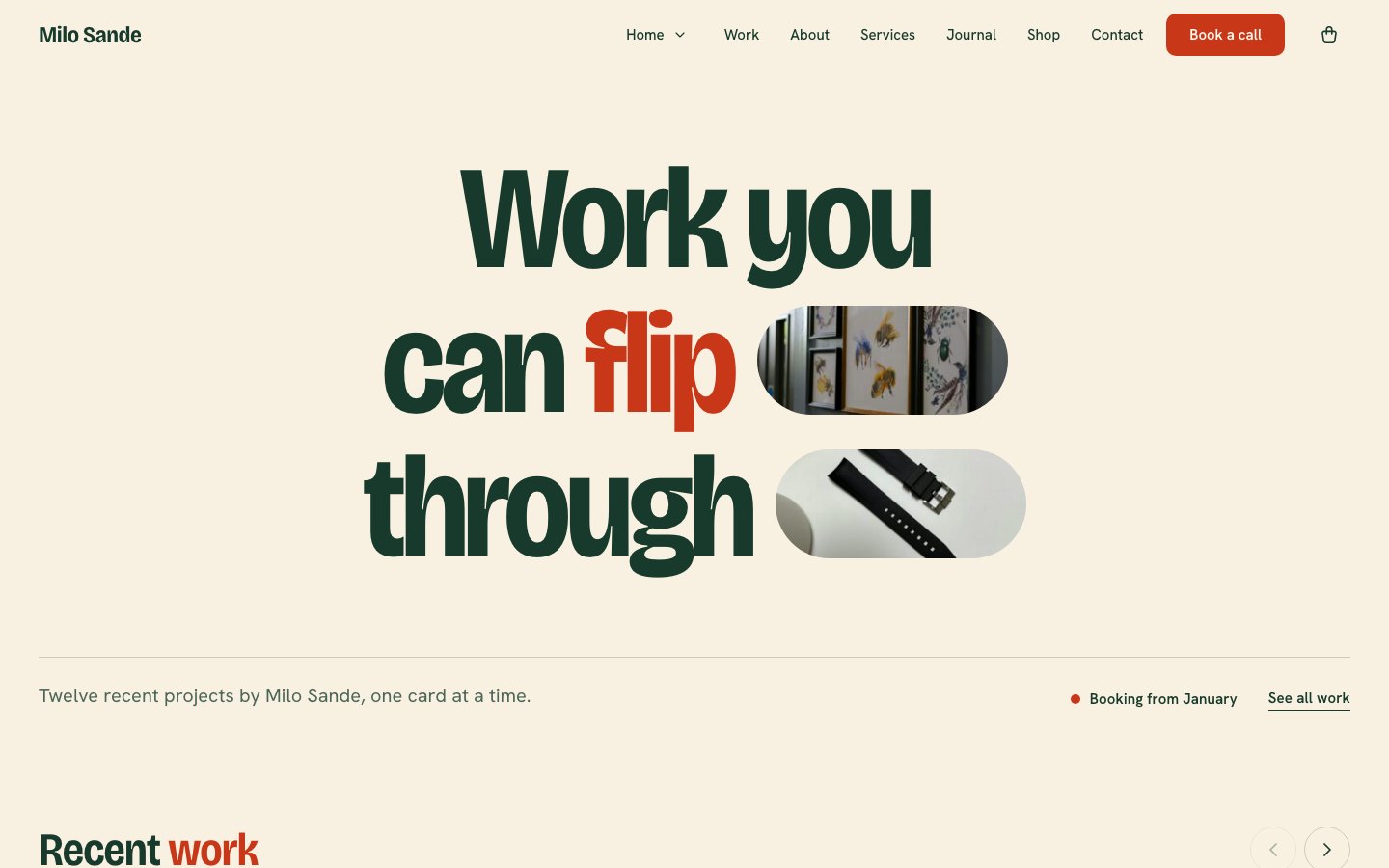
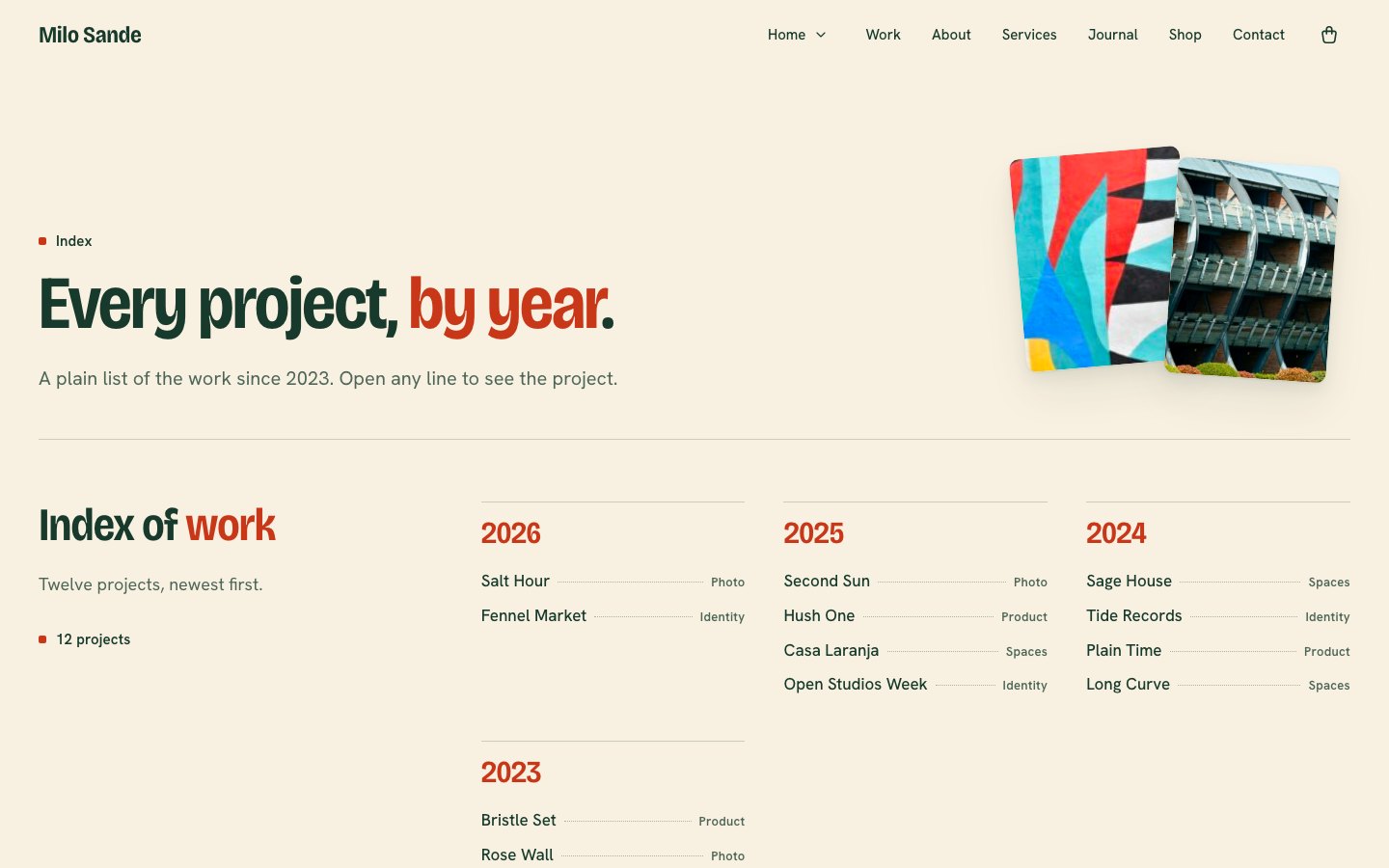
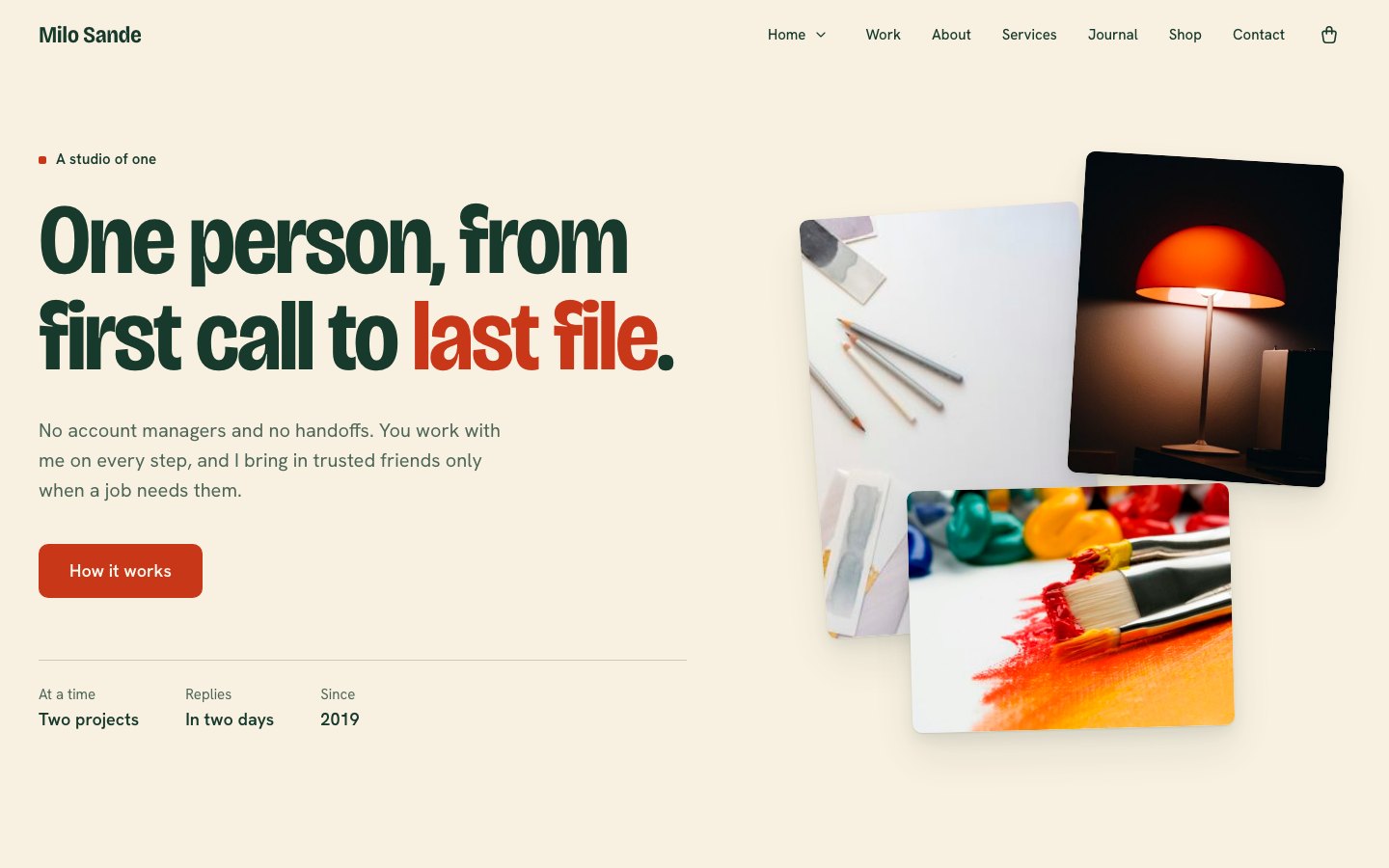
Each picture shows the first screen of a home page at 1440 pixels wide. Click a picture to see it larger, or open the pages on the live demo.
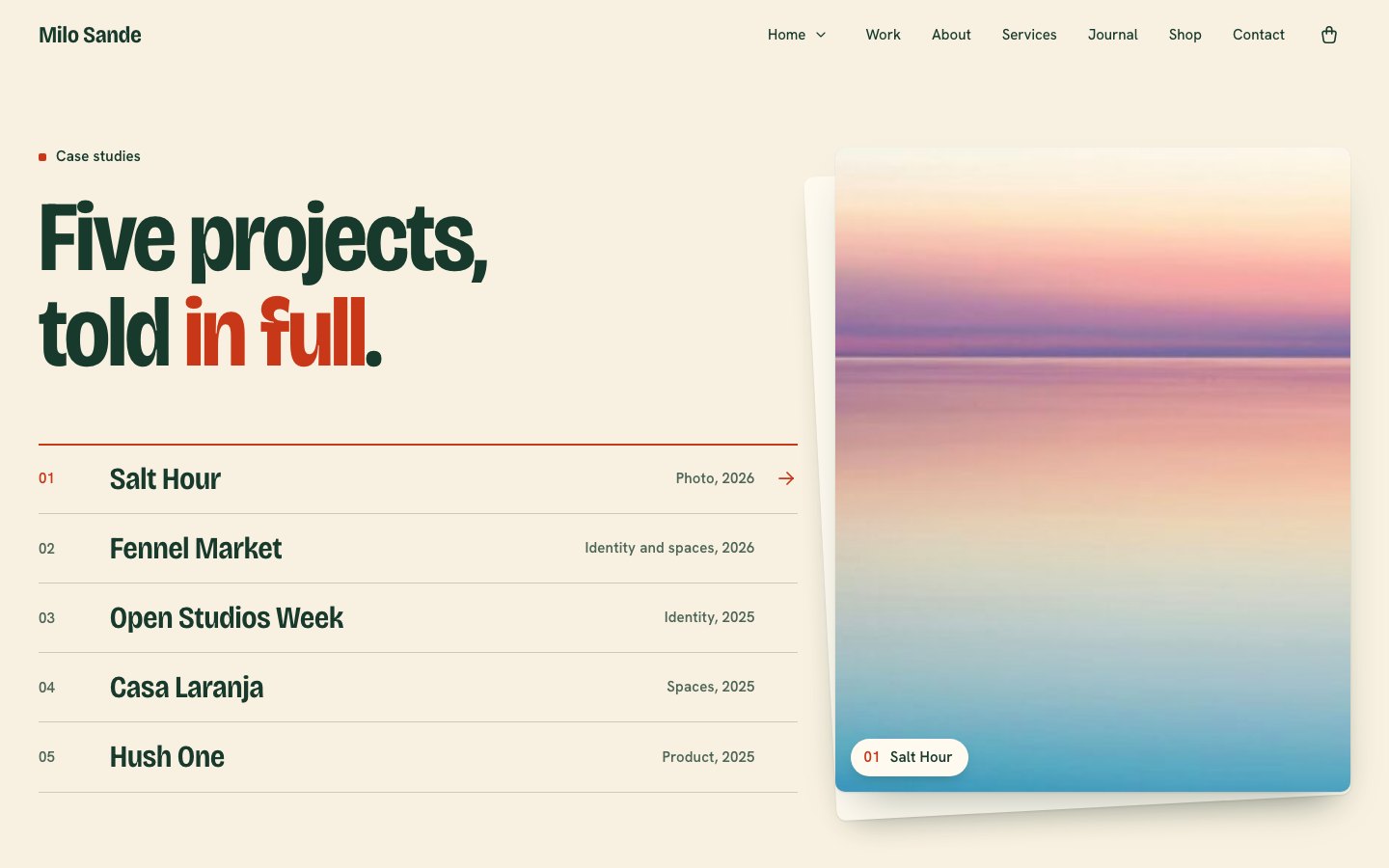
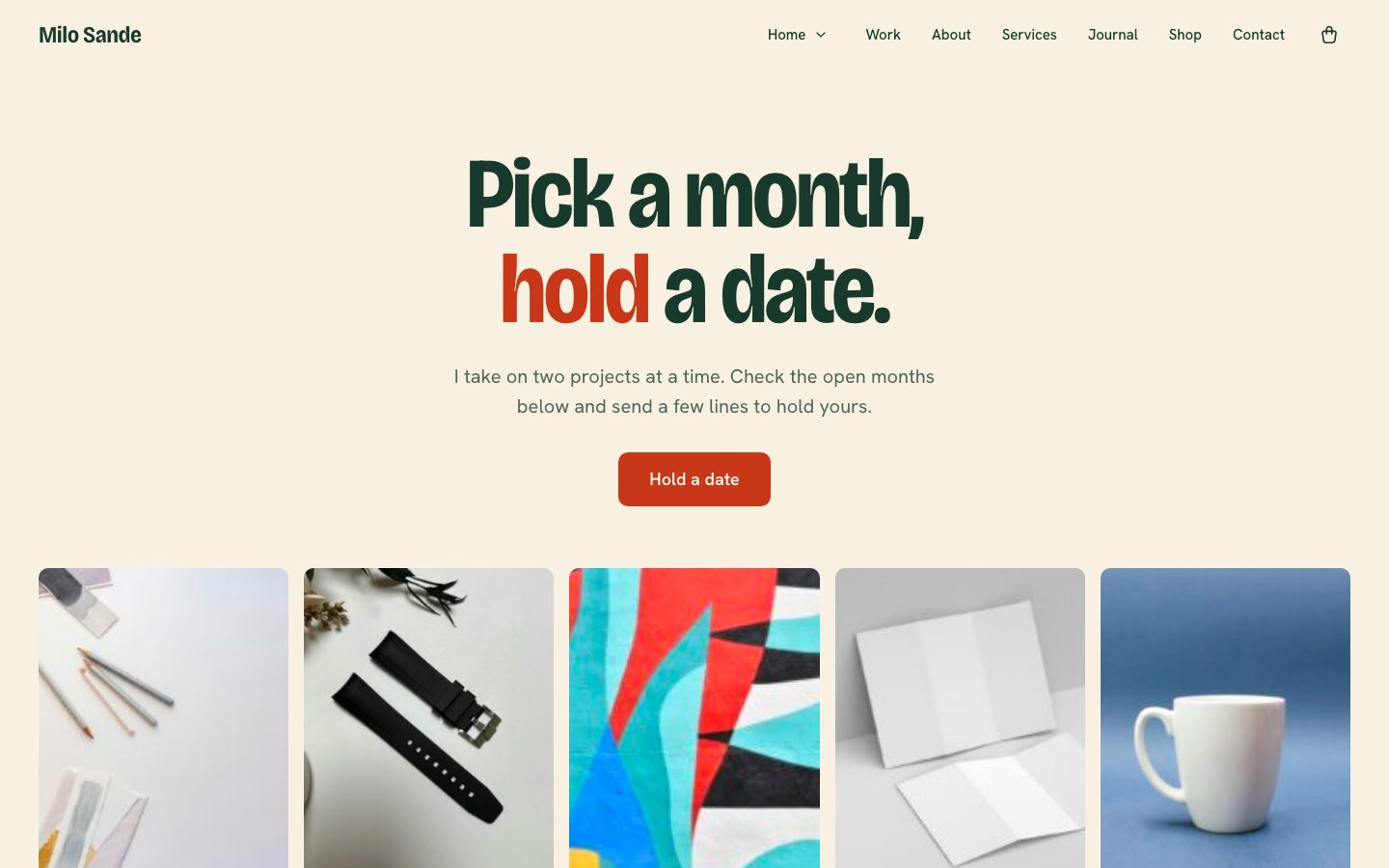
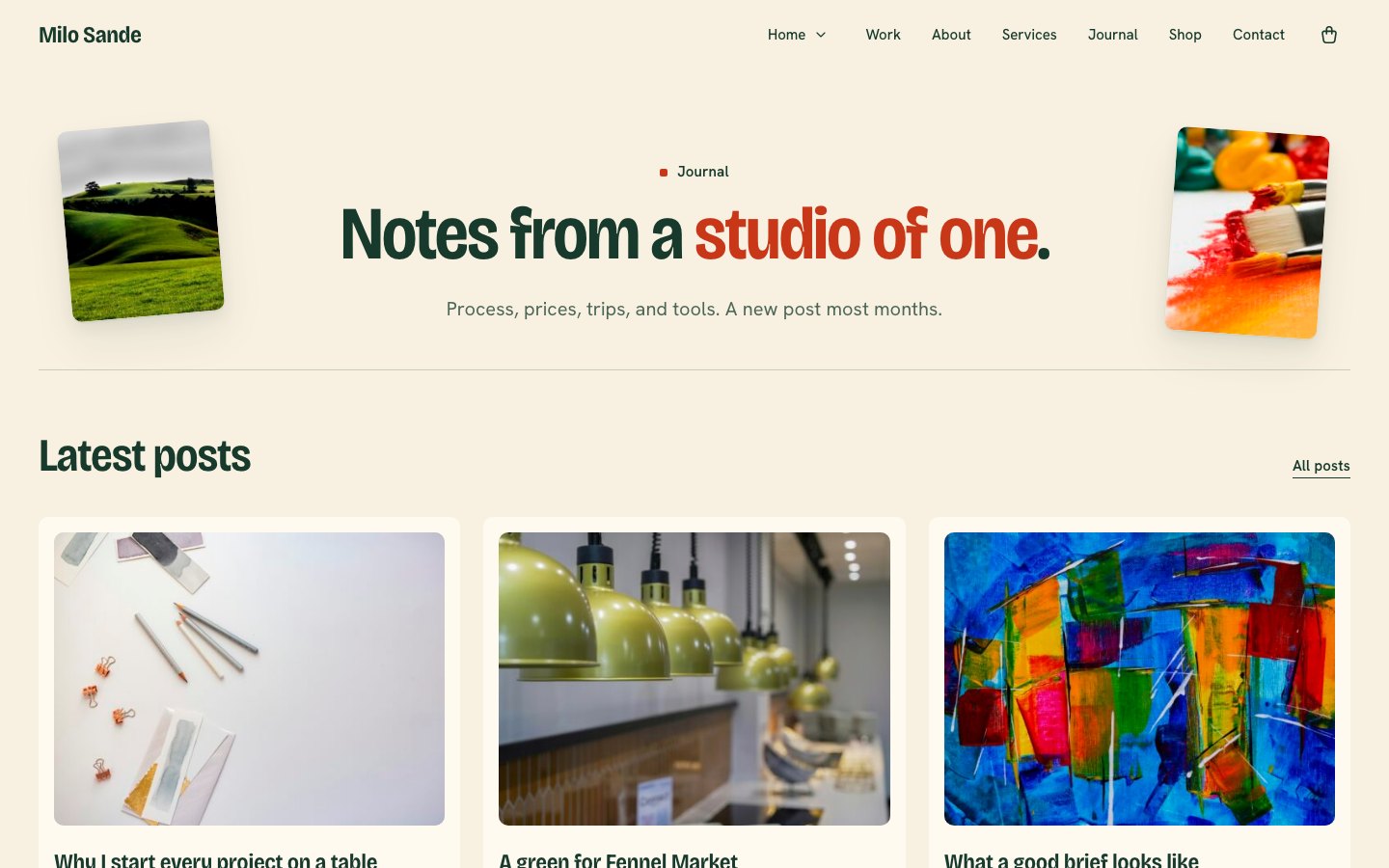
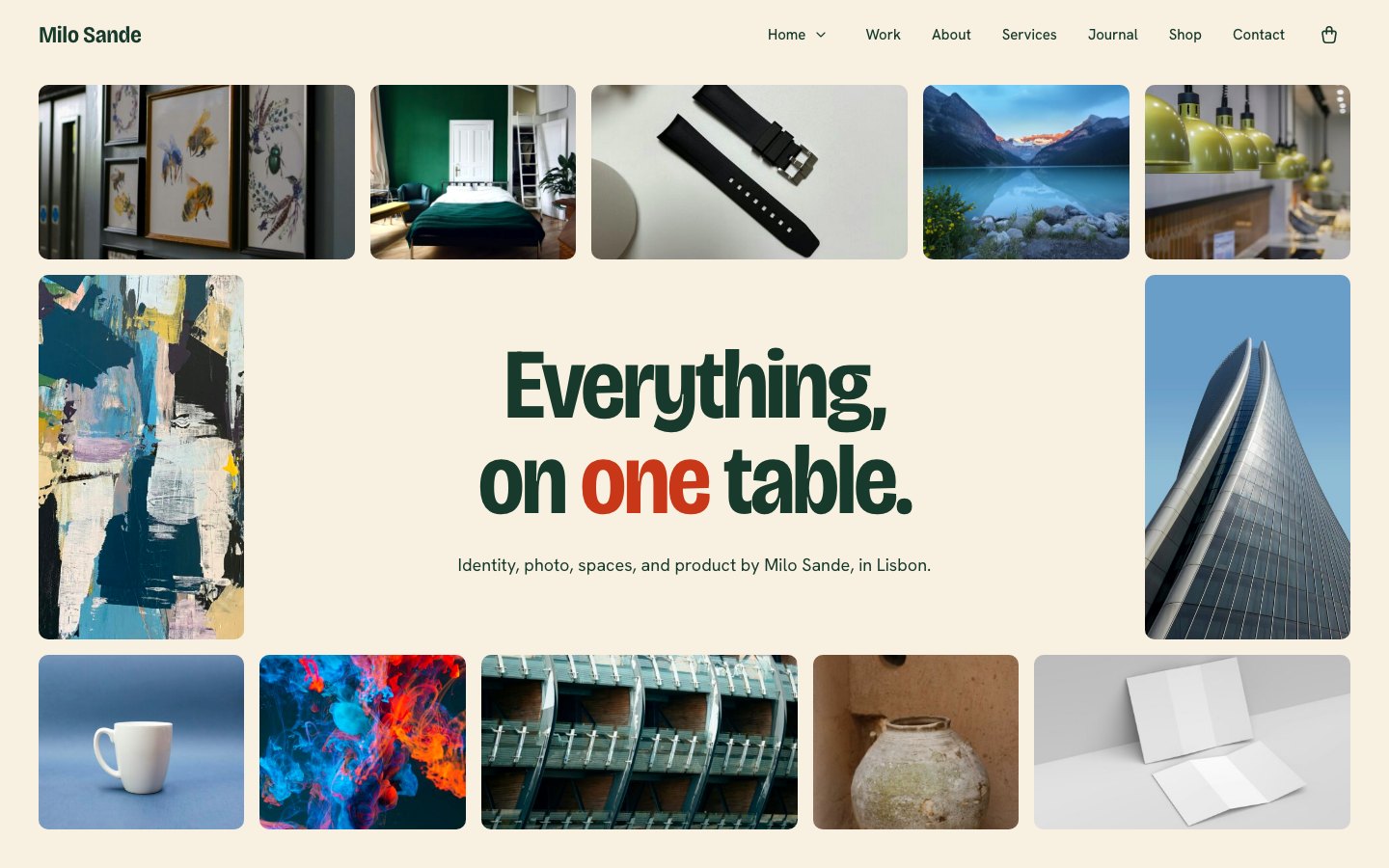
The widgets on each page#
Every page is a stack of Quire widgets, from the top of the page to the bottom. The first widget is the opening widget. Find each widget's fields in The 65 widgets.
| Page | Focus | Widgets, in order |
|---|---|---|
| Home 01 Table | The design concept: loose prints on a work table that settle around the headline, then zoom into the work. All four disciplines. | Table hero, Work columns, Drift, About, Stickers, Services, Clients, Bento, Quote, Sticky story, Numbers, Press, Journal, Now, Questions, Contact (16) |
| Home 02 Split | Brand and book design: the headline on one half, a stack of prints on the other. | Split hero, Work grid, Print shelf, Statement, Tabs, Service cards, Print notes, Testimonials, Press, Logos, Letter, Journal, Now, Call to action (14) |
| Home 03 Deck | All the work, opened like a hand of cards. | Deck hero, Work list, Bento, About, Stickers, Process, Logos, Drift, Card stack, Quote, Numbers, Awards, Questions, Contact (14) |
| Home 04 Type | Large type with prints set between the words. Uses the demo's own header and footer templates. | Type hero, Marquee, Work columns, Print shelf, Numbers, Letter, Services, Contact sheet, Testimonials, Stickers, Press, Journal, Call to action, Newsletter (14) |
| Home 05 Slides | Projects as full-screen slides, one at a time. | Slide hero, Featured project, Work grid, Drift, Clients, Image pair, Bento, Testimonials, Awards, Now, Questions, Call to action (12) |
| Home 06 Identity | Brand identity: names, marks, colors, and type. | List hero, Work index, Color palette, Type specimen, Print notes, Stickers, Process, Card stack, Press, Quote, Logos, Letter, Testimonials, Contact (14) |
| Home 07 Photo | Photography: a strip of photos, a gallery, and a contact sheet. | Strip hero, Gallery, Contact sheet, Full print, Pinboard, Sticky story, Carousel, Drift, Print shelf, Awards, Press, Newsletter (12) |
| Home 08 Spaces | Interiors and buildings, with prints in arched frames. | Arch hero, Full print, Print notes, Image pair, Print shelf, Before and after, Services, Drift, Bento, Availability, Testimonials, Letter, Questions, Contact (14) |
| Home 09 Product | Product design and packaging, with products from the shop. | Deck hero, Products, Print notes, Featured project, Print shelf, Numbers, Tabs, Stickers, Press, Questions, Testimonials, Call to action (12) |
| Home 10 Shop | The studio shop: prints and goods for sale. Needs WooCommerce for the products. | Split hero, Products, Marquee, Print shelf, Bento, Service cards, Letter, Press, Questions, Newsletter (10) |
| Home 11 Quiet | A plain, text-first page: a short head and a list of the work, with few images. | Page head, Work list, Now, Statement, Clients, Letter, Press, Experience, Contact details, Newsletter (10) |
| Home 12 Pinboard | The studio at work: paper tests and sketches pinned to a board. | Page head, Pinboard, Contact sheet, Work grid, Statement, Sticky story, Stickers, Experience, Bento, Print shelf, Journal, Letter, Now, Call to action (14) |
| Home 13 Reel | Film: a brand film on top, then frames from it. | Page head, Video, Contact sheet, Work columns, Drift, Collaborators, Sticky story, Quote, Press, Awards, Testimonials, Contact (12) |
| Home 14 Carousel | Recent work, one card at a time. Uses the demo's own header and footer templates. | Type hero, Carousel, Print shelf, Numbers, Bento, Logos, Tabs, Testimonials, Drift, Card stack, Press, Call to action (12) |
| Home 15 Index | Every project in a plain index, grouped by year. | Page head, Work index, Print shelf, About, Now, Awards, Stickers, Press, Experience, Journal, Letter, Newsletter (12) |
| Home 16 Studio of one | Working with one person: the process, the services, and the prices. | Split hero, Statement, Text columns, Now, Services, Collaborators, Process, Sticky story, Pricing, Bento, Stickers, Testimonials, Letter, Questions, Press, Contact (16) |
| Home 17 Case | A few projects told in full, as case studies. | List hero, Featured project, Case chapter, Sticky story, Full print, Contact sheet, Case chapter, Press, Work grid, Call to action (10) |
| Home 18 Booking | Open dates and prices, to book a project. | Deck hero, Availability, Now, Pricing, Card stack, Testimonials, Logos, Questions, Letter, Press, Contact details, Contact (12) |
| Home 19 Journal | Writing first: the latest posts on top. | Page head, Journal, Press, Statement, Letter, Stickers, Now, Newsletter, Work list, Bento (10) |
| Home 20 Everything | All four disciplines and many kinds of widgets on one page. | Table hero, Marquee, Work grid, Print shelf, About, Drift, Numbers, Tabs, Logos, Bento, Contact sheet, Print notes, Card stack, Press, Questions, Contact (16) |
Each home page uses the Canvas (full width) page template, and Elementor's Hide Title setting is on. Each widget sits in its own full-width Elementor container. See Build pages with Elementor.
Home 04 and Home 14 show the demo's own header and footer templates: the header has a "Book a call" button and hides when the page scrolls down, and the footer opens with a large line. Every other page uses the theme's header and footer. See Header and footer.
Make one your front page#
After the import, Home 01 Table is the front page and Journal is the posts page. To use another home page:
- Go to Settings > Reading.
- Under Your homepage displays, keep A static page (select below).
- Choose the page in Homepage, for example Home 07 Photo.
- Click Save Changes at the bottom.
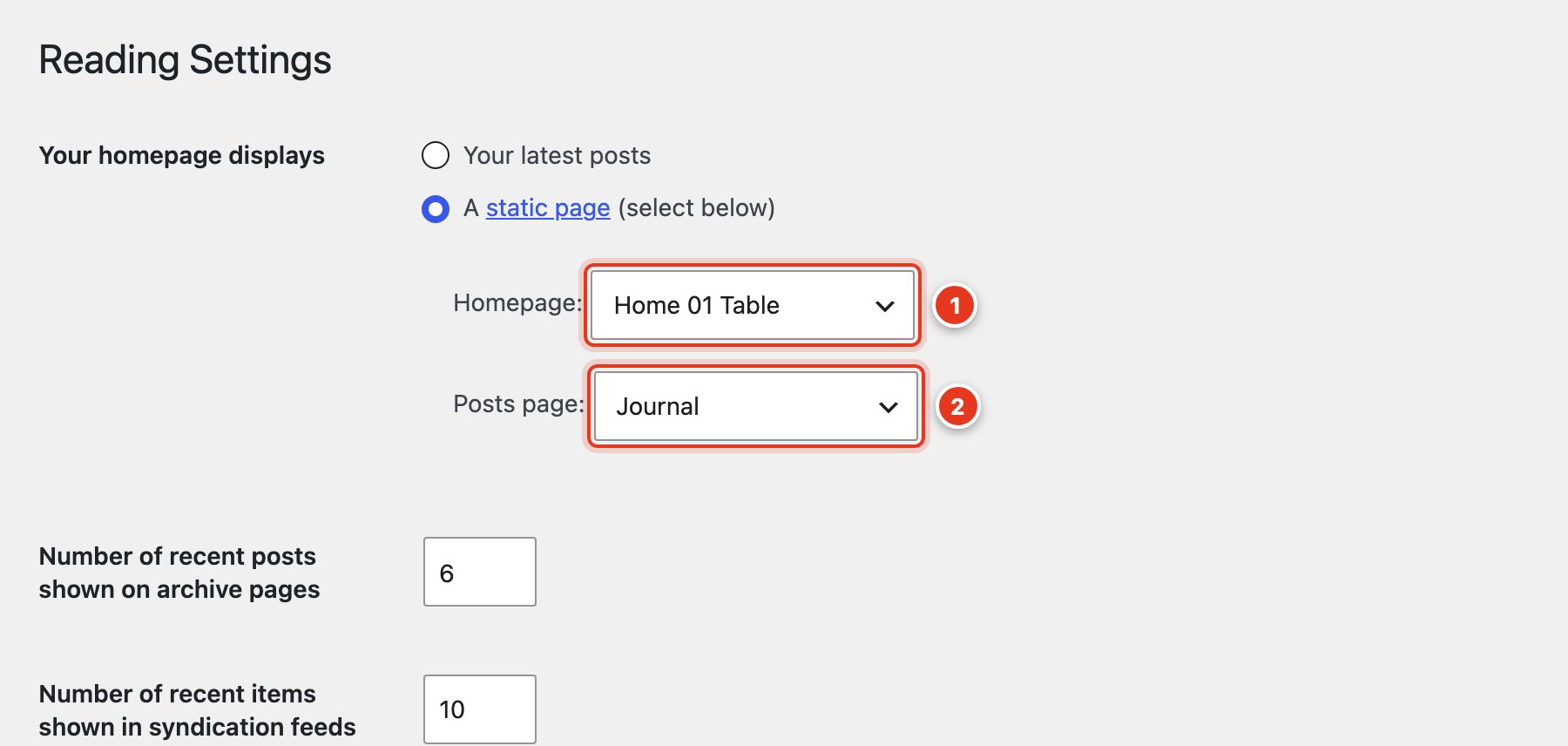
- Homepage: the page visitors see at your site's address.
- Posts page: the page that lists your journal posts. Keep it on Journal.
The Quire dashboard lists all 20 home pages, with a link to view each one and an Edit link. Go to Quire > Dashboard and scroll to Demo content.
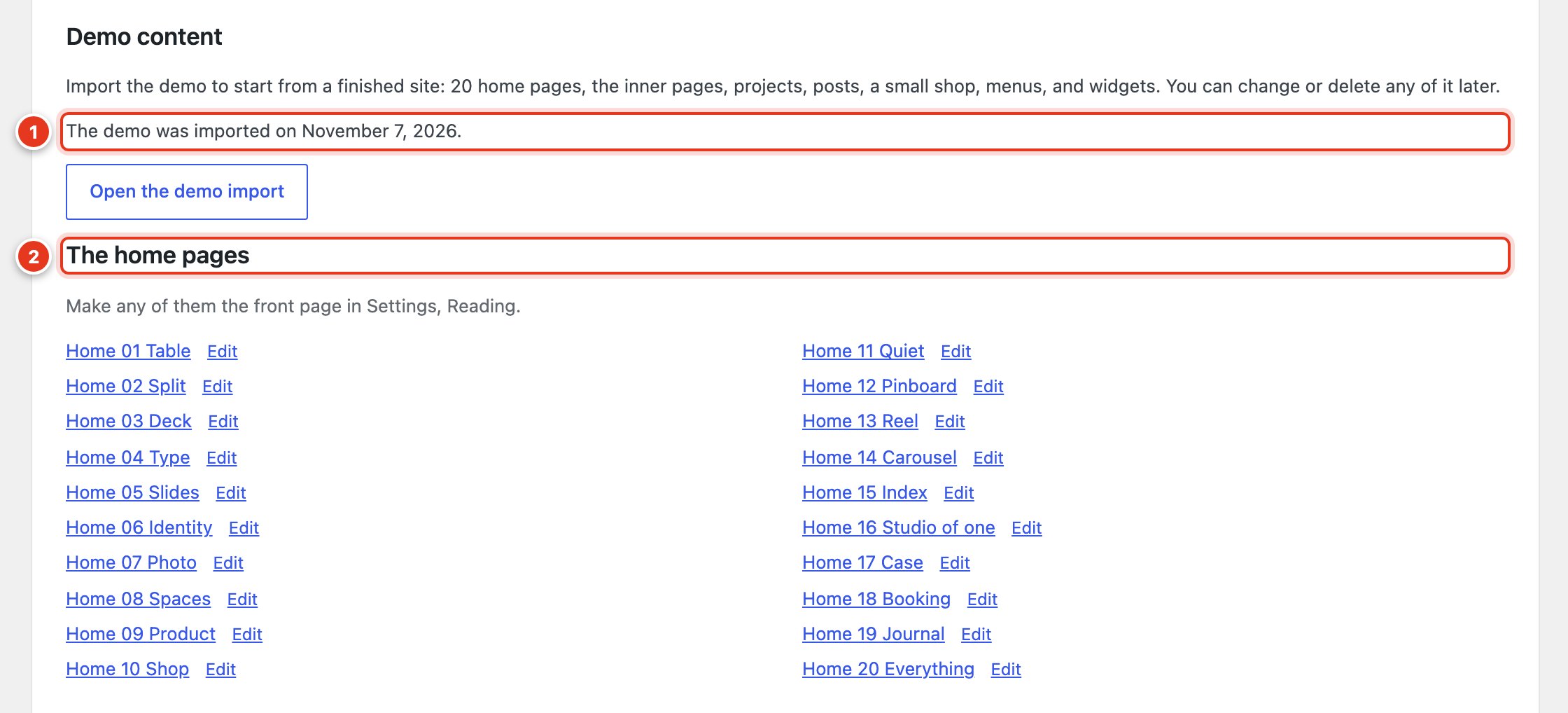
- The date of the demo import.
- The home pages: click a name to view the page, or Edit to open it.
The Home menu#
In the demo's Primary menu, the Home item opens Home 01 Table. Under it, a sub-menu lists all 20 home pages, from "01 Table" to "20 Everything". The dropdown card scrolls inside itself, so the long list fits on any screen.
On your own site, you probably want one home page only. Then:
- Go to Appearance > Menus and choose the Primary menu.
- Open each item under Home with its arrow and click Remove.
- If Home should open another page, remove it too and add that page from the Pages box on the left.
- Click Save Menu.
You can then move the home pages you do not use to the trash under Pages. See Site basics for more about menus.
Copy a home page to start a new page#
WordPress has no "duplicate" button for pages, and Quire does not add one. Use Elementor's own templates instead. They are part of the free Elementor plugin.
- Open the home page you like and click Edit with Elementor.
- Click the arrow next to Publish at the top right and choose Save as Template. Give the template a name and save it.
- Close Elementor. Go to Pages > Add New Page, write a title, and choose the Canvas (full width) template.
- Click Edit with Elementor. In the empty drop area, click the folder icon (Add Template), open My Templates, and click Insert next to your template.
- Change the words and images, then click Publish.
Elementor also lists your saved templates on its Saved Templates screen in the WordPress admin (find it in the Elementor menu). There you can export a template as a file and import it on another site.
To copy only a part of a page, right-click a container in Elementor and choose Copy. Then open the other page in Elementor, right-click where it should go, and choose Paste.
You do not have to copy anything. You can make a home page your front page and change it in place. Rename it under Pages if you like. The name and the address of the page do not change how it looks.
Change the images#
Every image on the home pages is a placeholder print. Replace them with your own before your site goes live.
- Open the page with Edit with Elementor and click the widget.
- In the panel, find the image field (for example Image, or a list of images) on the Content tab.
- Click the image to open the media library, then upload or choose your image.
- For a list of images, click it to open Elementor's gallery, then add, remove, or reorder the images.
- Click Publish.
Some images do not come from the widget:
- The work widgets (Work columns, Work grid, Work list, Work index, Featured project, and the Carousel when it shows projects) show each project's cover image. Change the cover image in the project. See Projects.
- The Journal widget shows the featured images of your posts. See Blog.
- The Products widget shows your WooCommerce product images. See Shop.
Quire's widgets crop images to their own shapes, so most photos fit. Upload images at least 1200 pixels wide for the large prints.
Quire 1.0.0 documentation, updated 2026-11-07. Online at quire.jawad.work/docs/.