Building your site
Your projects
A project is one piece of your work: a brand identity, a photo series, a shop interior, a product. Projects have their own menu, their own fields, their own archive page, and two page layouts.
Projects come from the Quire Core plugin. If the plugin is not active, the Projects menu is not there. See Install the plugins.
Add a project#
- Go to Projects > Add New Project.
- Write the title. Write the text in the block editor, or click Edit with Elementor and build the project from widgets. See Build pages with Elementor.
- In the sidebar, set the cover image (the featured image) and write a short excerpt.
- In the sidebar, choose the Disciplines, Clients, and Years.
- Fill in Project details under the editor (see below).
- Click Publish.
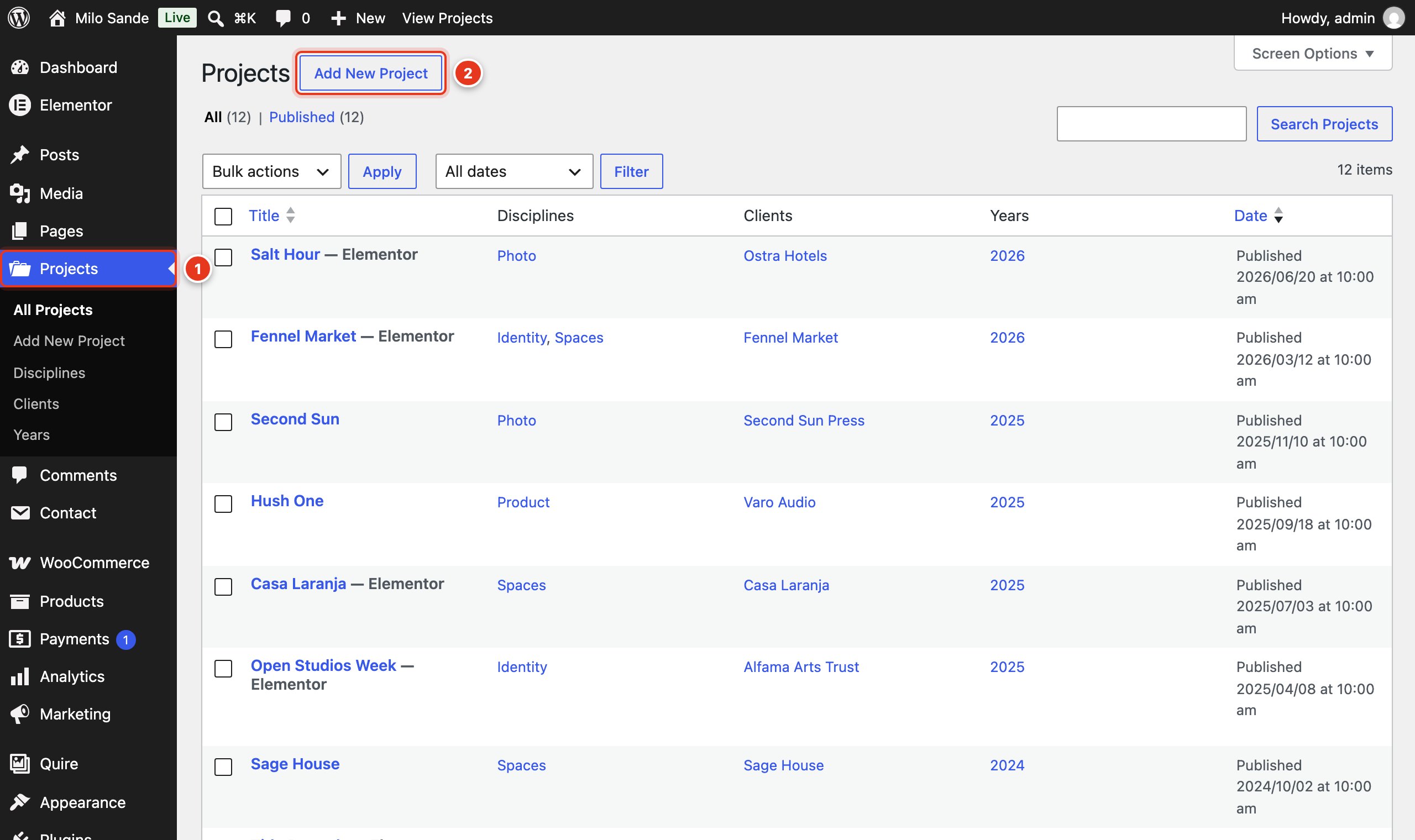
- The Projects menu. Its sub-menu holds All Projects, Add New Project, Disciplines, Clients, and Years.
- Add New Project.
The list shows the disciplines, clients, and year of each project. The word "Elementor" after a title means the project is built with Elementor. The 12 demo projects (Salt Hour, Fennel Market, and the others) and their clients are fictional.
The cover image and the excerpt#
- The cover image is the project's featured image. Work cards, the project hero, and the next project link all show it. Upload it at least 1200 pixels wide.
- The excerpt is the short line under the title in the project hero and the gallery head. It is also the summary of the facts list when Summary is empty.
Project details#
The Project details box is under the editor. In the block editor it sits in the Meta Boxes area at the bottom of the screen. Drag the bar of that area up to see the fields. In the classic editor, the box is under the text.
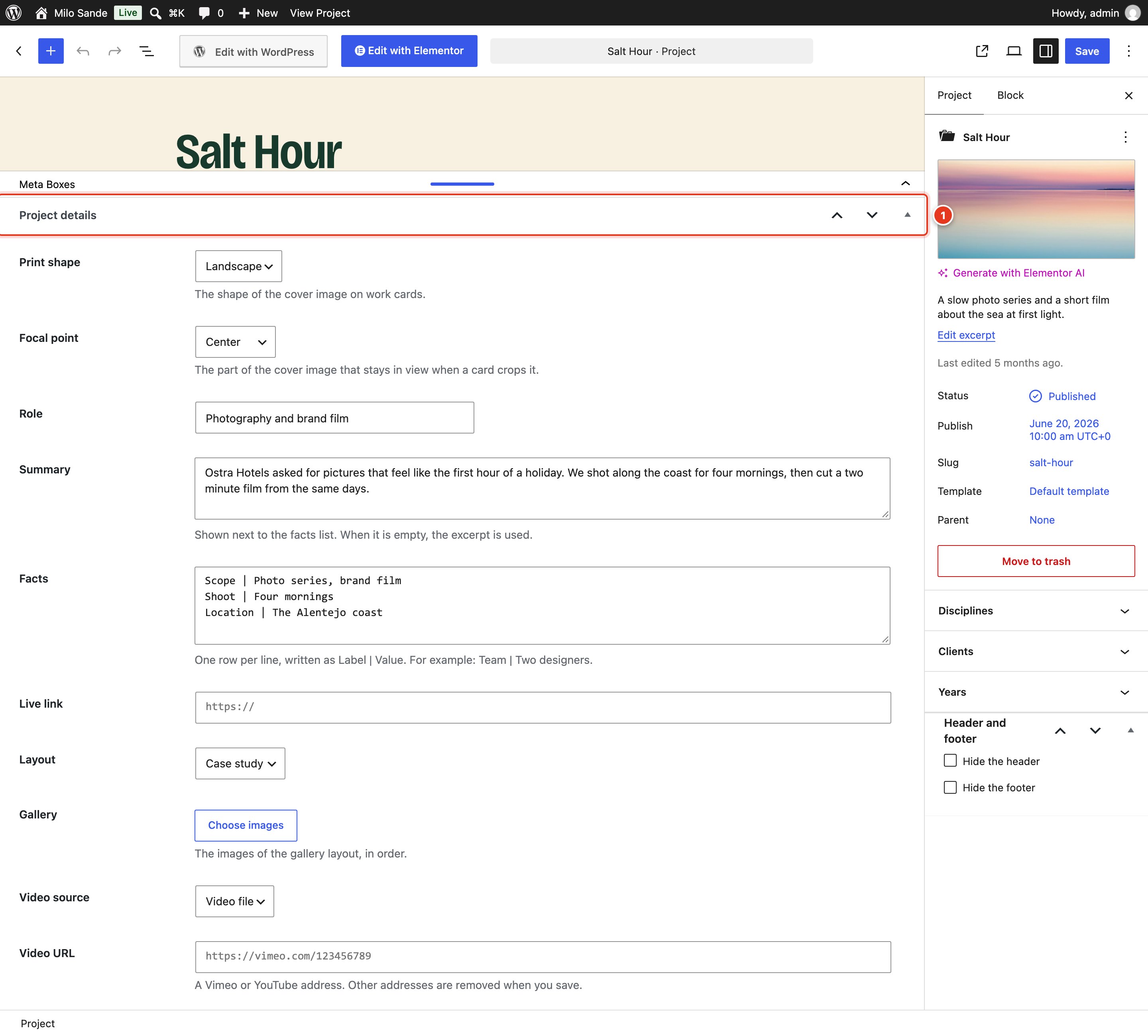
- The Project details box.
| Field | What it does |
|---|---|
| Print shape | The shape of the cover image on work cards: Square (1:1), Landscape (3:2), Portrait (4:5), or Wide (16:9). Mixed shapes give the moving columns their loose look. Some layouts use one shape for every card, for example the grid layout of the work archive. |
| Focal point | The part of the cover image that stays in view when a card crops it: Center, Top, Bottom, Start side, or End side. "Start side" is the left in English and the right in a right-to-left language. |
| Role | What you did on the project, for example "Photography and brand film". It shows in the facts list. |
| Summary | A short text shown next to the facts list. When it is empty, the excerpt is used. |
| Facts | More rows of the facts list. Write one row per line as Label | Value, for example Team | Two designers. Up to 20 rows. |
| Live link | The address of the finished work, for example a website. The facts list shows it as a "Visit the live site" link that opens in a new tab. |
| Layout | The layout of the project page: Case study or Gallery first. See The project page. |
| Gallery | The images of the gallery layout. Click Choose images, select the images in the media library, and click Use these images. They show in the order you choose. Remove all empties the list. |
| Video source | No video, Vimeo, YouTube, or Video file. A video shows in the project hero of the case study layout, behind the cover image and a "Play the film" button. |
| Video URL | The Vimeo or YouTube address, for example https://vimeo.com/123456789. Other addresses are removed when you save. |
| Video file | A video from the media library, used when the source is Video file. Click Choose a video. MP4 works in every browser. |
Nothing loads from Vimeo or YouTube until a visitor clicks the play button. YouTube videos play from YouTube's no-cookie address.
The Header and footer box in the sidebar can hide the header or the footer on this project only. See Header and footer.
Disciplines, clients, and years#
These three lists sort your projects. A project can have several of each. Type a name in the sidebar box and press Enter, or manage the lists under Projects > Disciplines, Projects > Clients, and Projects > Years.
| List | What it holds | Where it shows |
|---|---|---|
| Disciplines | The kind of work. The demo uses Identity, Photo, Spaces, and Product. | The discipline filter, the meta line on cards and in the project head, and the facts list. |
| Clients | Who the work was made for. | The facts list and the client column of the work list. |
| Years | The year of the work. When you leave it empty, Quire fills in the year of the publish date when you save. | The meta line, the facts list, and the Work index widget. |
Each discipline, client, and year also has its own page that lists its projects, at /discipline/identity/, /client/ostra-hotels/, and /year/2026/. A discipline page looks like the work archive, with the discipline's name as the title and its description as the intro. It has no filter, because every project on it has the same discipline.
The order of projects#
The work archive and the next project link sort projects by their Order number: lower numbers come first. Projects with the same number are sorted newest first. To change the number, go to Projects, hover over a project, click Quick Edit, and change Order. Widgets that list projects have their own Order setting, where Project order uses this number.
The work archive#
The work archive is the page that lists all projects. It has a page head ("Selected projects", the title "Work", and the number of projects), then your projects in one of three layouts, then the page numbers or a "Load more" button.
Set it up in Appearance > Customize > Quire > Work.
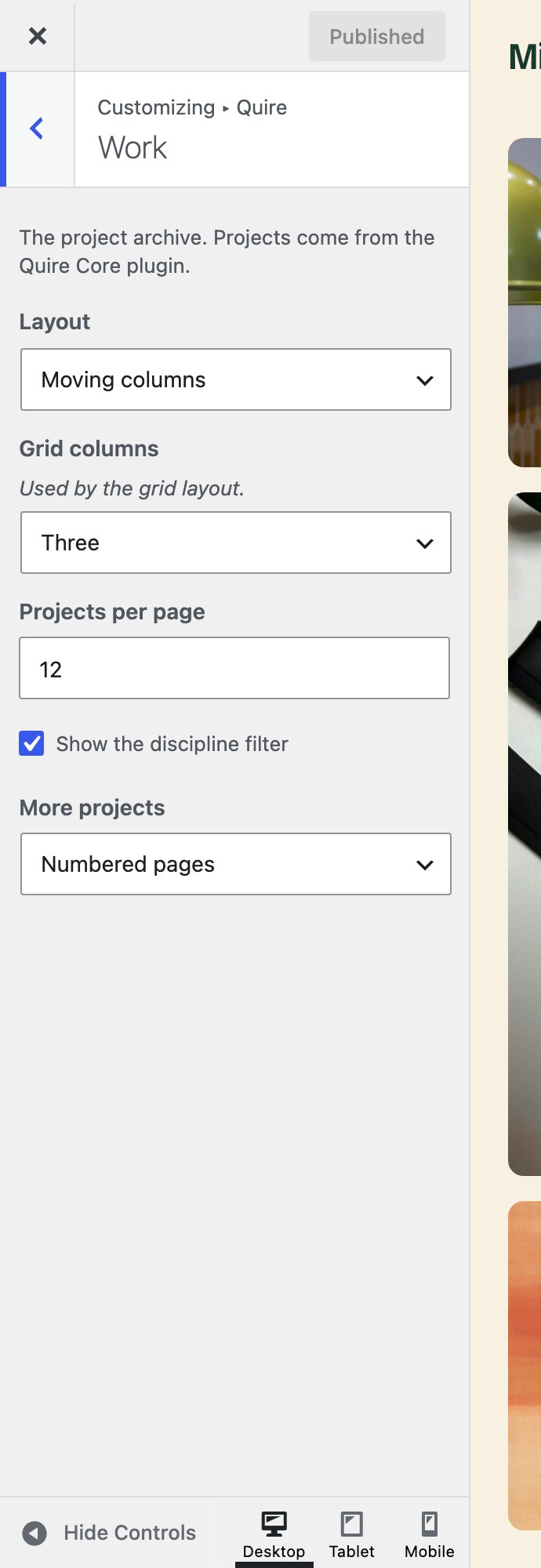
| Setting | What it does |
|---|---|
| Layout | Moving columns (the default): cards in columns that move at different speeds as the page scrolls. Grid: cards in even rows. List: one row per project with the discipline, the client, and the year. |
| Grid columns | Two, Three, or Four cards in a row. Used by the grid layout only. |
| Projects per page | From 1 to 48. The default is 12. |
| Show the discipline filter | A row of discipline buttons over the projects. On by default. |
| More projects | Numbered pages, or A "Load more" button that adds the next projects to the same page. |
The list layout always uses numbered pages. The other layouts also fall back to numbered pages when Projects per page is more than 24. Without JavaScript, the "Load more" button opens the next page.
The moving columns stand still when Moving work columns is off in Quire > Motion, and for visitors who ask their device for reduced motion. See Customizer settings.
The intro under the archive title reads "Every project, newest first." A developer can change the title with the quire_work_archive_title filter. See Child theme.
The archive address#
On a new site, the archive is at /work/, and each project's address starts with it, for example /work/salt-hour/. Change it on the Quire dashboard: go to Quire > Dashboard and scroll to Projects.
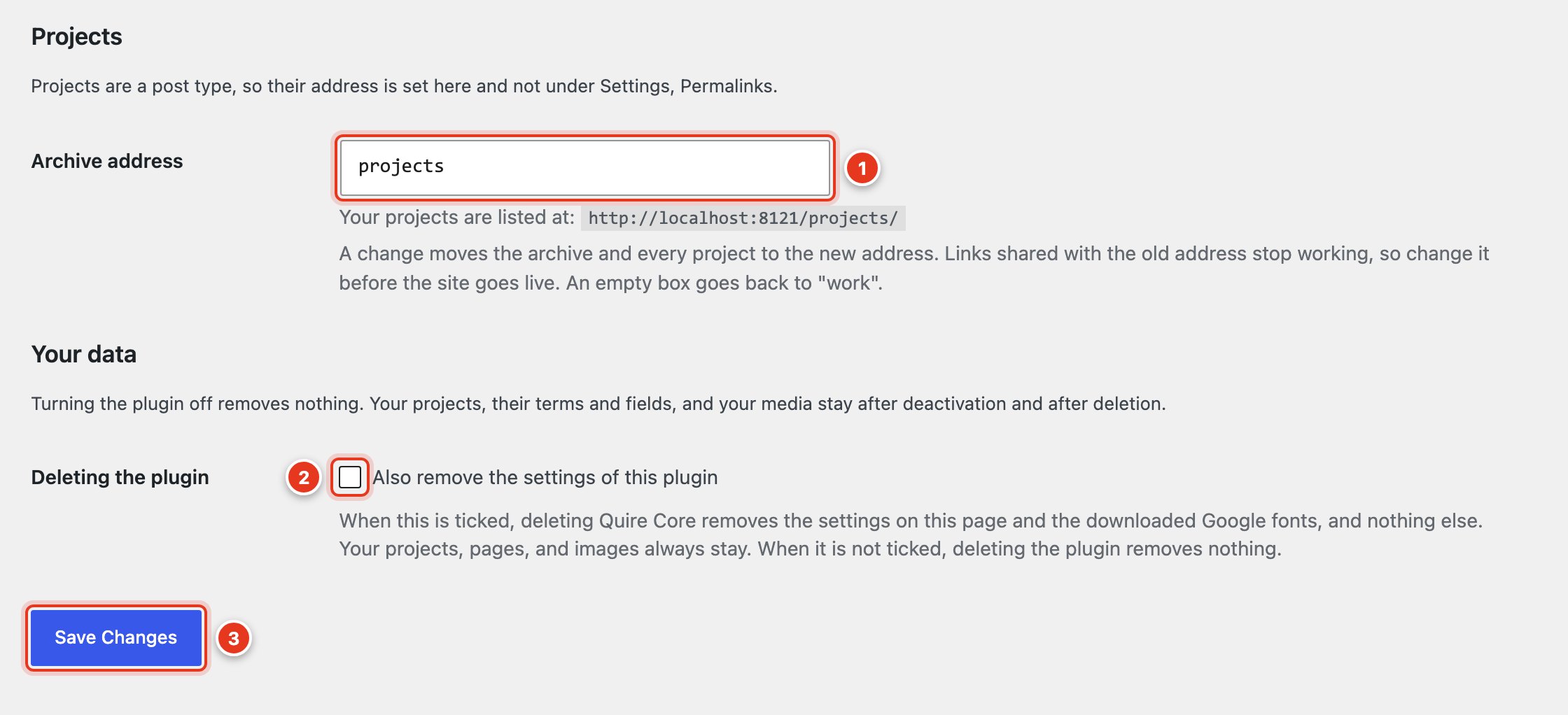
- Archive address: one word, for example
work,projects, orportfolio. The line under the box shows the full address. An empty box goes back towork. - Deleting the plugin: see Install the plugins. It does not change the archive.
- Click Save Changes.
A change moves the archive and every project to the new address. Links you shared before stop working. If a page uses the same address, the archive wins and that page can no longer be opened. The dashboard then shows a warning with the page's name.
The demo has a page named "Work" built with Elementor, and that page owns /work/. So the demo import changes the archive address to projects, and the demo projects live at /projects/salt-hour/ and so on. See Import the demo.
The project page#
Each project uses the layout chosen in its Layout field. Both layouts end with the share links (when Show share links under a post is on in Quire > Blog) and a large link to the next project.
Case study#
The default layout. From top to bottom:
- The project hero: the title, a meta line with the disciplines and the year, the excerpt, and the cover image. With a video, the cover image becomes the poster of the video, with a play button.
- The facts list: the summary, then the client, year, role, and discipline, then your Facts rows and the live link. Empty rows are left out.
- The project's own content. Content built with Elementor runs from edge to edge, so Quire widgets show as full bands. Text written in the block editor sits at reading width.
- The next project: a large band that links to the next project in the archive order. After the last project it goes back to the first.
Gallery first#
For photo series and other work that is mostly images. From top to bottom:
- A compact head: the meta line, the title, and the excerpt, with the facts list beside them.
- The gallery: the images from the Gallery field, as large prints. The first image runs across the full width, the next two sit side by side, and so on. A click opens the image in a lightbox with a counter and previous and next buttons. The caption of each image (set in the media library) shows under it. Without gallery images, the cover image is shown instead.
- The project's own content, then the next project.
The gallery layout does not show the project video. Use the case study layout for a project with a video, or add the Video widget to the project's content.
The hero, the facts list, and the next project link are the Project hero, Project facts, and Next project widgets. You can place them on any Elementor page and pick a project there. See The 65 widgets.
Password-protected projects#
To share a project with one client only, set the project's visibility to Password protected in the sidebar of the editor and enter a password. Visitors then see the title and a password field until they enter the password.
Show projects on other pages#
Several Elementor widgets read your projects. Work columns, Work grid, Work list, Work index, and Carousel list them: all of them, the projects of one discipline, or projects you pick by hand. Featured project shows one project large. In a widget area, the Quire: Recent projects sidebar widget shows a few projects as small prints. See The 65 widgets and Site basics.
Quire 1.0.0 documentation, updated 2026-11-07. Online at quire.jawad.work/docs/.